Participating Frequently
February 25, 2019
Answered

Edit suites have new SAN - all media needs to be relinked

  • February 25, 2019
  • 2 replies
  • 1367 views

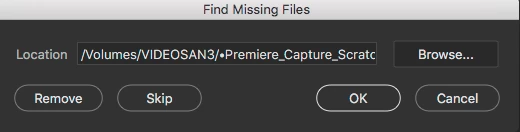
Hi, I'm having an issue that I hope has a solution. All my media has been moved to a new SAN with a new file folder structure. I am fine with relinking to the new folders, but when I'm in the "content" window and it has the 'fix" button next to ## missing files detected, when I click the "fix"button it doesn't give me a complete path name. So I can't tell what file it's trying to relink to. I don't know how to work around this. I have over 3600 files I had organized and keyworded that I fear I will no longer be able to access via Bridge anymore. Here's a screencap of the window I'm getting when I hit "fix." Nothing I can do will extend the window. Thanks in advance. This is the latest version of Bridge on a Mac. High Sierra. If that matters.  Steve
This topic has been closed for replies.
Correct answer Michael Bullo

Here's a Vimeo link to me trying to reconnect my clips.

bridge_no_relink on Vimeo


From your video I can see that you can click inside the box and move around. Have you tried selecting everything and then copying?

  1. Place cursor inside box
  2. Command/Control + A
  3. Command/Control + C
  4. Paste into another application

2 replies

Michael Bullo
Community Expert
Community Expert
March 1, 2019

Silly questions I know, but…

Can you click inside the box showing the location? If you can then can you use the arrow keys to move to the end of the line to reveal the file name you need?

Can you click inside the box and drag with your mouse to reveal more of the location information?

Participating Frequently
March 1, 2019

Ha - wish it was that simple.

No. I can click inside the box, but it doesn't scroll left like most navigation boxes I've ever interacted with. It just disappears to the right of the last visible character. And there are no grab bars to extend the box in any direction. I have 3 monitors so was hoping to drag it out to reveal the full path.

If, when I clicked the browse button it actually showed me what I'm trying to link to (like most every other app) I could discover the answer that way, but alas it just gives me a generic finder search window with no information.

Any other thoughts? Maybe I should do a screen grab video to show you exactly what I'm talking about. I don't know if Adobe lets me attach a video or not. I'll try.

Participating Frequently
March 1, 2019

Here's a Vimeo link to me trying to reconnect my clips.

bridge_no_relink on Vimeo

Adobe Employee
February 26, 2019

Hi ,

Please click on Browse button which take you to the current selected location in this dialog via finder.

Now choose the updated path of the file and select OK.

Regards,

Abhishek Seth.

Participating Frequently
February 26, 2019

Hi Abhishek,

Maybe my question wasn't clear. I have hit the browse tab -- I have relinked clips this way in the past many times, but the file path is always truncated, so I can't tell what file it is trying to locate. There are literally several more layers of folders in the path that are not viewable in the "location" tab. Not in the attachment above or when I hit the browse button. When I hit the browse button I just get a window that gives me my entire SAN, with no information as to what I'm supposed to be browsing for.

To be even more detailed -- the screencap above, where it says /Volumes/VIDEOSAN3/•Premiere_Capture_Scratch, that is an old folder structure that doesn't exist anymore. What I NEED is the end of that location, where the file name is listed. Those files are exactly the same. But I cannot find a way in the newest version of Bridge to get LOCATION to show me a complete path.

I hope this makes sense.