
Participant
Nov 23, 2026 11:42 AM UTC
Question

excessive slowness of the bridge

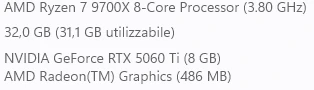
Due to a change in my Windows operating system, I was forced to switch to a recent version of Bridge (16). I had always used version 12 because of its speed, but from version 13 onwards, I stopped updating because it became as slow as a dinosaur. Now, I can no longer find version 12 among the available options. I reached out to Adobe to try and resolve these performance issues and followed all their instructions; however, even though I have a modern and very powerful computer, the software is exhaustingly slow when generating previews. Does anyone know how to go back to version 12, or how to fix these speed issues? It has become completely unusable.
 

    4 replies

    CORCTON
    Community Expert
    Community Expert
    Nov 25, 2026 6:07 PM UTC

    Hi, sorry to hear the older-version route didn't work out — and thanks for the update.


    Since that route is closed, the next thing worth working through is Adobe's own troubleshooting for slow Bridge performance, in the order they list it:


    https://helpx.adobe.com/bridge/desktop/troubleshoot/troubleshoot-errors-freezes-bridge.html


    The steps from that document that matter most when preview generation is the bottleneck:


    1. Reset preferences and purge the cache — start Bridge and immediately hold Ctrl+Alt+Shift, then tick all three options (Reset Preferences, Reset Standard Workspaces, Purge Entire Thumbnail Cache).

    2. Disable startup scripts (Edit > Preferences > Startup Scripts > Disable All).

    3. Turn off the Preview, Metadata and Folders panels (Window menu) while browsing — they cost resources every time Bridge generates thumbnails.

    4. In Edit > Preferences > Thumbnails, set "Do Not Process Files Larger Than" to something like 100 MB, so very large files don't get full previews.


    If Adobe Support already had you do some of these, could you say which ones? And roughly how large are the files in the folders that crawl — are they large RAWs? That would help narrow down whether step 4 is the one to focus on.

    Translate
    Participant
    Nov 25, 2026 6:12 PM UTC

    Hello, and thank you for your response. I have already tried all these steps, following the guides and instructions provided by Adobe support, but to no avail. I even switched to a different PC in the meantime, yet the problem persists. Adobe support has acknowledged that, unfortunately, recent versions of Bridge have become excessively slow—a known issue on their end. Bridge is no longer of any use; it’s completely pointless. What good is a file viewer that takes so much time just to display a preview? You might as well just open the files directly in the software where you intend to work on them.

    Translate
    Participant
    Nov 24, 2026 5:58 AM UTC

    Ever since version 13, Bridge has become so slow—and version 12 is no longer available. I’ve already tried this solution, but it didn’t help. I have to wonder: what’s the point of software that can’t even be used on a powerful, up-to-date machine? It might as well be removed. I am very disappointed with Adobe.

    Translate
    CORCTON
    Community Expert
    Community Expert
    Nov 24, 2026 12:06 AM UTC

    Hi,


    You can install an older version from the Creative Cloud desktop app:

    1. Open the Creative Cloud desktop app, go to Apps > Your apps.

    2. On the Bridge tile, select More actions (…) > Other versions.

    3. Find the version you want in the list and select Install.


    One important caveat: Adobe says the available versions vary by app and depend on which releases are currently supported and distributed — so Bridge 12 may simply not be in that list anymore. If it isn't listed there, it can't be installed that way.


    Adobe's help page: https://helpx.adobe.com/download-install/apps/download-install-apps/creative-cloud-apps/install-previous-versions-creative-cloud-apps.html

    Translate