Looking at Paul Riggott's original Find Replace In Description script, I noticed that it runs this command when it loads: app.document.chooseMenuItem("PurgeCacheForSelected");
I'm guessing that there was a problem with metadata edits not always displaying and that purging the cache solved that. Ineed, I experienced the same blank Description as
@mikejlkemp after running Find Replace In Description. I then manually purged the cache and the edited Description displayed.
Riggott's script used a simple XMP write method: md.description = . It might be that this does not work well in Bridge 2022. I changed the script to use the xmp.serialize method and that seems to work better.
#target bridge
if( BridgeTalk.appName == "bridge" ) {
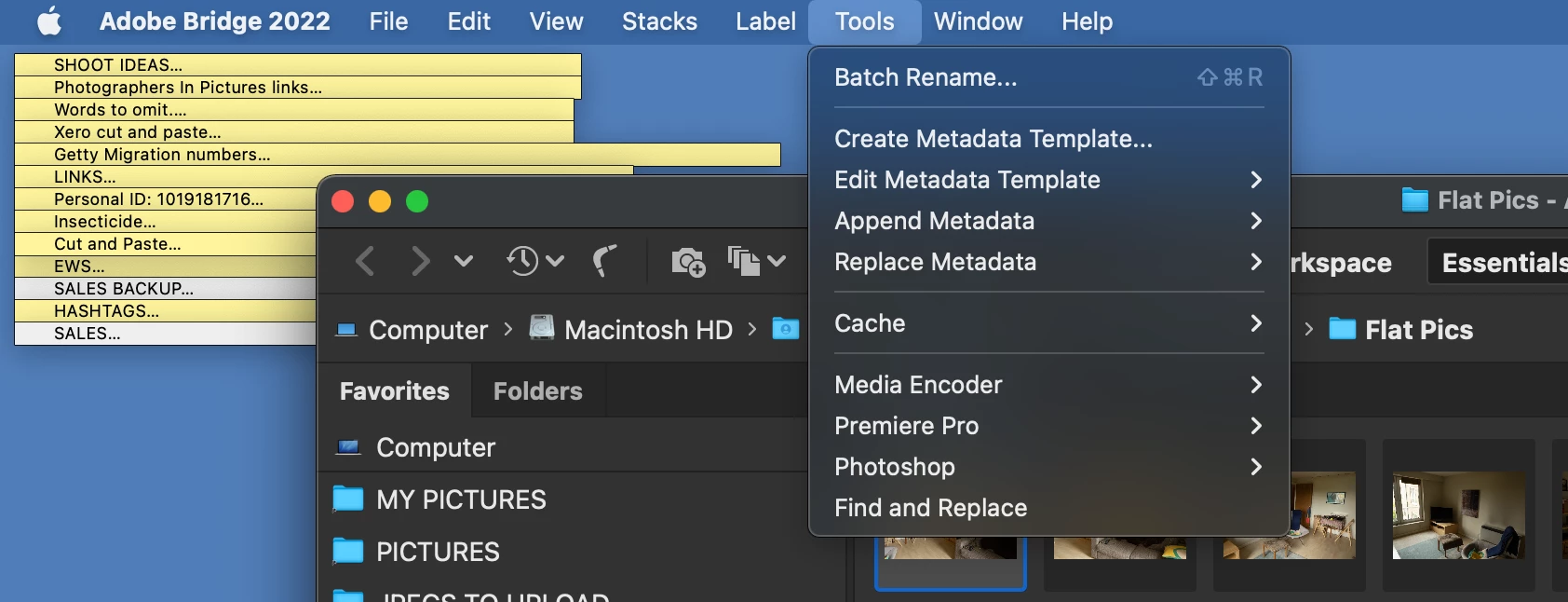
ReplaceDescription = new MenuElement("command", "Find and Replace Description/Caption", "at the end of tools");
}
 // Load the XMP Script library
if( !xmpLib){
	if( Folder.fs == "Windows" ){
		var pathToLib = Folder.startup.fsName + "/AdobeXMPScript.dll";
	}
	else{
		var pathToLib = Folder.startup.fsName + "/AdobeXMPScript.framework";
	}
	var libfile = new File( pathToLib );
	var xmpLib = new ExternalObject("lib:" + pathToLib );
}
ReplaceDescription.onSelect = function () {
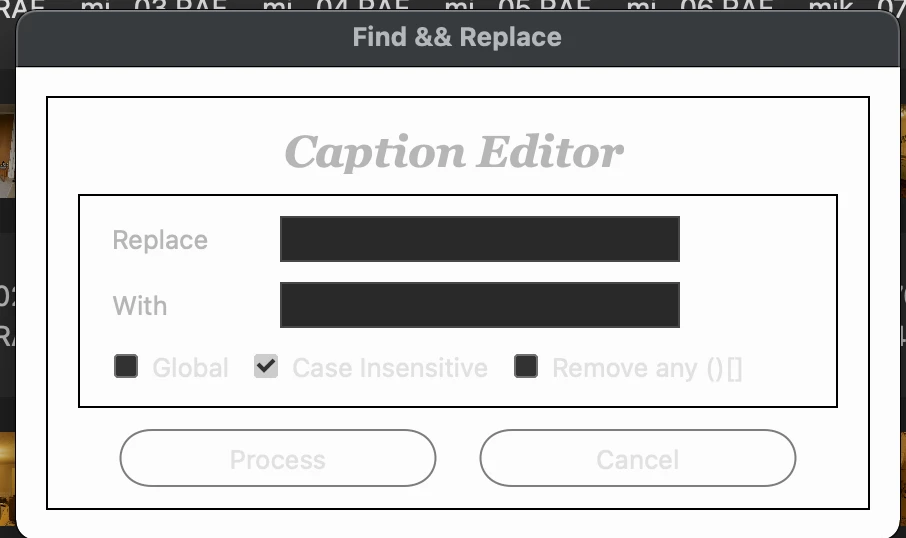
var win = new Window( 'dialog', 'Find & Replace' );
//g = win.graphics;
//var myBrush = g.newBrush(g.BrushType.SOLID_COLOR, [0.99, 0.99, 0.99, 1]);
//g.backgroundColor = myBrush;
win.orientation='column';
win.p1= win.add("panel", undefined, undefined, {borderStyle:"black"});
win.p1.preferredSize=[380,100];
win.g1 = win.p1.add('group');
win.g1.orientation = "row";
win.title = win.g1.add('statictext',undefined,'Description/Caption Editor');
win.title.alignment="fill";
var g = win.title.graphics;
g.font = ScriptUI.newFont("Georgia","BOLDITALIC",22);
win.p6= win.p1.add("panel", undefined, undefined, {borderStyle:"black"}); //Replace
win.p6.preferredSize=[380,100];
win.g600 =win.p6.add('group');
win.g600.orientation = "row";
win.g600.alignment='fill';
win.g600.st1 = win.g600.add('statictext',undefined,'Replace');
win.g600.st1.preferredSize=[75,20];
win.g600.et1 = win.g600.add('edittext');
win.g600.et1.preferredSize=[200,20];
win.g610 =win.p6.add('group');
win.g610.orientation = "row";
win.g610.alignment='fill';
win.g610.st1 = win.g610.add('statictext',undefined,'With');
win.g610.st1.helpTip="Leave this field blank if you want to remove the characters";
win.g610.st1.preferredSize=[75,20];
win.g610.et1 = win.g610.add('edittext');
win.g610.et1.preferredSize=[200,20];
win.g620 =win.p6.add('group');
win.g620.orientation = "row";
win.g620.alignment='fill';
win.g620.cb1 = win.g620.add('checkbox',undefined,'Global');
win.g620.cb1.helpTip="Replace all occurrences of";
win.g620.cb2 = win.g620.add('checkbox',undefined,'Case Insensitive');
win.g620.cb2.value=true;
win.g620.cb3 = win.g620.add('checkbox',undefined,'Remove any ()[]');
win.g620.cb3.value=false;
win.g1000 =win.p1.add('group');
win.g1000.orientation = "row";
win.g1000.alignment='center';
win.g1000.bu1 = win.g1000.add('button',undefined,'Process');
win.g1000.bu1.preferredSize=[170,30];
win.g1000.bu2 = win.g1000.add('button',undefined,'Cancel');
win.g1000.bu2.preferredSize=[170,30];
win.g1000.bu1.onClick=function(){
if(win.g600.et1.text == ''){
    alert("No replace value has been entered!");
    return;
    }
 win.close(0);
var sels = app.document.selections;
for(var a in sels){
var thumb = sels[a];
// Get the metadata object
md = thumb.synchronousMetadata;
    // Get the XMP packet as a string and create the XMPMeta object
    var xmp = new XMPMeta(md.serialize());

if(win.g620.cb1.value && !win.g620.cb2.value) var patt = new RegExp (win.g600.et1.text.toString(),"g");
if(!win.g620.cb1.value && win.g620.cb2.value) var patt = new RegExp (win.g600.et1.text.toString(),"i");
if(win.g620.cb1.value && win.g620.cb2.value) var patt = new RegExp (win.g600.et1.text.toString(),"gi");
if(!win.g620.cb1.value && !win.g620.cb2.value) var patt = new RegExp (win.g600.et1.text.toString());

        // Read existing dc:description property
        var Caption = xmp.getArrayItem(XMPConst.NS_DC,"description", 1);
        // Change existing dc:description property based on user input
        var result=patt.test(Caption.toString());
        if(result == true){
            var newCaption = Caption.toString().replace(patt,win.g610.et1.text.toString());
            if(win.g620.cb3.value)  newCaption = newCaption.replace(/["'\(\)]/g, "");
            }
		// Delete the dc:description property
		xmp.deleteProperty(XMPConst.NS_DC, "description");
		// Populate the new dc:description property and set lang to x-default
		xmp.appendArrayItem(XMPConst.NS_DC, "description", newCaption, 0, XMPConst.ALIAS_TO_ALT_TEXT);
		xmp.setQualifier(XMPConst.NS_DC, "description[1]", "http://www.w3.org/XML/1998/namespace", "lang", "x-default");

/*
    // Paul Riggott's original write method
md.namespace =  "http://purl.org/dc/elements/1.1/";
var Caption = md.description ? md.description[0] : "";
if(Caption == "") continue;
var result=patt.test(Caption.toString());
if(result == true){
    var newCaption = Caption.replace(patt,win.g610.et1.text.toString());
    if(win.g620.cb3.value)  newCaption = newCaption.replace(/["'\(\)]/g, "");
    md.description='';
    md.description = newCaption;
        }
 */
 	// Write the packet back to the selected file
	var updatedPacket = xmp.serialize(XMPConst.SERIALIZE_OMIT_PACKET_WRAPPER | XMPConst.SERIALIZE_USE_COMPACT_FORMAT);
	thumb.metadata = new Metadata(updatedPacket);
    }
}
win.show();
//app.document.chooseMenuItem("PurgeCacheForSelected");
};




 AdChoices