
How do I import star ratings from Lightroom to Bridge
I will run down the workflow I need to use first to make the issue clear.
1) I open the folder of Raw files in Bridge and add the metadata (copyright description etc) that will be read by the site when they're uploaded.
2) All the images in Bridge get a star rating (1=mistake, 2=maybe, 3=To be processed)
3) Open Lightroom and import all the 3 star images to be processed.
4) Once all the 3 star images are processed in LR, they are edited further, and all those going on the website get a 4 star rating.
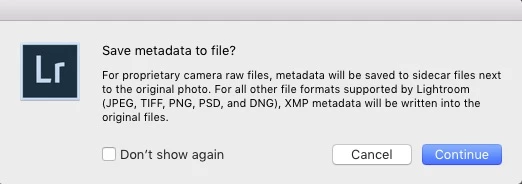
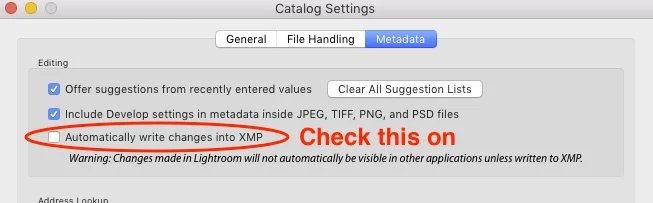
My problem is that the images upgraded to 4 stars in LR, are still showing in Bridge as having 3 stars. I want to change the star ratings in Bridge to reflect the updates in LR. That way if one of the designers opens the folder in Bridge to browse for certain files, they will know which ones made the edit and got processed fully in LR and maybe edited further in PS. I tried to manually change the necessary images in Bridge to 4 stars, but that created those 4 star images in LR to gain an exclamation mark on them warning there is a conflict in the metadata. If I click on the exclamation mark and "import from disk", then I lose all the processing I did in LR.
Is there a way to batch import or automatically import just the updated 4 star rating from LR to Bridge without losing any of the work I did in LR or PS? !


 AdChoices