Participant
June 11, 2014
Answered

How do I remove a number sequence using batch rename

  • June 11, 2014
  • 4 replies
  • 42610 views

Hi

I know I've done this in the past but cannot seem to work it out today.

I have a series of images "_####_[layercompName].png".  I would like to remove the underscores and numbers.  The underscores removal is easy, but how do I remove the numbers (####) when they are different for each filename?  I would like the end result to be [layercompName].png

The reason I have these filenames in the first place is that I have run the photoshop script "layer comps to files", and this adds a number sequence prefix.  I have tried to alter the script following various instructions I've found from trawling the internet (this one included How do you remove the number sequence when exporting layer comps to files? CS6. Windows 8.) but without any luck.  So now I'm resorting to batch renaming in Bridge.

Thanks!

This topic has been closed for replies.
Correct answer Stephen Marsh

i mean this

A16070_0HAYT_9XX-50.png
A16066_0GRAI_9XX-51.png
A16228_0IAJH_100-50.png


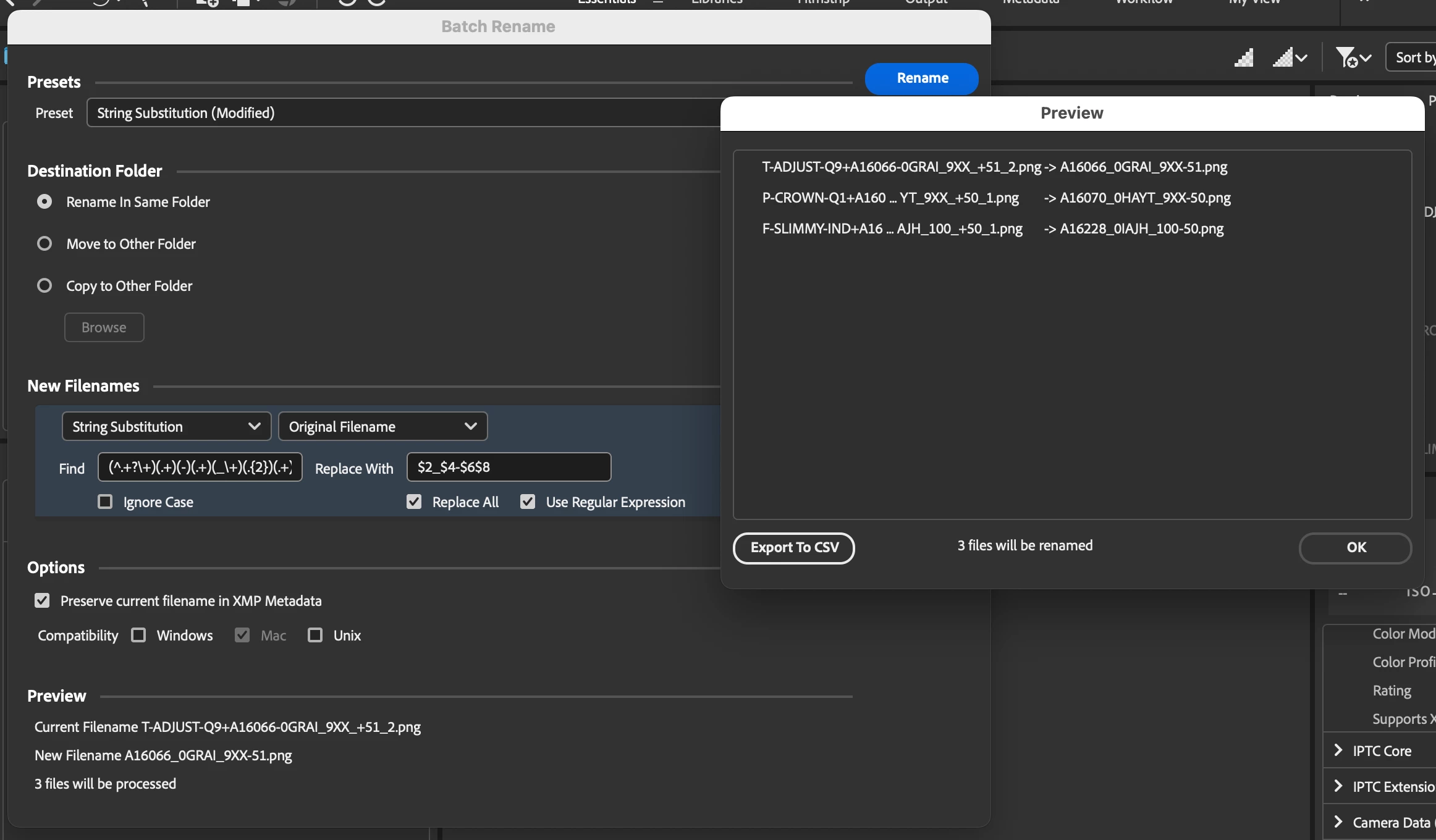
@yuri5 – I like the answer from @gregreser – however, here is another equivalent method for the regular expression find and replace using capture groups:


Find:

(^.+?\+)(.+)(-)(.+)(_\+)(.{2})(.+)(\.[^\.]+$)


Or perhaps "better", Find:

(^.+?\+)(.+)(-)(.+)(_\+)(.+)(_.+)(\.[^\.]+$)


Replace with:

$2_$4-$6$8


4 replies

Participating Frequently
February 15, 2024

Hi everyone I had searched a lot but can't find solution to this problem.

The final name should be this "A16228_0IAJH_100-50"

what do I need to add? I'm going crazy


Legend
February 15, 2024

For one file, just rename it. For MULTIPLE files, you HAVE TO find a pattern. What is the pattern that matches the other files you want to rename?

Participating Frequently
February 15, 2024

Thank for the response, a list like that

P-CROWN-Q1+A16070-0HAYT_9XX_+50_1.png
T-ADJUST-Q9+A16066-0GRAI_9XX_+51_2.png
F-SLIMMY-IND+A16228-0IAJH_100_+50_1.png


should become something like this

A16070_0HAYT_9XX_+50.png
A16066_0GRAI_9XX-51.png
A16228_0IAJH_100-50.png


Known Participant
September 14, 2017

Hello all! virtuaxe​ do you mind seeing if you can help me with my own issue with this problem?

Before knowing about RegEx + string substitution, I didn't think I'd be able to solve an issue of removing sequence numbers. I've created a thread with my issue here: Sequential reordering error fix?

Basically, I have files exported from Lightroom with sequence numbers appended to the front of the filenames. They used to represent the order of images in a book layout I was doing. When things moved around... I didn't know how to rename all the files at once given they already had sequence numbers in the filenames, and changing even just one file would disrupt everything. I hope that makes sense.

Unfortunately this method doesn't work for me- I've attached a screengrab of my bridge window here. I'm thinking this issue is stemming from the fact that bridge cannot find the original filename in my files, given they were exported from Lightroom and not PS as layer comps.

Stephen Marsh
Community Expert
Community Expert
September 14, 2017

Your files have 3 leading digits, however the regex that you were using was looking for a fixed value of 4 digits. It also appears that you may have mistakenly added a space and an underscore at the beginning. So, if you add a caret ^ at the start and remove the leading space, leading underscore and change {4} to {3} it should work on all 3 digit strings.

The following code does not care how many number of digits, just as long as the filename starts with 1 or more digits and ends in an _ underscore (offers greater flexibility than hard coding in a specific number of fixed digits).

There are at least two valid approaches (notice the syntax highlighting to help understand what is going on):

Find: ^\d+_

Replace:

(blank, nothing)

Find: (^\d+_)(.+)

Replace: $2

P.S. It is usually a wise move to tick the box “Preserve current filename in XMP metadata” so that it is easy to undo the batch rename if something goes wrong (also use the preview button on the upper right to preview all files, rather than just the single file preview at the foot of the interface).

Participant
January 23, 2018

I have read all the posts, however, there use to be a way to manipulate the actual PSD code in the LIB.Html file so you can easily do an export to files and the sequence numbers would not apply.  You would need to do it everytime PSD Updated. Does anyone have that information?  I can't find my original code file.

Participant
October 24, 2014

Here you go, taken straight from: DesignEasy: How to Remove Sequence Numbers and Empty Spaces When Exporting Layers and Layer Comps

  1. Run Adobe Bridge and navigate to the folder with exported files.
  2. Select all files which have sequence numbers.
  3. Go to Tools > Batch Rename.
  4. Choose: String Substitution from the first drop-down list in New Filenamessection. From the second drop-down choose: Original Filename. In the Find: text field type: _\d{4}_ (underscore, backslash, letter d, open bracket, number four, closed bracket, underscore). Leave Replace with: text field blank. Ensure that you have Replace All and Use Regular Expression checked as shown on the screenshot below.
  5. Click on the Preview button in the top right corner and ensure that files will be renamed as you want.
  6. Click on Rename button and you are done.

Batch rename dialog with options to remove sequence numbers

In case you are first time doing this and you still have doubts if everything will work as expected, check Copy to other folder option when renaming files. This option is located near the top left corner under: Destination Folder.

Destination folder option

Another thing I want to mention is to remove everything that you have below String Substitution options. In case you see additional renaming options just click on minus (-) sign on the right side to remove them.

Remove options below string substitution

How to remove/substitute empty spaces in the file name using Adobe Bridge

It is pretty similar process. The only difference is that you should type: \s (backslash followed with letter s) in the Find: text field. You can leave Replace with: text field blank or to type underscore.

Remove empty spaces from the file name

OFFICER#88
Inspiring
August 5, 2016

Thank you very much! This is what i looked for Could i ask you for one more thing? What do those numbers mean? Is it some kind of script language? Thanks

Ofcourse88
Stephen Marsh
Community Expert
Community Expert
August 5, 2016

If you are referring to the “code” that is typed in once the “use regular expression” checkbox has been ticked:

Regular expression - Wikipedia, the free encyclopedia

Also known as GREP or RegEx for short.

Omke Oudeman
Participating Frequently
June 12, 2014

but how do I remove the numbers (####) when they are different for each filename? I would like the end result to be .png

Try Batch Rename String substitution.

Assuming your only numbers used are in the sequence number you could try to add a criteria for each number using the plus sign. So 1 for 0, another for 1, then 2, etc etc. Leave the replacement empty and if you add the underscore to the list it should be possible to do so in one go.

But for security first back up the files before messing around with it because same filenames overwrite each other often!.