Participating Frequently
August 14, 2024
Answered

How do I set Command+D to 'show desktop' in Adobe Bridge?

  • August 14, 2024
  • 2 replies
  • 446 views

I used to quickly see my desktop with Command+D on Mac. 
I don't know how to set this key command in preferences.
Any help would be much appreciated. 

This topic has been closed for replies.
Correct answer Jeff Arola

Shivani,


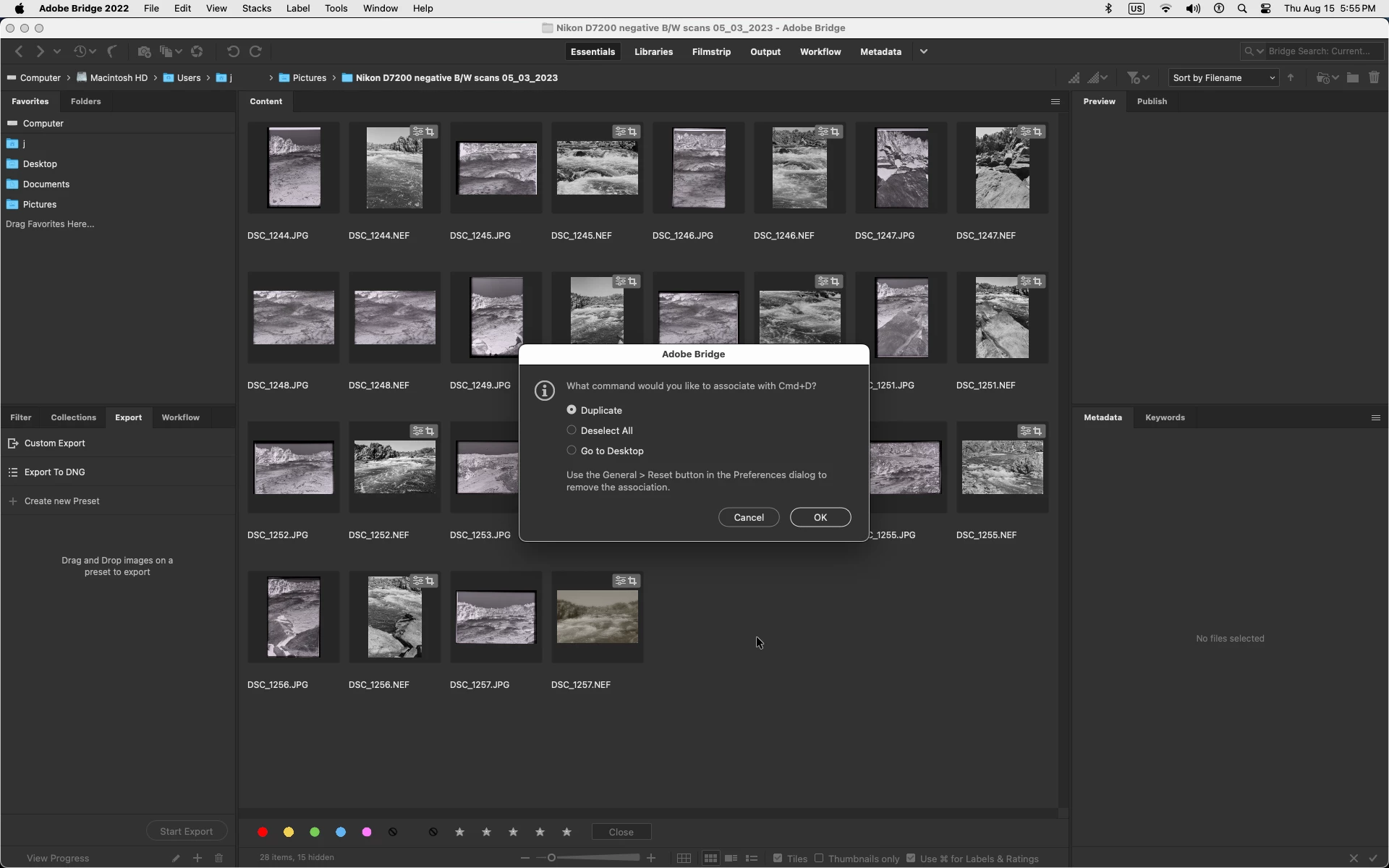
This the choice a user was given in Bridge 2022 and prior versions when pressing Cm+D


2 replies

Jeff Arola
Community Expert
Jeff ArolaCommunity ExpertCorrect answer
Community Expert
August 15, 2024

Shivani,


This the choice a user was given in Bridge 2022 and prior versions when pressing Cm+D


Participating Frequently
August 22, 2024

Correct. The first time a user opend Bridge after an update or clean install would present that option when pressing Cmd+D, and that would set that function until the next update or install.

Inspiring
August 15, 2024

Hey there, I'll help you figure this out. 


You can check here to learn Keyboard shortcuts of Bridge. https://adobe.ly/3X3MbUS;

& how to set default Keyboard shortcuts. https://adobe.ly/3WLvah4


Regards, 

Shivani 

Participating Frequently
August 15, 2024

Hi Shivani,


The problem is Adobe removed the 'Show desktop' function from the key commands menu. So even though I can select the key 'Command+D' to try and reallocate it, there is now 'Show Desktop' function to associate it with. 

I work with serverl extrenal drives and often need to go between them and my local hard drive. Always having to use breadcrumb navigation is slow and annoying. There used to be a Go to desktop function associated with Command+D in Bridge. Thanks, Chris.