
Participant
November 3, 2017
Question

How do you copy Keywords in New Bridge CC 2018?

  • November 3, 2017
  • 2 replies
  • 1388 views

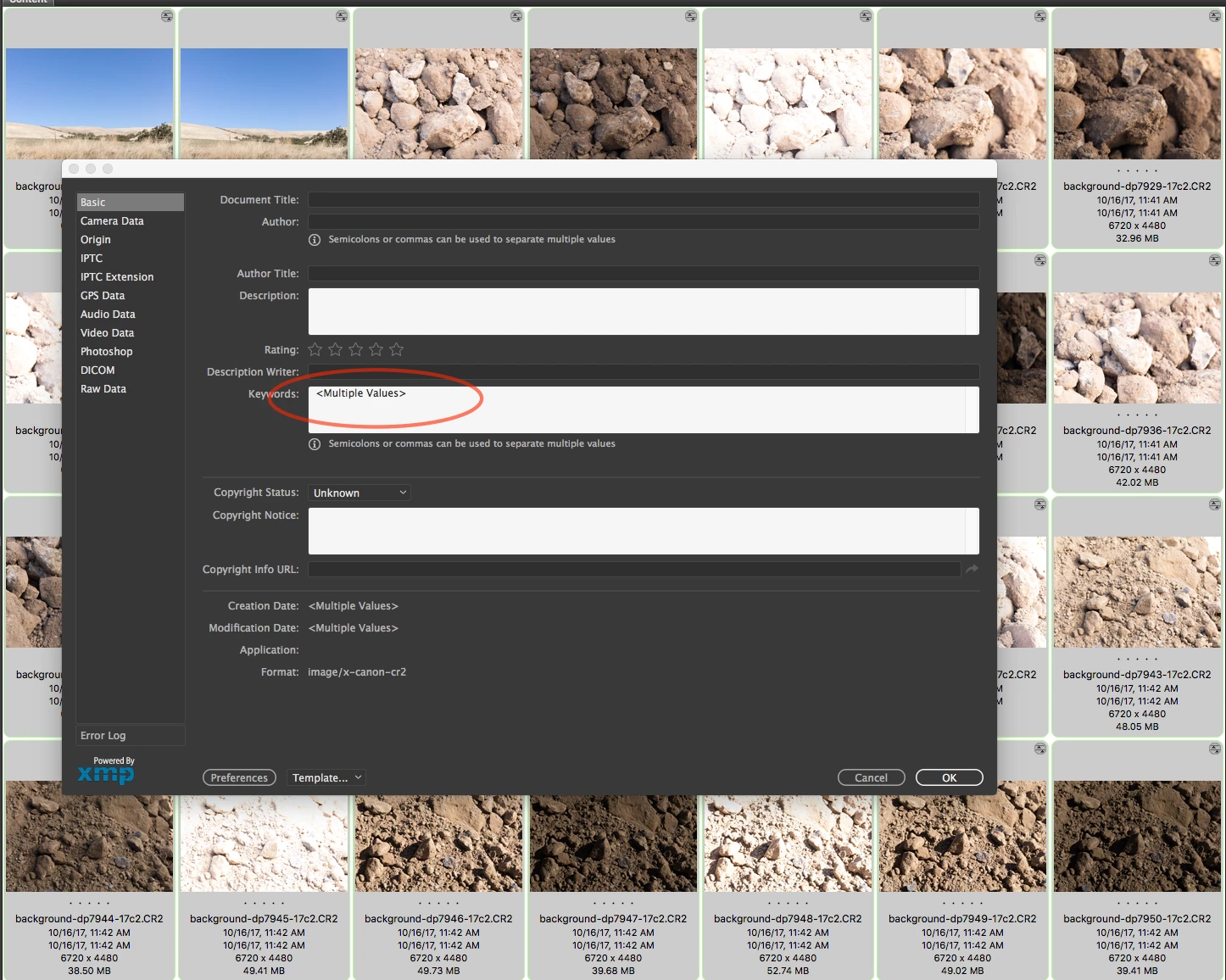
In previous version of Bridge, you could select multiple files, view info, click in the Keywords field, and copy ALL the keywords (when there were multiple values entered).

Now, with the new version, it only show that there's multiple values in the Keyword field. When you click in the field, it's just blank. The cursor enters the field. In Previous versions, it used to show you ALL the keywords applied to the images you have selected.

Is there any way to copy ALL the keywords you have applied to selected images, even when those images have different/multiple keywords (in the new version of Bridge)?
This topic is closed to new replies. Start a new post to keep the conversation going.

2 replies

Mohit Goyal
Community Manager
Community Manager
November 11, 2017

Hi FlintComm,

Please refer the below article and discussion related to this issue.

How to use keywords in Adobe Bridge

https://forums.submit.shutterstock.com/topic/41303-copy-and-paste-keywords-in-bridge/

Regards,

Mohit

FlintCommAuthor
Participant
November 13, 2017

Sorry Mohit,

but nothing in that article explains how to copy ALL the keywords applied to a group of images (when they have different keywords applied); like you used to be able to do in 2017.

Chuck