Participant
August 14, 2021
Answered

Importing my photos to Bridge

  • August 14, 2021
  • 2 replies
  • 341 views

I have Bridge v11 downloaded onto my new Mini M1.  I had an old version of LR on my dinosaur where I had somehow corrupted the library files beyond redemption by a luddite like me.  So now I have folders (mostly by year) with 8K+ photo files on my 1TB external SSD waiting to be introduced to Bridge.  Just for a change, I thought I'd ask for help instead of blundering ahead on my own.  Please enlighten. 

This topic has been closed for replies.
Correct answer gary_sc

Hi Chris,


This is going to be a radical change and you may not want it. You do not "Import" into Bridge, rather you just view files. Bridge is a great viewer mind you but it serves different functions than LR does. 


A number of years ago I wrote a 3-part introduction of Bridge. It's outdated in a number of ways at this point but enough of it is "good enough" to get you going. It's here: 


Bridge Part 1: Making Bridge Work for You - Customizing the Interface

https://community.adobe.com/t5/adobe-community-professionals/bridge-part-1-making-bridge-work-for-you-customizing-the-interface/td-p/4785280?page=1


Bridge Part 2: Working in Bridge

https://community.adobe.com/t5/adobe-community-professionals/bridge-part-2-working-in-bridge/m-p/4785278?page=1#M18


Bridge Part 3: Finding Your Images in Adobe Bridge

https://community.adobe.com/t5/adobe-community-professionals/bridge-part-3-finding-your-images-in-adobe-bridge/td-p/4785282?page=1


The one big thing I do need to warn you about though is that ALL of your corrections, adjustments, etc. are probably all gone as all that is/was contained in LRC's Catalog which you state is no longer viable. One question on this: did you ever make backups? If so, those should be around somewhere and if you have one of them you can see if that's still viable. 


Now mind you, since you are using an M1 Mini, the version of LR you used to have will not work on that at all. Another thing whether you're working on LRC or Bridge, you need to give permissions to access images on an external drive or even your Desktop. Follow the following instructions (Note: these are referring to Bridge but the same issues need to be done for any other application on your computer. And all this is from the MAC OS and does not have anything to do with the Mac Mini.:


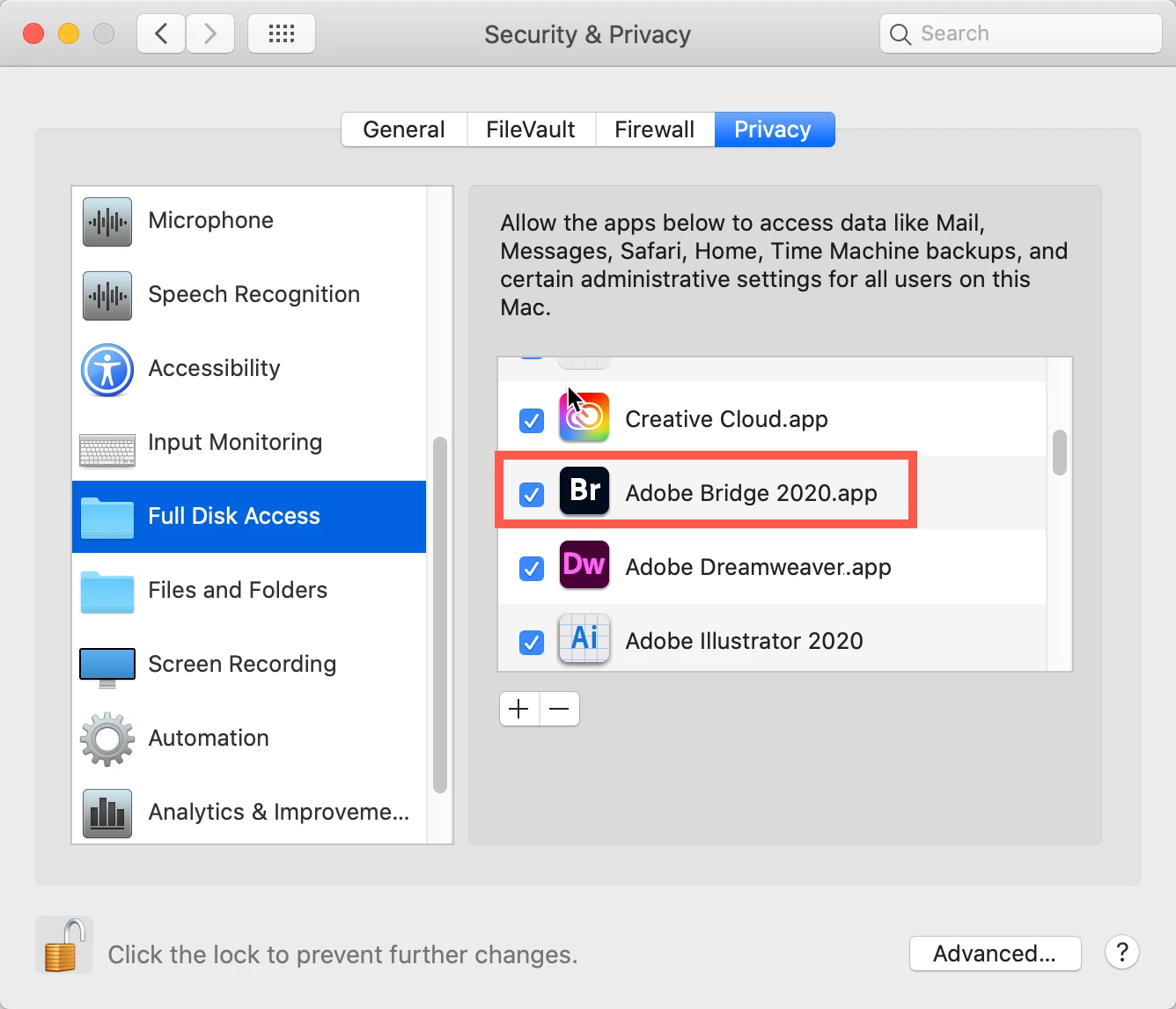
Go to your System Preferences and select Security and Privacy (found in the top section). Now click on the Privacy setting (last tab). Now click on the lock on the bottom left and provide your Administrator code. Now select the Full Disk Access option and click on the "+" symbol. This will bring up the standard Mac Open window and let you add any application you want or need to have full access. Look for Bridge, select it, it will now appear in that window and make sure it's checked. Next go to the Files and Folders option and do the same thing as above (although there's nothing to check, just add. Close everything down and see if that makes it all work.

Please let me know

[Note: these images are from an older OS, the process is the same.]


2 replies

gary_sc
Community Expert
Community Expert
August 15, 2021

Hi Chris,


I believe that unless you are logged into your Adobe account (on line) you might have problems reaching the links I provided. So you might want to link into Adobe.com and then try the links.


Sorry for the issue.

Chris5C63Author
Participant
August 15, 2021

Hi Gary,

I checked and I was and am logged in, and (again) am not able to access them ("access denied").


C

gary_sc
Community Expert
Community Expert
August 15, 2021

Let me see what's going on, I'll get back to you, sorry about this.

gary_sc
Community Expert
gary_scCommunity ExpertCorrect answer
Community Expert
August 14, 2021

Hi Chris,


This is going to be a radical change and you may not want it. You do not "Import" into Bridge, rather you just view files. Bridge is a great viewer mind you but it serves different functions than LR does. 


A number of years ago I wrote a 3-part introduction of Bridge. It's outdated in a number of ways at this point but enough of it is "good enough" to get you going. It's here: 


Bridge Part 1: Making Bridge Work for You - Customizing the Interface

https://community.adobe.com/t5/adobe-community-professionals/bridge-part-1-making-bridge-work-for-you-customizing-the-interface/td-p/4785280?page=1


Bridge Part 2: Working in Bridge

https://community.adobe.com/t5/adobe-community-professionals/bridge-part-2-working-in-bridge/m-p/4785278?page=1#M18


Bridge Part 3: Finding Your Images in Adobe Bridge

https://community.adobe.com/t5/adobe-community-professionals/bridge-part-3-finding-your-images-in-adobe-bridge/td-p/4785282?page=1


The one big thing I do need to warn you about though is that ALL of your corrections, adjustments, etc. are probably all gone as all that is/was contained in LRC's Catalog which you state is no longer viable. One question on this: did you ever make backups? If so, those should be around somewhere and if you have one of them you can see if that's still viable. 


Now mind you, since you are using an M1 Mini, the version of LR you used to have will not work on that at all. Another thing whether you're working on LRC or Bridge, you need to give permissions to access images on an external drive or even your Desktop. Follow the following instructions (Note: these are referring to Bridge but the same issues need to be done for any other application on your computer. And all this is from the MAC OS and does not have anything to do with the Mac Mini.:


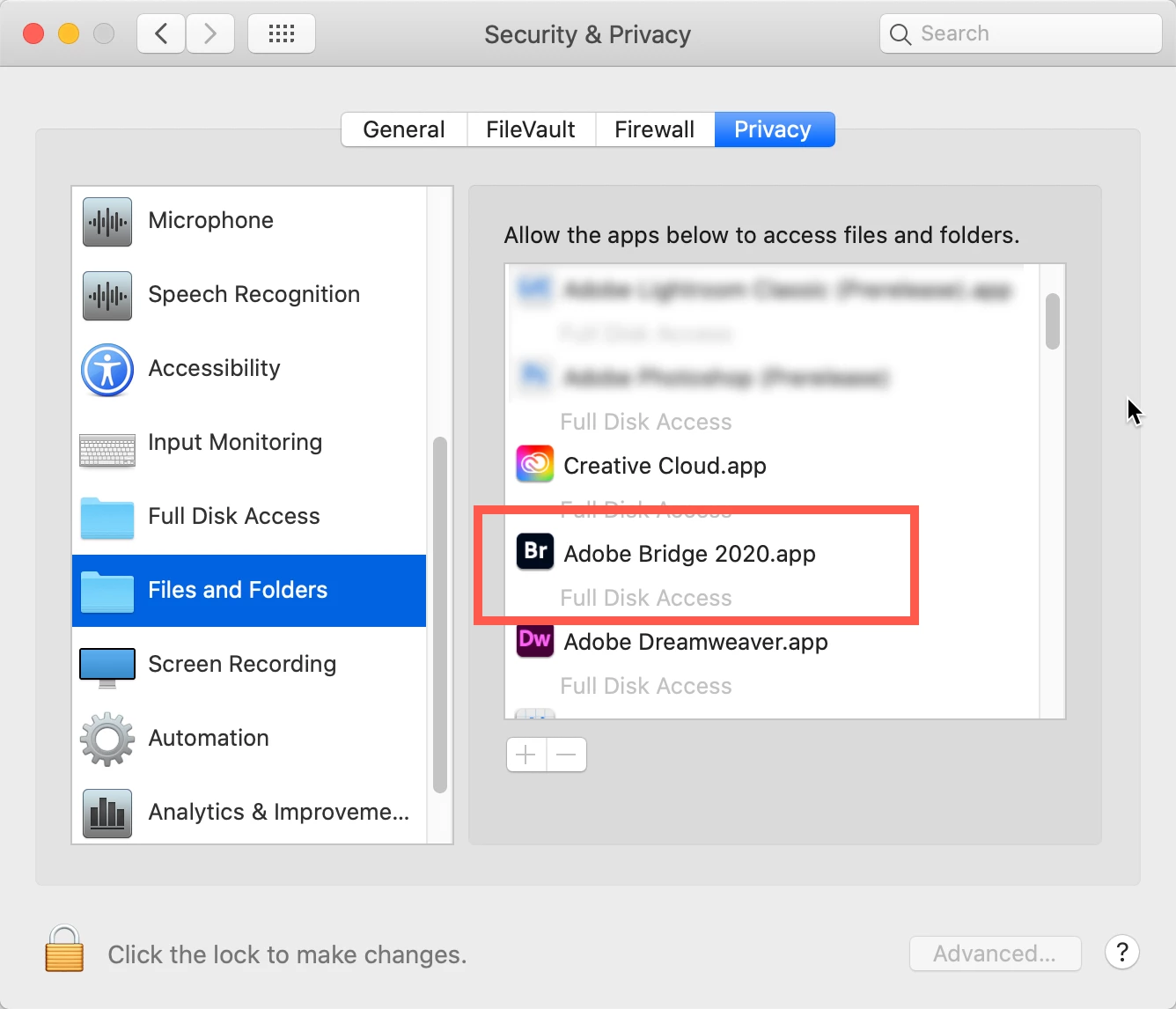
Go to your System Preferences and select Security and Privacy (found in the top section). Now click on the Privacy setting (last tab). Now click on the lock on the bottom left and provide your Administrator code. Now select the Full Disk Access option and click on the "+" symbol. This will bring up the standard Mac Open window and let you add any application you want or need to have full access. Look for Bridge, select it, it will now appear in that window and make sure it's checked. Next go to the Files and Folders option and do the same thing as above (although there's nothing to check, just add. Close everything down and see if that makes it all work.

Please let me know

[Note: these images are from an older OS, the process is the same.]


Chris5C63Author
Participant
August 15, 2021

Thanks for getting back to me Gary.  My interest in Bridge is the result of updating from a dinosaur and I had full knowledge that my LR adjustments wouldn't come with the image files.  This is not a problem because I really just used LR as an organizer (a DAM?) and the images I was using in my final products were maybe 1 in 50 of the collection.  I then kept them in separately organized folders external to LR.  This time around I just wanted an image organizer.  As my use is a long term "hobby" (no income source) I've transitioned to Affinity Photo for processing and hope Bridge will work as  a photo file organizer in a context  such as this.

I tried checking out the links last night (and this am) but they failed.

Following your instructions Re: OS Security and Privacy got me this far. . . . .

Following what you said about no actual import of photo files, I thought I'd see what showed up on Bridge based on intuitive choices and LR experience.  I got this far. . . . . .

Can't figure out how to delete the image above. Sorry wrong image.

It looks to me as though, in fact I've gotten where I want to go and now have to learn more about how to use Bridge effectively.  Or am I deluding myself. . . . .

C
