
Participant
October 28, 2022
Answered

Jpg Images saving as psd not jpg

  • October 28, 2022
  • 2 replies
  • 425 views

Since updating to the newest Bridge version, my jpegs are no longer saving as jpegs. I saw another similar post, but I'm not cropping the images. I'm just adjusting the exposure and color. Then when I select "Save," Bridge defaults to psd! I have to remember to Save a Copy, and then I can get my jpeg back. This is terrible! Especially when I'm working under deadline and forget to do the Save a Copy! My clients definitely want jpegs and not psds. Please advise.
This topic has been closed for replies.
Correct answer gary_sc

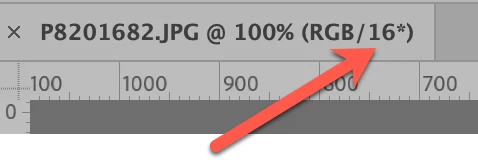
When you open that JPG up in ACR and then into PS, can you look at the tab for that image in PS and see if it shows a 16 or 8 bit image?


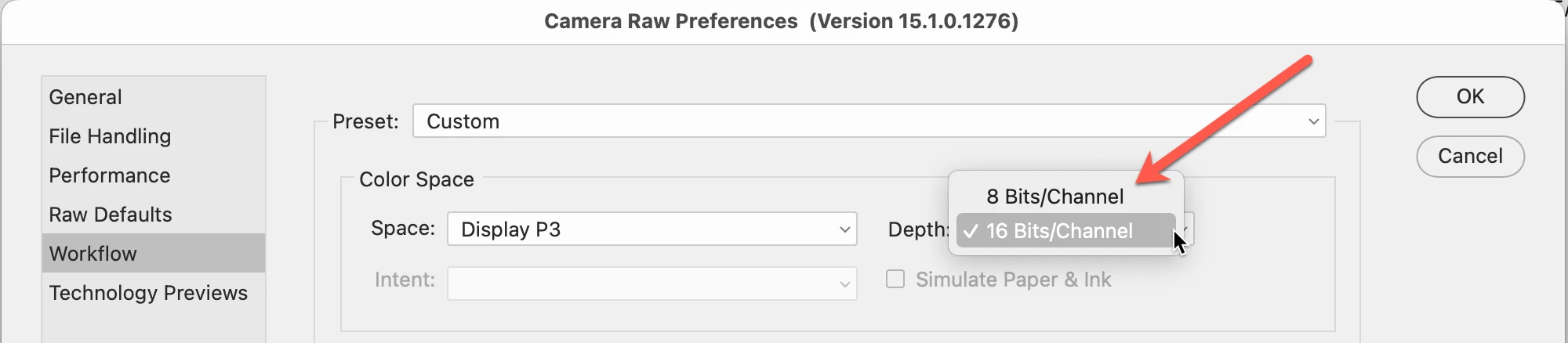
If it shows 16 as in my screenshot below, that's the issue because a JPG cannot be a 16 bit image. What you need to do to fix this is to go back to Bridge, and go to where your preferences are located (on the Mac it's under the Bridge name in the menu area, on the PC it's under the (I think) Edit menu.) and look for Camera Raw Preferences.


Go to workflow and switch from 16 to 8 bit. as shown in the Screen shot below.

Let us know if this solves the issue.

2 replies

Participant
November 3, 2022

OMG. Thank you for asking this question. THE EXACT SAME THING HAPPENED to me!!  I was getting so frustrated so I am grateful that you asked and SO SO grateful to gary_sc for answering.  Fixed it right up.  YAY!!!

Participant
November 4, 2022

I'm so glad we could help you out!

gary_sc
Community Expert
Community Expert
October 28, 2022

HI @cindys58554739 can you verify that when you initially try to save the jpg that you have not added any layers to the image? Thanks.

Participant
October 28, 2022

Hi Gary, I'm not adding any layers that I'm aware of. This is my basic workflow:  I open a jpeg in raw using command R. I usually start out using the Auto settings and adjust from there. I sometimes add sharpness and reduce the noise, and then I launch into Photoshop for final adjustments and save the image.

gary_sc
Community Expert
gary_scCommunity ExpertCorrect answer
Community Expert
October 28, 2022

When you open that JPG up in ACR and then into PS, can you look at the tab for that image in PS and see if it shows a 16 or 8 bit image?


If it shows 16 as in my screenshot below, that's the issue because a JPG cannot be a 16 bit image. What you need to do to fix this is to go back to Bridge, and go to where your preferences are located (on the Mac it's under the Bridge name in the menu area, on the PC it's under the (I think) Edit menu.) and look for Camera Raw Preferences.


Go to workflow and switch from 16 to 8 bit. as shown in the Screen shot below.

Let us know if this solves the issue.