Inspiring
November 17, 2022
Answered

Latest Bridge navigation annoyances

  • November 17, 2022
  • 2 replies
  • 502 views

I updated to the latest Bridge. I like the ability to have multiple panels a lot, but working with this version is very painful.

1) When I delete a file in the main panel, the display scrolls up to the very first image in the folder, then snaps back to its original location. This can take about a second, or more depending on how many images there are.

2) This one is worse: when I delete an image file from the main panel, or move one or more to another folder (which could be a sub-folder of the folder the images are in), the folder windows scrolls to the very TOP and stays there. I need to scroll down a gazillion folders to get back to the folder that I was working with. I can click on "previous" folder etc. to save some scrolling, but this is still very annoying. Also, it does not matter how I move the file(s): drag, cut/paste, move-to: in every case the folder window goes to the top.

3) When I am working in the folder list and rename a folder, the list scrolls automatically to place the renamed folder at the very bottom. This is not where I want it, I like it to stay where it was, generally more or less in the middle of that window.

>Please address these items!

Thanks,  Adriaan

This topic has been closed for replies.
Correct answer gary_sc

This is a known bug and will be fixed. I wish I could tell you when, but Adobe keeps a very tight lid on that information.

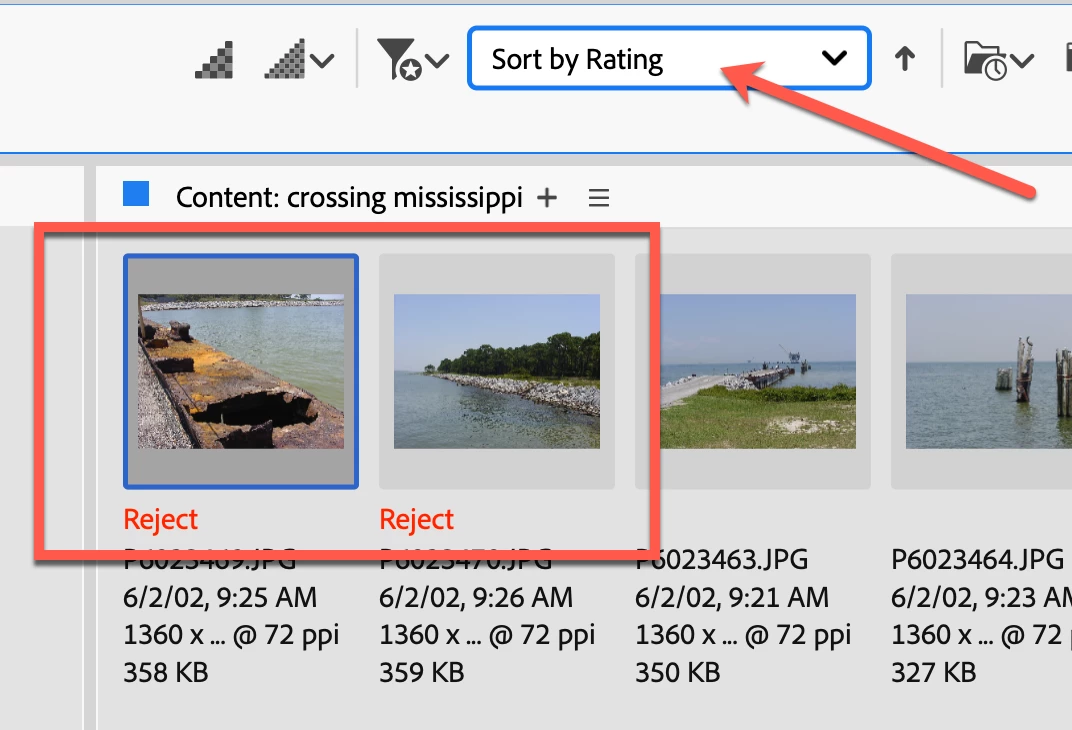
However, here is a possible workaround: when you come to a file you want to delete, press the Alt/Option-Delete/Backspace key. This will label the file as "Rejected." Then, when you're done with that folder of images. Select sort by Ratings, they will all be collected together, and then delete them all at once. In fact, this may be faster than deleting them one at a time, as you'll only be going to the Delete icon only once.


Yes, this is a kludge until the bug is fixed, but it should get you back on track.

Oh, if you change your mind about a rejected image, simply press the "0" (zero) (or Command-0, if you have Ratings set to include the Command key) key on any image.


I hope this helps

2 replies

Rahul Saraogi
Participating Frequently
November 24, 2022

Hi,


Many of the issues reported in the thread are fixed in the latest patch release #13.0.1.583. Please install and confirm if that fixes the issue.
You can refer to the issues fixed in the patch at the following link https://helpx.adobe.com/bridge/kb/fixed-issues.html


Thanks,
Bridge Team

Adriaan_SAuthor
Inspiring
November 30, 2022

Thanks for providing the patch. Here is what I find.

1) Display issue when deleting a file: fixed.

2) Folder window scrolls to the very TOP and stays there: fixed.

3) Renaming folder - placed at the very bottom: fixed

>I found a couple other issues:

Big bug: Cutting and Pasting folders (by right-clicking with mouse) copies them instead of moving - even the dialog box title is "Coping files..." . This was already the case before the fix, I found it after my post..

Annoyance: I'll move all the images from one folder to another. Next, I want to delete the folder that they were in. However, when I click on it, it immediately goes to edit-folder-name mode. I have to click on another folder and back to just "select" it. To delete it by right-clicking, I have to right-click twice before I get the pop-up menu.

Annoyance: Clicking on the ">" icon to the left of a folder name to open the subfolders is sometimes ignored. I have not found any pattern in this, it's not necessarily the case when there are lot of sub-folders. Note, this already happened before the fix, it was worse then.


I look forward to the next patch.

Thanks,

Adriaan

gary_sc
Community Expert
gary_scCommunity ExpertCorrect answer
Community Expert
November 17, 2022

This is a known bug and will be fixed. I wish I could tell you when, but Adobe keeps a very tight lid on that information.

However, here is a possible workaround: when you come to a file you want to delete, press the Alt/Option-Delete/Backspace key. This will label the file as "Rejected." Then, when you're done with that folder of images. Select sort by Ratings, they will all be collected together, and then delete them all at once. In fact, this may be faster than deleting them one at a time, as you'll only be going to the Delete icon only once.


Yes, this is a kludge until the bug is fixed, but it should get you back on track.

Oh, if you change your mind about a rejected image, simply press the "0" (zero) (or Command-0, if you have Ratings set to include the Command key) key on any image.


I hope this helps

Adriaan_SAuthor
Inspiring
November 17, 2022

Thanks!

Adriaan