Inspiring
April 14, 2024
Answered

making panels in adobe bridge v14.0.3.200

  • April 14, 2024
  • 2 replies
  • 710 views

Pressed a button in bridge and panels are messed up. adobe bridge help/instruction page lacks step-by-step instructions how to make a new panel. In both Essentials and filmstrip view would like to have two stacked panels on the left side of the computer monitor screen. Top left panel with Favorite Folders. Bottom left panel with Filters. Would like to choose which items to display in Filters. Have clicked on Window>Filter and nothing happens. Have clicked on Window>double click Filter and nothing happens. Have clicked on Window>highlight & try to drag Filter and nothing happens.

    This topic has been closed for replies.
    Correct answer gary_sc

    Hi, @pixelfor,


    I'm not fully sure exactly what happened (as you are), but here is a short tutorial for working with Workspaces.


    This may sound tedious, but it is one of those situations where re-creating them will be faster, more efficient, and have fewer side issues than trying to convert the old ones to the new ones. 


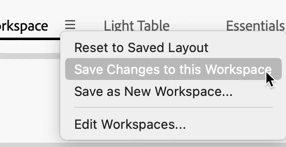
    There are several things to be aware of regarding the new workspace dynamic. First, Bridge has ONE feature that all other Adobe applications should emulate: you can update an already-made Workspace. This is worth the price of the extra work to re-create


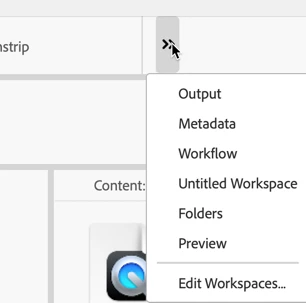
    Next, it is now much easier to control what you see and do not see. On the far right side are a pair of chevrons. If you mouse down on those, you can see all of the Workspaces and an "Edit" option. Click on that.


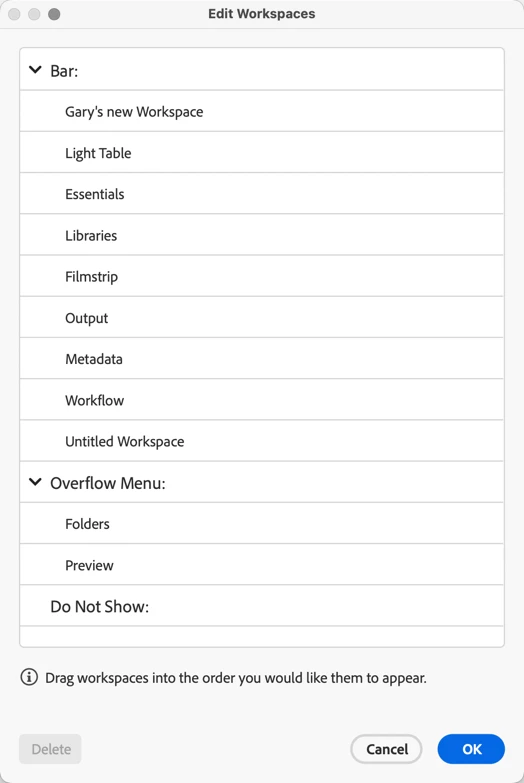
    This brings up this window. 


    Everything above where it says "OverflowMenu" will show if Bridge's window is pulled out far enough. Otherwise, they will show by mousing down on the chevrons. But also note the "Do Not Show:" option. If you have any Workspaces that are built into Bridge but you'd never use them, you can dump them into that cubby hole.


    Enjoy using the new Workspace features. If you have any other questions, please ask.

    2 replies

    gary_sc
    Community Expert
    gary_scCommunity ExpertCorrect answer
    Community Expert
    April 14, 2024

    Hi, @pixelfor,


    I'm not fully sure exactly what happened (as you are), but here is a short tutorial for working with Workspaces.


    This may sound tedious, but it is one of those situations where re-creating them will be faster, more efficient, and have fewer side issues than trying to convert the old ones to the new ones. 


    There are several things to be aware of regarding the new workspace dynamic. First, Bridge has ONE feature that all other Adobe applications should emulate: you can update an already-made Workspace. This is worth the price of the extra work to re-create


    Next, it is now much easier to control what you see and do not see. On the far right side are a pair of chevrons. If you mouse down on those, you can see all of the Workspaces and an "Edit" option. Click on that.


    This brings up this window. 


    Everything above where it says "OverflowMenu" will show if Bridge's window is pulled out far enough. Otherwise, they will show by mousing down on the chevrons. But also note the "Do Not Show:" option. If you have any Workspaces that are built into Bridge but you'd never use them, you can dump them into that cubby hole.


    Enjoy using the new Workspace features. If you have any other questions, please ask.

    pixelforAuthor
    Inspiring
    April 15, 2024

    Thank you. Hard to explain this but I can't get the boxes to move tio place a smaller box beside a larger box. I'll call Adobe and see what they can do. Last time this happened I called Adobe and even the Adobe technician who did a remote session and took control of my computer had a very hard time with this. Trying to have a computer monitor screen with more than one panel is not an easy task. I am aware of the items you point out. Thank you for responding.

    gary_sc
    Community Expert
    Community Expert
    April 15, 2024

    Hi, @pixelfor, if you can be a bit more detailed about the problem you are having, I might be able to create a video that goes into more detail.


    Can you please elaborate on which specific Panels you are working with? Maybe a screenshot detailing the issue?


    Thanks,

    kglad
    Community Expert
    Community Expert
    April 14, 2024

    in the future, to find the best place to post your message, use the list here, https://community.adobe.com/

    p.s. i don't think the adobe website, and forums in particular, are easy to navigate, so don't spend a lot of time searching that forum list. do your best and we'll move the post (like this one has already been moved) if it helps you get responses.


    <"moved from using the community">
    pixelforAuthor
    Inspiring
    April 15, 2024

    Thank you, I have a hard enoough time finding this support page let alone knowing what is the perfect, correct page. User friendly, in my opinion, would be to see a community support option or all support options when I sign in to my Adober account. That could be at the bottom of the first page that opens or on a drop down when I click on my symbol in the top right. Complication and Adobe are synonymous. Just like trying to do what should be simple task like arranging panels in Bridge.