Erik Bloodaxe
Legend
March 7, 2023
Answered

Metadata Templates - Create or Edit Shows Limited Number of Properties

  • March 7, 2023
  • 2 replies
  • 847 views

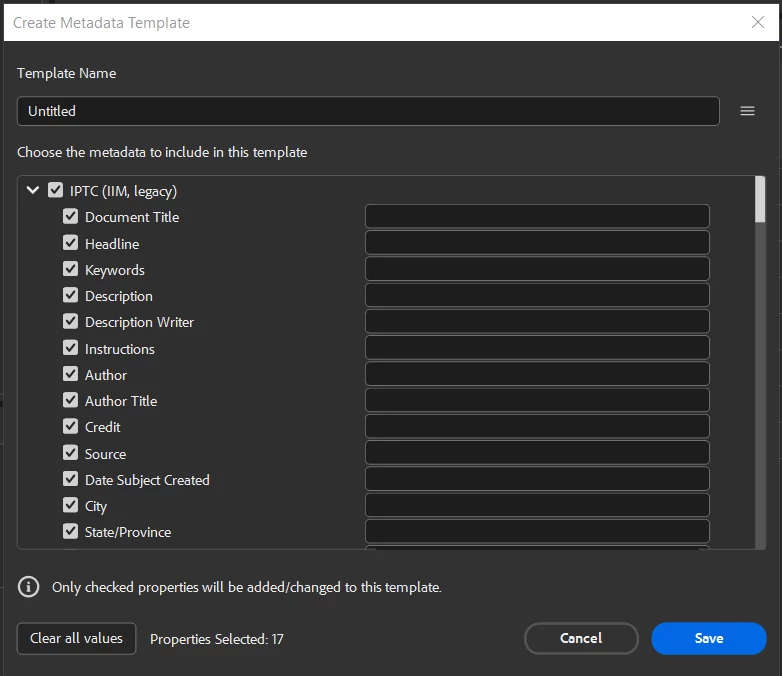
I have used the same metadata template for years. I need to edit it as my included personal details have changed.

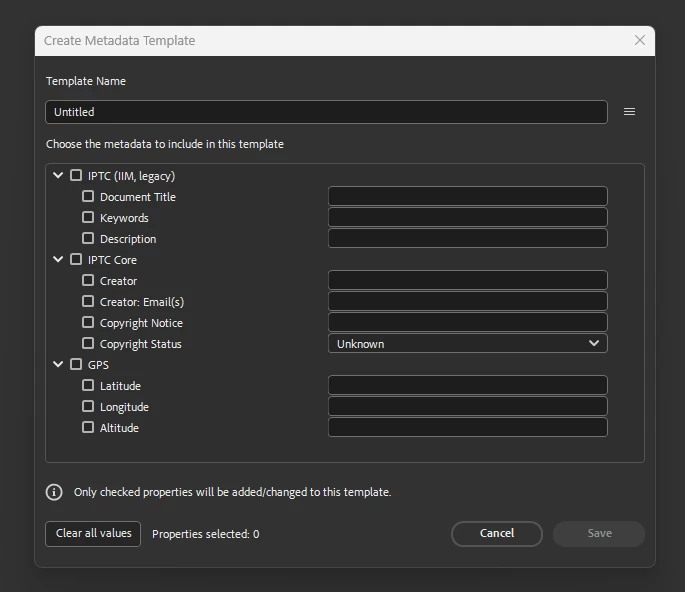
Whether I choose to edit my existing template or create a new one, only 10 properties are presented.

The very properties of the IPTC Core section I wish to edit (mainly contact details) are not listed.

These properties were certainly included in my template when it was created long ago and are correctly written to images when this template is applied to them.

There appears to be no option to access these other properties.

I checked this on 2 different PCs both running Windows 11 22H2 with Bridge version 13.0.2.636.

The same is seen on both.

Have I stumbled upon a bug or oversight of some kind?
This topic has been closed for replies.
Correct answer gregreser

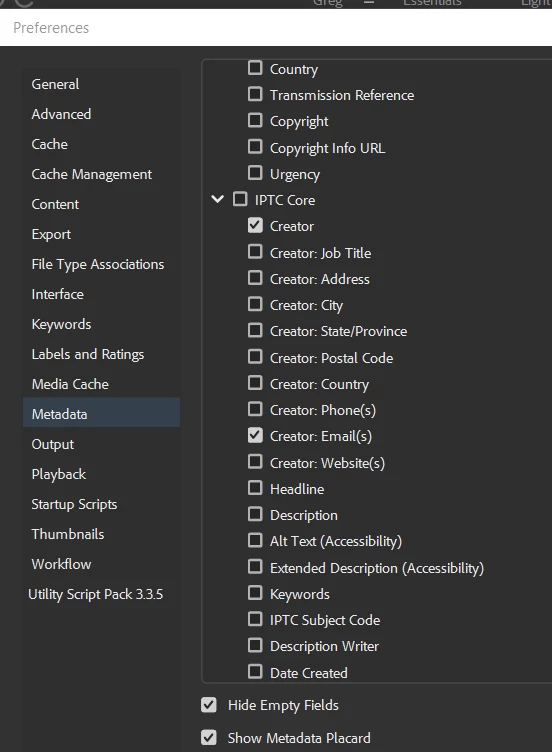
Go to Tools > Preferences > Metadata.

You might have only selected to use a few fields, like this:


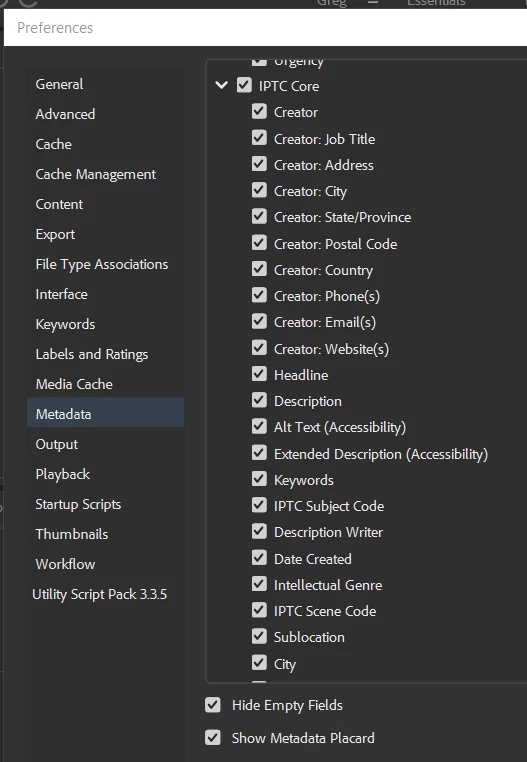
Select all the fields you want to use and they should appear in the template window.


2 replies

gregreser
gregreserCorrect answer
Legend
March 7, 2023

Go to Tools > Preferences > Metadata.

You might have only selected to use a few fields, like this:


Select all the fields you want to use and they should appear in the template window.


Erik Bloodaxe
Legend
March 7, 2023

It didn't occur to me that hiding fields in the Metadata Panel via Preferences would result in their being hidden in the Tools>Create/Edit Metadata Template window too.

Thank you for pointing this out.

Problem now solved!

Legend
March 7, 2023

On Windows, templates are stored in

C:\Users\<username>\AppData\Roaming\Adobe\XMP\Metadata Templates

You can always manually edit them as needed. Although I would try Photoshop and see if editing works there.