Participant
October 24, 2018
Answered

Missing keywords?

  • October 24, 2018
  • 2 replies
  • 2657 views

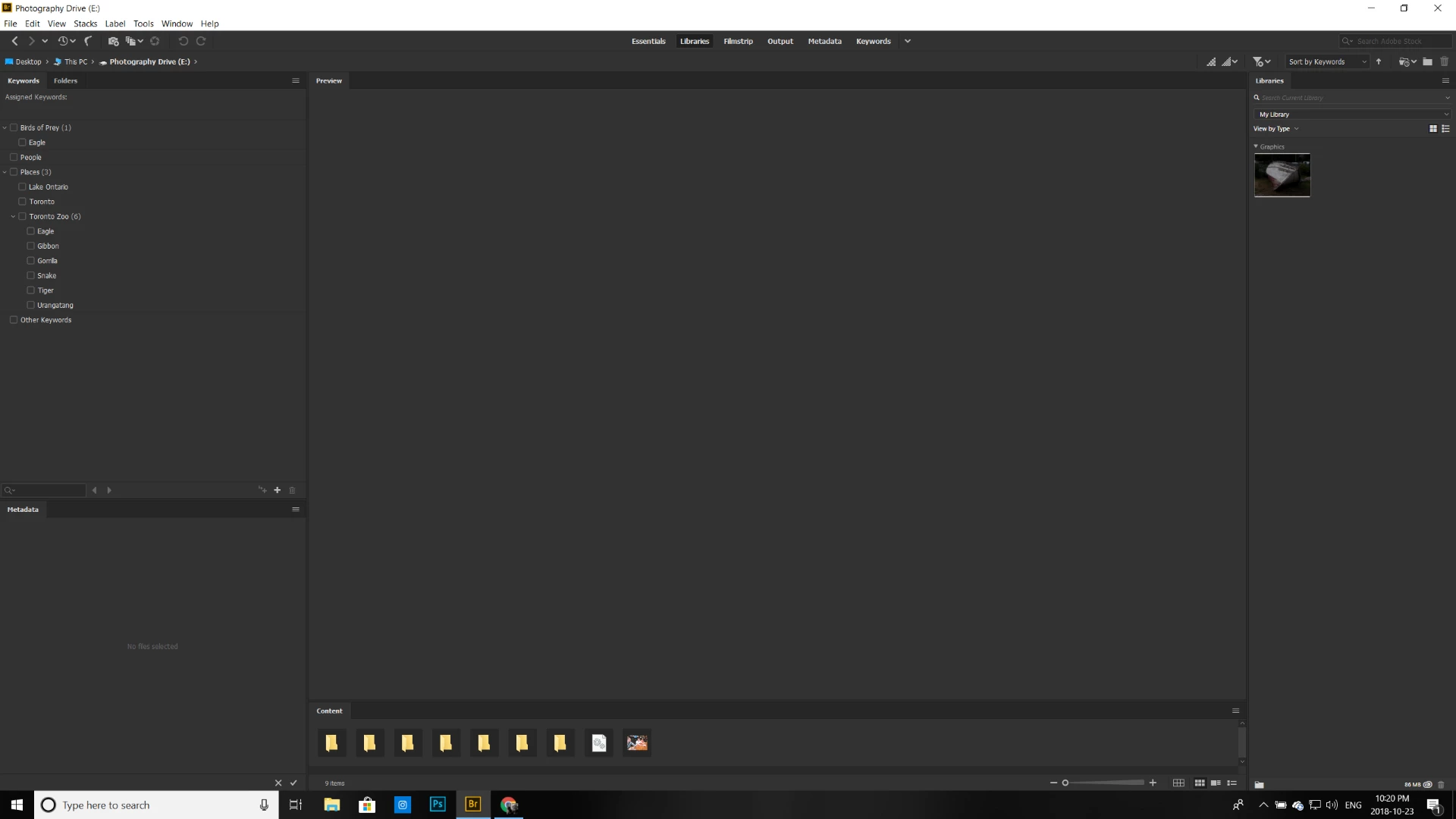
Good evening hive mind.  I recently updated to Bridge 9.0.0.204 and I am noticing that my keywords are missing.  I created a few for the pictures I downloaded after the upgrade, and they are all that appear when I open Bridge (see below).  I can click on older photos and once I do the keywords populate from that photo, but I don't see "ALL" of my keywords in the menu. I'm not incredibly fluent in this version of Bridge and I am concerned that all of my keywords are no longer there to choose from.  Can anyone help? I'd love all the keywords to be in the menu so that I can easily choose from the keywords I have created.  I'm pretty worried about this.  I'd love some advice.
This topic has been closed for replies.
Correct answer Stephen Marsh

If you have the previous version installed, open Adobe Bridge and go to the “Keywords Panel” and then use the panel’s menu to export the keyword library to a plain text file. You can then import this into the new version of Bridge. Otherwise you may need to check if the old data exists, or it may be in a backup etc.

On the Mac OS, the location of the Adobe Bridge Keywords.xml will be similar to:

/Users/loggedinusername/Library/Application Support/Adobe/Bridge CC 2015/Adobe Bridge Keywords.xml

Mac users should simply replace “loggedinusername” and “Bridge CC 2015” with the appropriate user name and version of Bridge.

On MS Windows, the path to the Adobe Bridge Keywords.xml will be similar to:

C:\Users\Loggedinusername\AppData\Roaming\Adobe\Bridge CC 2015\Adobe Bridge Keywords.xml

MS Windows users should replace the “Loggedinusername” and “Bridge CC 2015” with the appropriate user name and version of Bridge. It should be noted that the AppData directory may be a hidden folder for some users.

Prepression: Bridge – Restoring a Lost Keyword XML File

2 replies

Stephen Marsh
Community Expert
Stephen MarshCommunity ExpertCorrect answer
Community Expert
October 24, 2018

If you have the previous version installed, open Adobe Bridge and go to the “Keywords Panel” and then use the panel’s menu to export the keyword library to a plain text file. You can then import this into the new version of Bridge. Otherwise you may need to check if the old data exists, or it may be in a backup etc.

On the Mac OS, the location of the Adobe Bridge Keywords.xml will be similar to:

/Users/loggedinusername/Library/Application Support/Adobe/Bridge CC 2015/Adobe Bridge Keywords.xml

Mac users should simply replace “loggedinusername” and “Bridge CC 2015” with the appropriate user name and version of Bridge.

On MS Windows, the path to the Adobe Bridge Keywords.xml will be similar to:

C:\Users\Loggedinusername\AppData\Roaming\Adobe\Bridge CC 2015\Adobe Bridge Keywords.xml

MS Windows users should replace the “Loggedinusername” and “Bridge CC 2015” with the appropriate user name and version of Bridge. It should be noted that the AppData directory may be a hidden folder for some users.

Prepression: Bridge – Restoring a Lost Keyword XML File

Participant
October 26, 2018

Thank you for your reply.  I followed your link and read your document.  Unfortunately. I am an end user and a lot of your suggestions were above my skill and comfort level.

I did try to find my keywords file using the Microsoft pathway you suggest, I asked it to show all hidden items, and it still did not appear.

As you can imagine I am frustrated. Do you have any suggestions for how I can get those folders and files to appear?

I am considering sending my computer back in time at this point.

Thank you again for your response.

Adobe Employee
October 24, 2018

Hi,

Can you please reset preferences and let me know if the issue persists.

Steps to reset preferences:

  • Start Adobe Bridge and immediately press Ctrl+Alt+Shift (Windows) or Command+Option+Shift (Mac OS) until the Reset Settings dialog box appears.

  • Select  options--Reset Preferences and , Reset Standard Workspaces and  then click OK.

Adobe Employee
October 24, 2018

Also Please purge cache for the set of files for which you are facing issues.

Adobe Employee
October 24, 2018

If the issue persists, please copy “Adobe Bridge Keywords.xml” file from “~/Library/Application Support/Adobe/ Bridge CC 2018” to  “~/Library/Application Support/Adobe/ Bridge CC 2019” folder to get old keywords