Participant
December 6, 2023
Answered

Open in camera raw no longer an option for tiff files in Bridge

  • December 6, 2023
  • 2 replies
  • 602 views

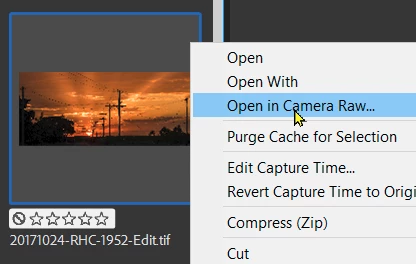
In Bridge I used to see "open in camera raw" as an option for tiff files and now this is no longer an option. It only shows for JPEG and RAW files now. I tried checking my file type associations and they are set for tiff the same as JPEGS and RAW but still won't open in Camera Raw. Can someone please help? I want to open my Tiff files in Camera Raw so I can use the "Enhance" feature.

Correct answer Rob_Cullen

"File Associations" should be set to "Photoshop" (Not ACR) ACR is not an 'App' that you can 'open' -it is a Plugin raw converter for Photoshop.

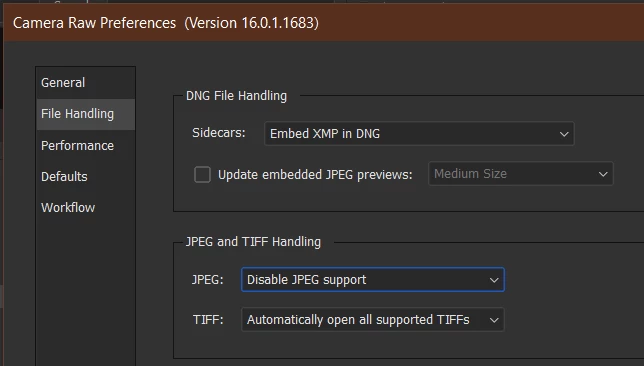
Set your Photoshop > Camera raw Preferences > File Handling > JPEG and TIFF Handling > TIFF: [Automatically open all supported TIFFs]-

Now you can 'OPEN  IN PHOTOSHOP' a TIF file from Finder or File Explorer that will 'go through' Camera Raw.

And  from Bridge you should see the [Open in Camera raw] option available.


2 replies

Stephen Marsh
Community Expert
Community Expert
December 6, 2023

Sorry if this is stating the obvious, but once you have this setup, you can also use CMD/CTRL + R as a keyboard shortcut to open the files into ACR (in addition to right-clicking).

Rob_Cullen
Community Expert
Rob_CullenCommunity ExpertCorrect answer
Community Expert
December 6, 2023

"File Associations" should be set to "Photoshop" (Not ACR) ACR is not an 'App' that you can 'open' -it is a Plugin raw converter for Photoshop.

Set your Photoshop > Camera raw Preferences > File Handling > JPEG and TIFF Handling > TIFF: [Automatically open all supported TIFFs]-

Now you can 'OPEN  IN PHOTOSHOP' a TIF file from Finder or File Explorer that will 'go through' Camera Raw.

And  from Bridge you should see the [Open in Camera raw] option available.


Regards. My System: Windows-11, Lightroom-Classic 15.1.1, Photoshop 27.3.1, ACR 18.1.1, Lightroom 9.0, Lr-iOS 10.4.0, Bridge 16.0.2 .
Participant
December 7, 2023

Rob, this worked! THANK YOU so very much!!