
Participant
April 9, 2018
Answered

Photoshop and Bridge does not recognize each other to be installed

  • April 9, 2018
  • 1 reply
  • 1026 views

I am running Mac OS 10.13.4

Adobe Photoshop CC 2018 (19.1.3)

Adobe Bridge CC 2018 (8.0.1.282)

everything is up to date.

The issue is, Photoshop and Bridge do not recognize each other to be installed.

When I am in Bridge, there is no other software listed in the Tools menu and there is nothing to enable in the startup script.
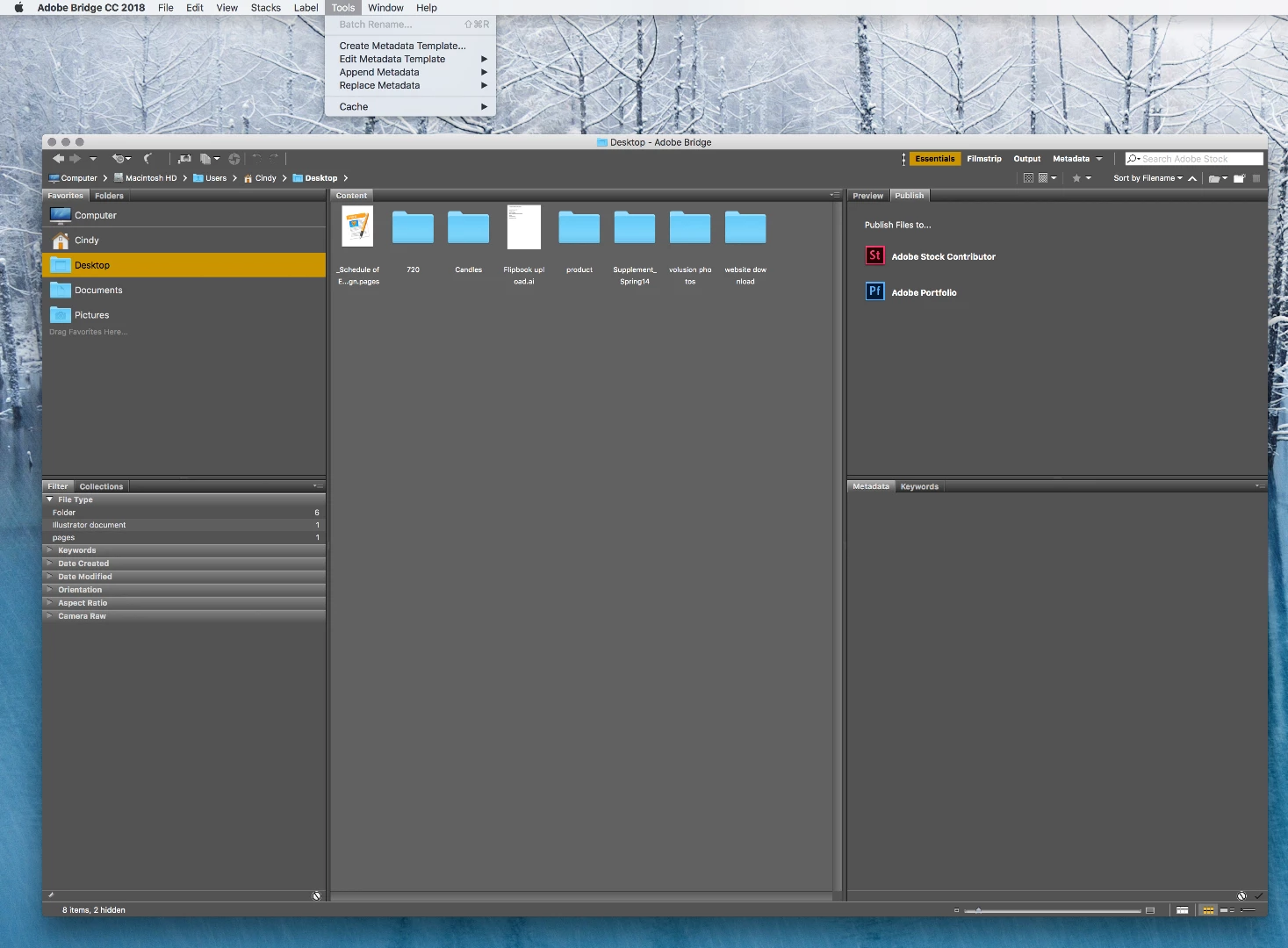
When I am in Photoshop, Browse in Bridge automatically opens the Adobe CC desktop app and scrolls to Bridge for me to install it.

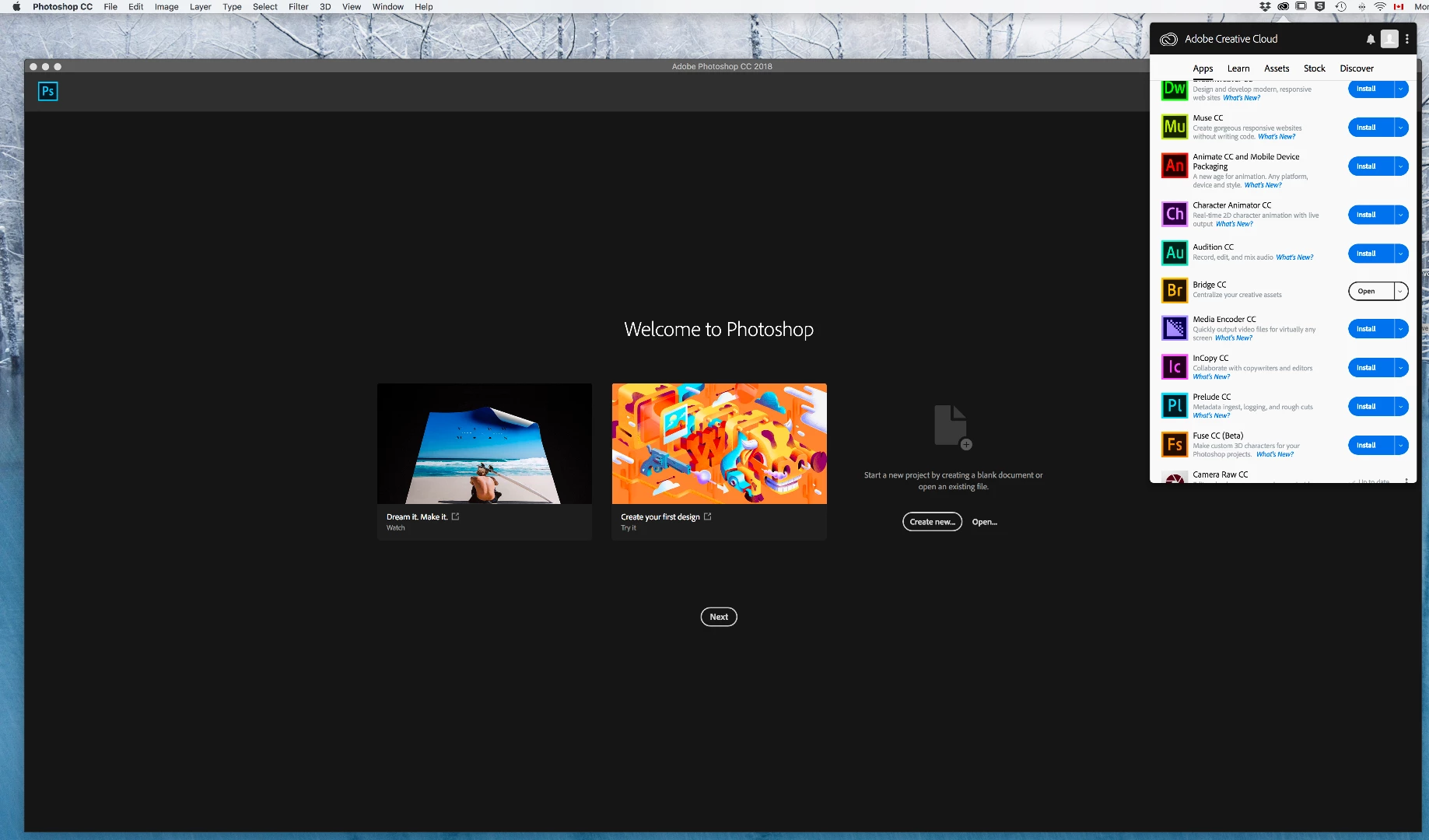
I have tried reinstalling Photoshop, reinstalling Bridge, and uninstalling them both and reinstalling them both at the same time.

Resetting preferences, clearing Cache

Nothing works.

I need the batch action option in Bridge to resize and resave images with Photoshop so I don't have to open 30,000 images one by one.

Thank you,

Cindy

This topic has been closed for replies.
Correct answer Generous_idealist5C21

Hi Cindy,

Thanks for reporting this issue. From the screenshots, I could figure out that there are no startup scripts for Photoshop installed in Bridge, which seems odd.

Could you try the following steps to see if your issue gets resolved:

1. Install Photoshop 19.1.3 & Bridge 8.0.1.282

2. Open Photoshop first and then quit.

3. Launch Bridge.

4. Wait for dialogues for startup scripts install confirmation by Bridge, and then select Yes to all of them.

5. Now go to Tools menu to see if Photoshop tools menu is installed.

6. In step 4, if no dialogues appear for scripts installation, check for Startup Scripts in Bridge preferences.

7. If no startup scripts are shown just like above, then go to General in Preferences.

8. Click on Reset button to reset all warning dialogs

9. Quit & Relaunch Bridge.

Please try these steps and let us know if this fixes the problem for you.

Regards,

Saurabh

1 reply

Generous_idealist5C21Community ManagerCorrect answer
Community Manager
April 23, 2018

Hi Cindy,

Thanks for reporting this issue. From the screenshots, I could figure out that there are no startup scripts for Photoshop installed in Bridge, which seems odd.

Could you try the following steps to see if your issue gets resolved:

1. Install Photoshop 19.1.3 & Bridge 8.0.1.282

2. Open Photoshop first and then quit.

3. Launch Bridge.

4. Wait for dialogues for startup scripts install confirmation by Bridge, and then select Yes to all of them.

5. Now go to Tools menu to see if Photoshop tools menu is installed.

6. In step 4, if no dialogues appear for scripts installation, check for Startup Scripts in Bridge preferences.

7. If no startup scripts are shown just like above, then go to General in Preferences.

8. Click on Reset button to reset all warning dialogs

9. Quit & Relaunch Bridge.

Please try these steps and let us know if this fixes the problem for you.

Regards,

Saurabh