Participant
December 21, 2020
Answered

Problems with Adobe Bridge

  • December 21, 2020
  • 1 reply
  • 466 views

I work on a Mac Powerbook Pro, running Catalina OS. I have Adobe Bridge 2021. When I try to look in my Documents folder, it shows nothing. Zero files or folders, nothing. I have the same Documents folder backed up on an external drive and Bridge works fine with that. It was working fine until today. Any help solving this problem would be appreciated.

This topic has been closed for replies.
Correct answer gary_sc

HI Fred,


Have you allowed Bridge to access these folders? It's an Apple thing that YOU need to address. Here's how:


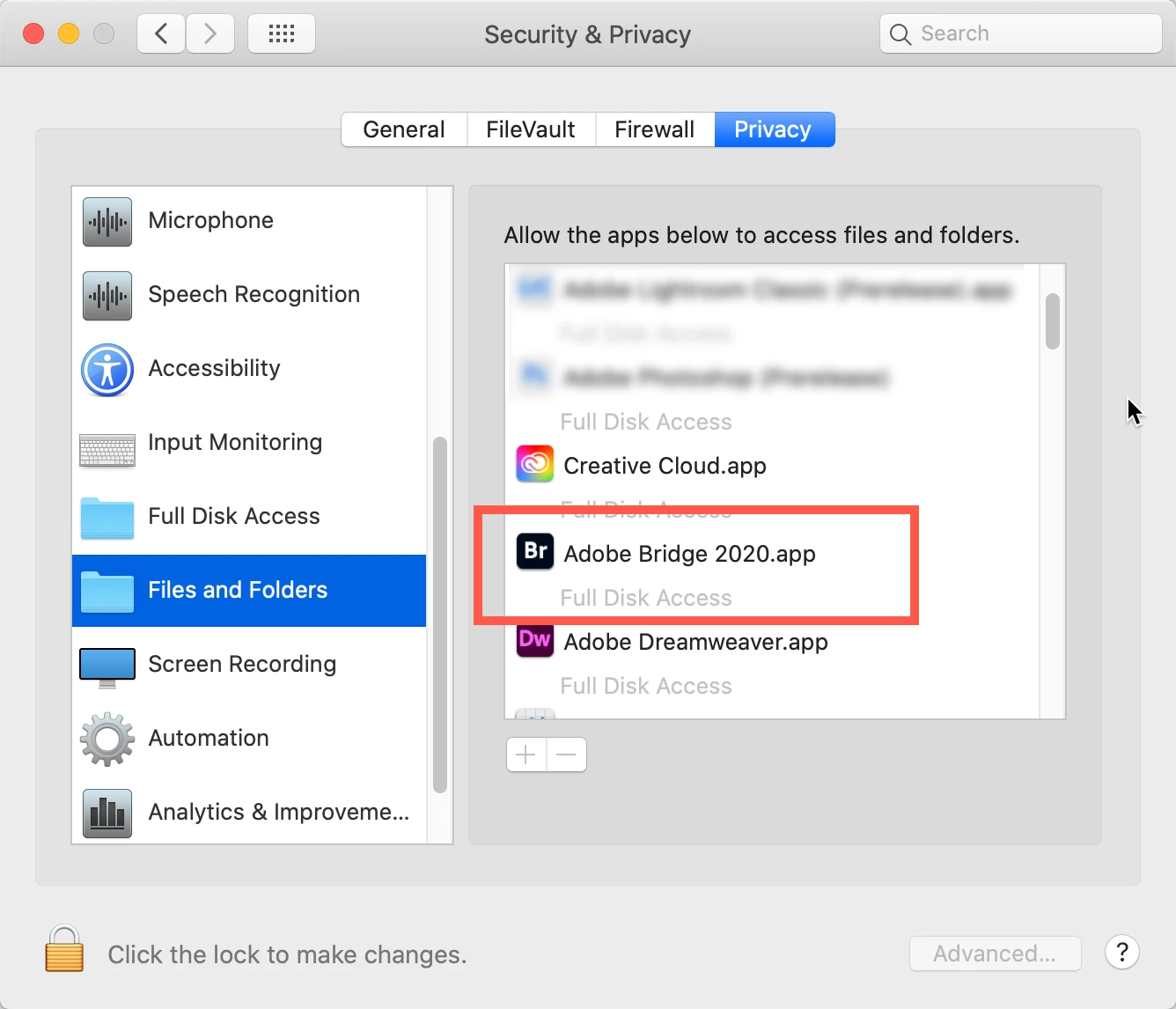
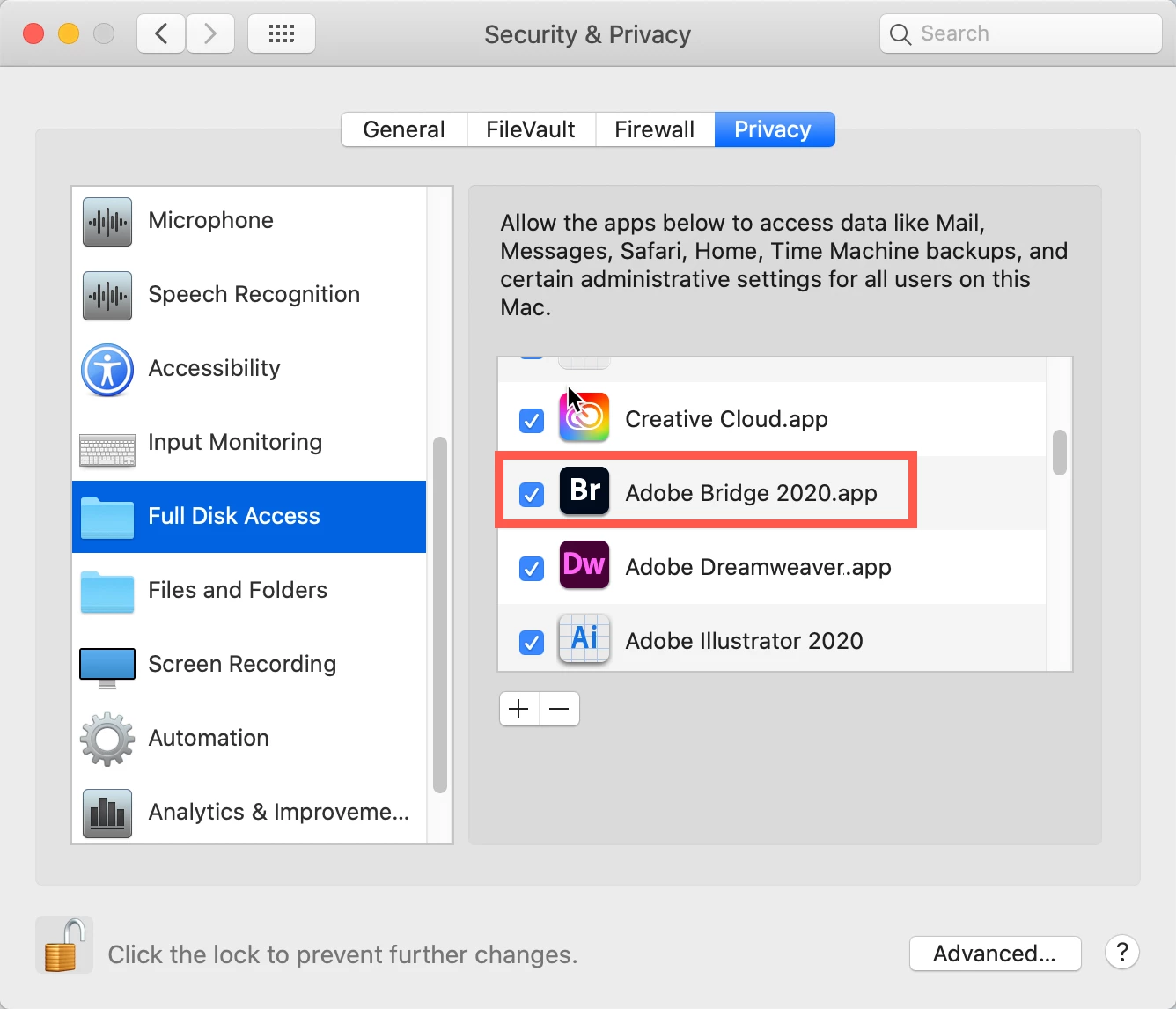
Go to your System Preferences and select Security and Privacy (found in the top section). Now click on the Privacy setting (last tab). Now click on the lock on the bottom left and provide your Administrator code. Now select the Full Disk Access option and click on the "+" symbol. This will bring up the standard Mac Open window and let you add any application you want or need to have full access. Look for Bridge, select it, it will now appear in that window and make sure it's checked. Next go to the Files and Folders option and do the same thing as above (although there's nothing to check, just add. Close everything down and see if that makes it all work.

Please let me know


1 reply

gary_sc
Community Expert
gary_scCommunity ExpertCorrect answer
Community Expert
December 21, 2020

HI Fred,


Have you allowed Bridge to access these folders? It's an Apple thing that YOU need to address. Here's how:


Go to your System Preferences and select Security and Privacy (found in the top section). Now click on the Privacy setting (last tab). Now click on the lock on the bottom left and provide your Administrator code. Now select the Full Disk Access option and click on the "+" symbol. This will bring up the standard Mac Open window and let you add any application you want or need to have full access. Look for Bridge, select it, it will now appear in that window and make sure it's checked. Next go to the Files and Folders option and do the same thing as above (although there's nothing to check, just add. Close everything down and see if that makes it all work.

Please let me know