
Known Participant
November 19, 2023
Answered

'Scale-to-Fit' Slideshow and the MacBook Notch

  • November 19, 2023
  • 1 reply
  • 279 views

I'm wanting to see a slideshow as large as possible on a MacBook Pro, but when I go 'scale-to-fit' the camera notch intrudes into the image.  The 'centered' option fixes that and shows the entire image, but at the expense of overall size.  


Any way to fix this?


A


I clicked Feature Request in case this can't be done currenly.  I bet I'm not the only one using Bridge on a MacBook...


This topic has been closed for replies.
Correct answer Robert335605534j7i

You can turn on 'scale to fit below built-in camera'. In finder open your application folder and then open the folder of your adobe application you want to scale. Inside that folder there's the actual application.

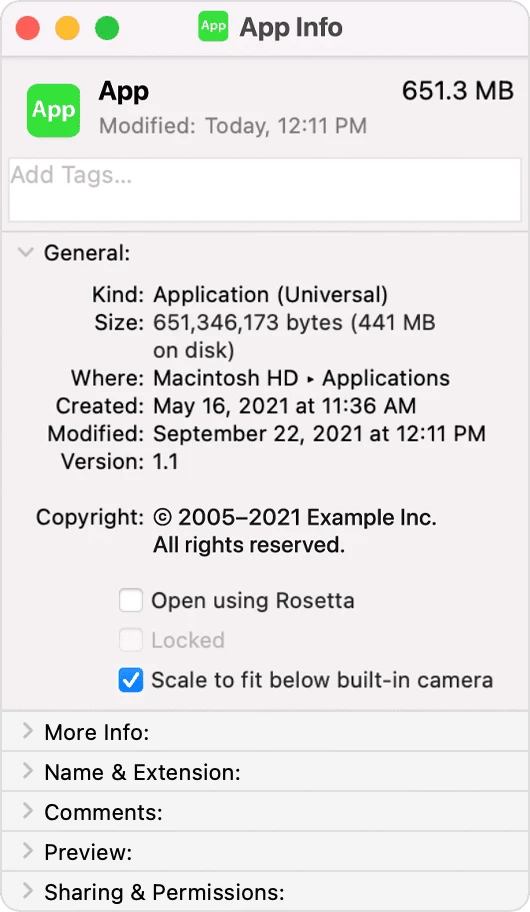
Turn on 'Scale to fit below built-in camera' for an app

  1. Quit the app.

  2. Click the Finder icon in the Dock, then click Applications in the Finder sidebar.

  3. Select the app, then choose File > Get Info, or press Command-I.

  4. In the Info window that opens, select "Scale to fit below built-in camera."


1 reply

Robert335605534j7iCorrect answer
Participant
January 11, 2024

You can turn on 'scale to fit below built-in camera'. In finder open your application folder and then open the folder of your adobe application you want to scale. Inside that folder there's the actual application.

Turn on 'Scale to fit below built-in camera' for an app

  1. Quit the app.

  2. Click the Finder icon in the Dock, then click Applications in the Finder sidebar.

  3. Select the app, then choose File > Get Info, or press Command-I.

  4. In the Info window that opens, select "Scale to fit below built-in camera."