Known Participant
November 11, 2018
Answered

Setting up Bridge

  • November 11, 2018
  • 2 replies
  • 1597 views

I cannot find out how to set up Bridge so that it shows what I want.

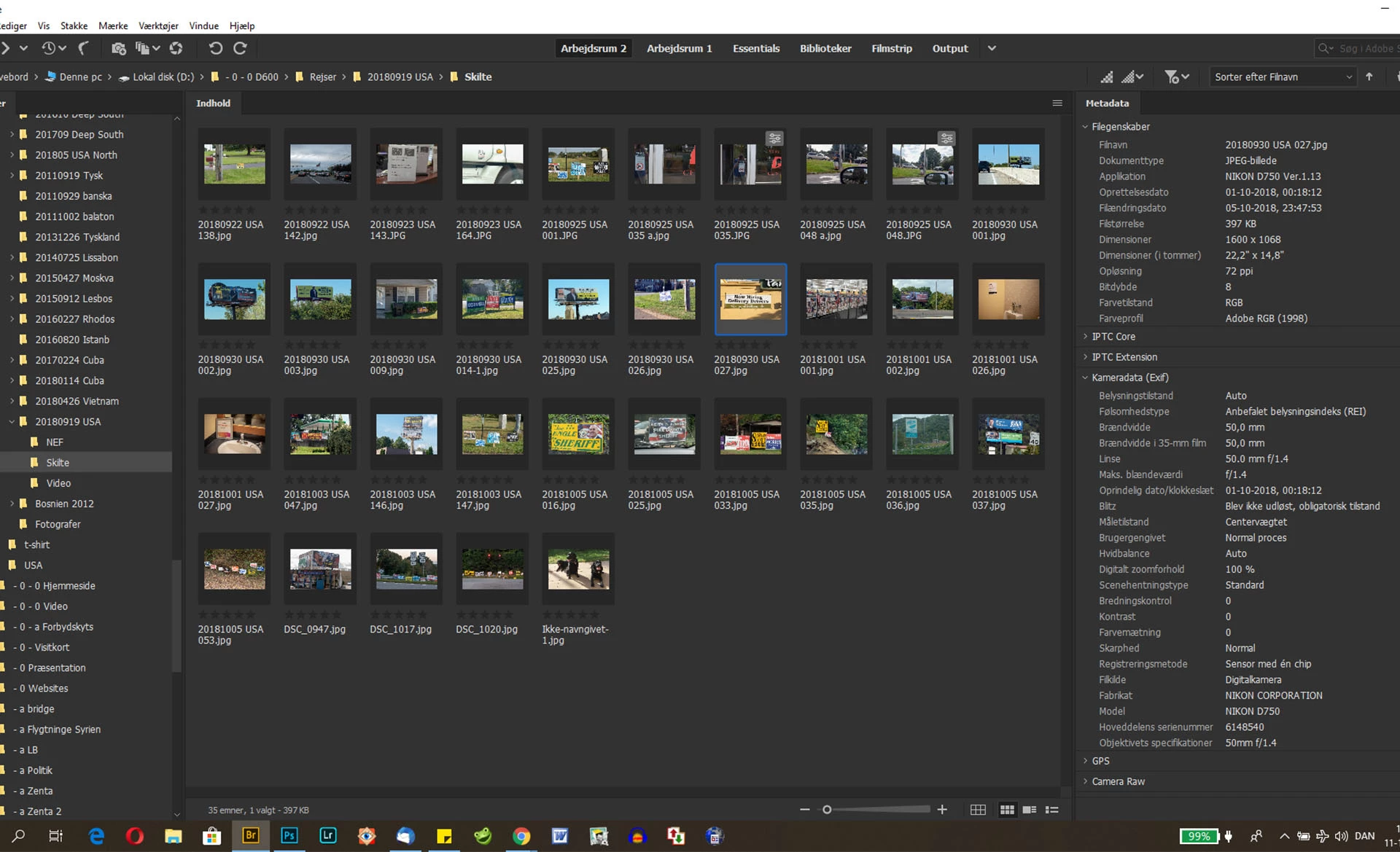
I want it to look like this + have a big picture in the rigth column and having metadata beneath that

And I want the small pictures bigger

Can someone help me

Thanks

    This topic has been closed for replies.
    Correct answer Chuck Uebele

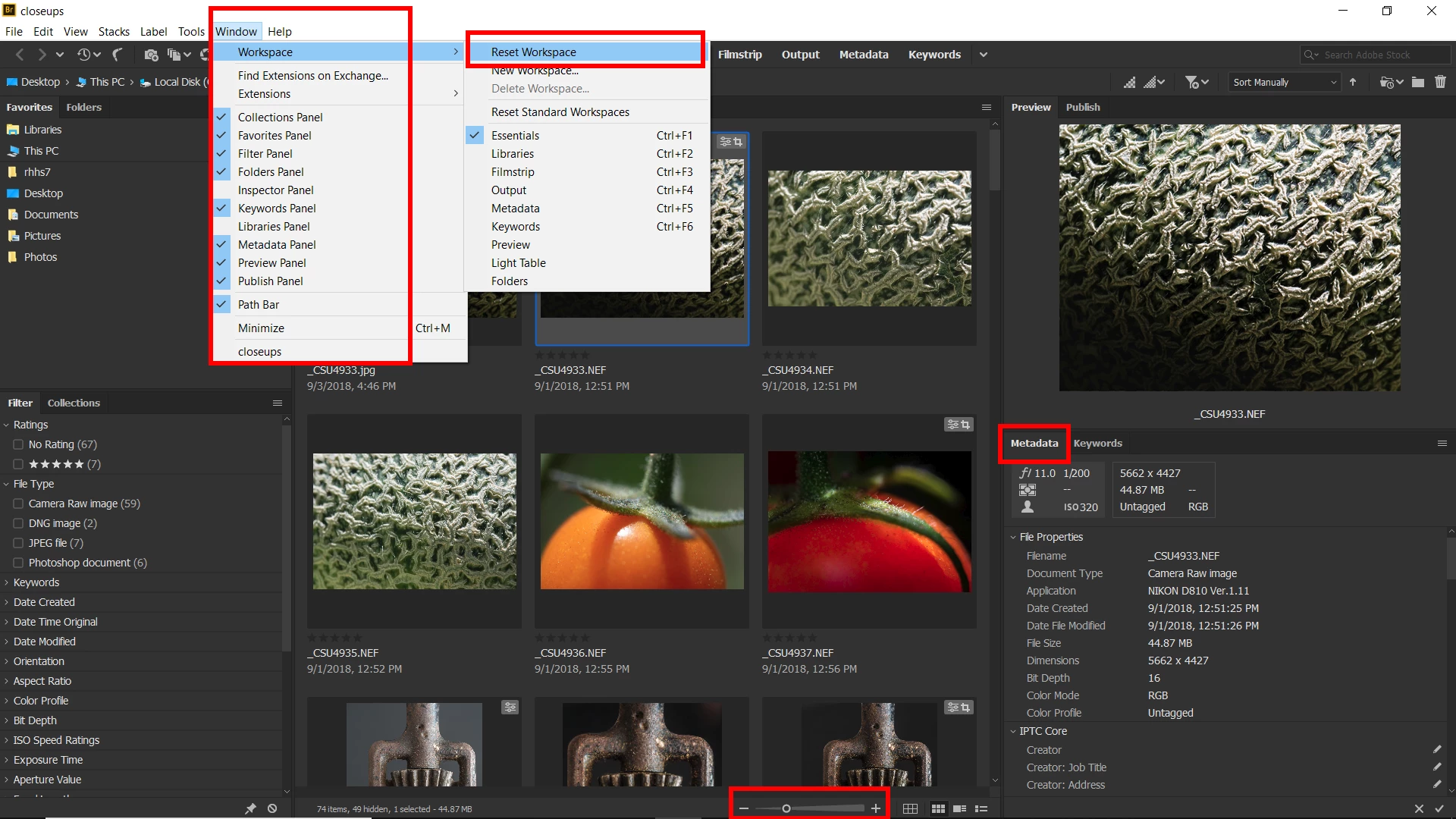
    Again: reset your "Essentials" workspace. Click on the items you want to show under "Windows" in the main menu, as I posted in my last post. Drag the windows to the size you want them. Use the slider at the bottom right on the screen to adjust the thumbnail size.

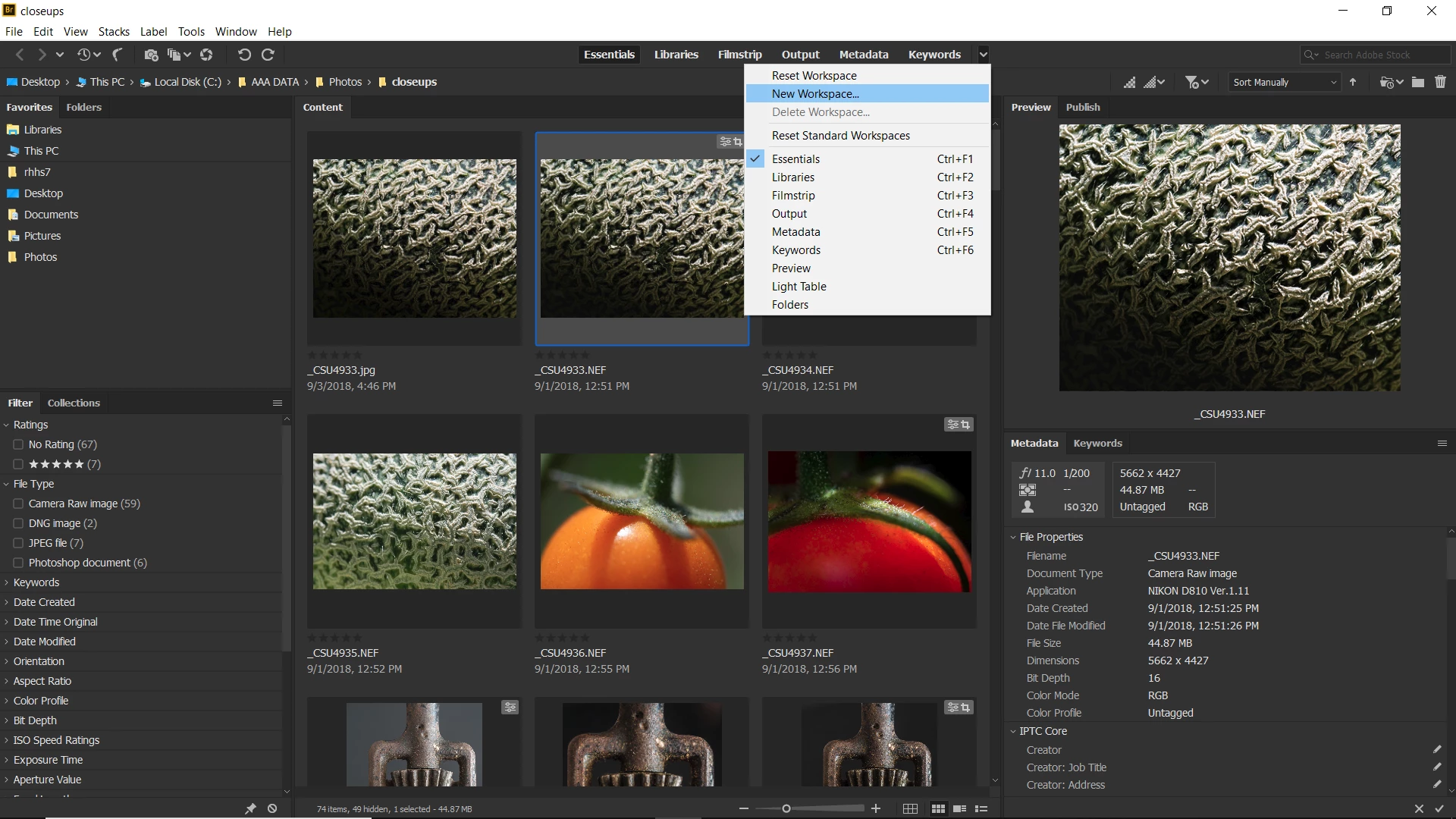
    Save your workspace:

    2 replies

    Chuck Uebele
    Community Expert
    Community Expert
    November 12, 2018

    Select "Window" from the main menu, and click on the items that you want to show. Size them how you want. With the thumbnails, there is a slider on the bottom right of the screen that adjust their size.

    Known Participant
    November 12, 2018

    Are there someone here who would like to answer my question?

    Chuck Uebele
    Community Expert
    Chuck UebeleCommunity ExpertCorrect answer
    Community Expert
    November 12, 2018

    Again: reset your "Essentials" workspace. Click on the items you want to show under "Windows" in the main menu, as I posted in my last post. Drag the windows to the size you want them. Use the slider at the bottom right on the screen to adjust the thumbnail size.

    Save your workspace:

    kglad
    Community Expert
    Community Expert
    November 11, 2018

    [ moved from Adobe Creative Cloud to Bridge]