Participant
January 14, 2024
Answered

SSD detection problem

  • January 14, 2024
  • 1 reply
  • 241 views

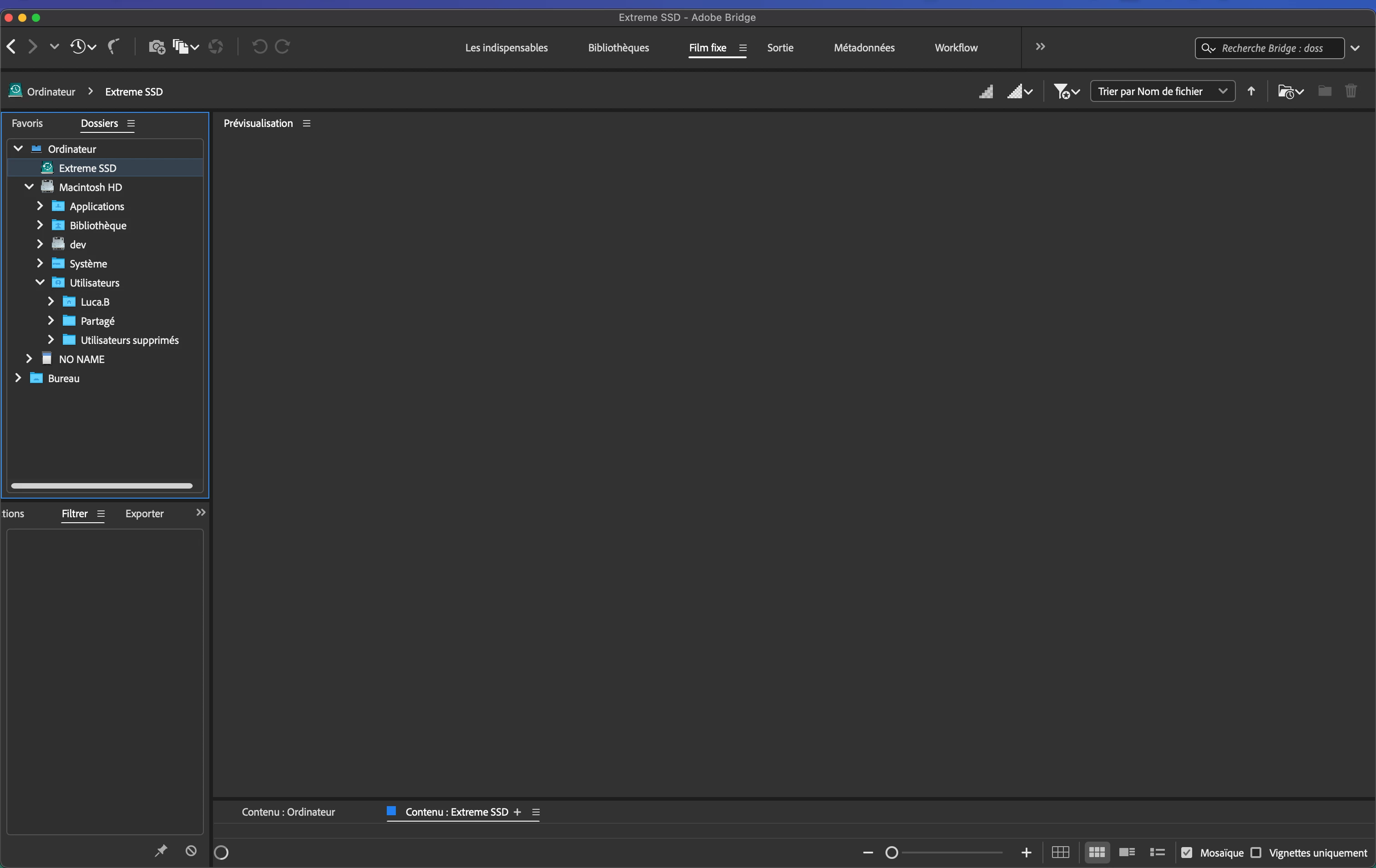
hello, as you can see my ssd is not detected by bridge, do you have any idea where the problem comes from?

This topic has been closed for replies.
Correct answer gary_sc

This sounds like you've not given Bridge permission for Apple's protection. Simply, this is an Apple protection issue, not Adobe's issue. 


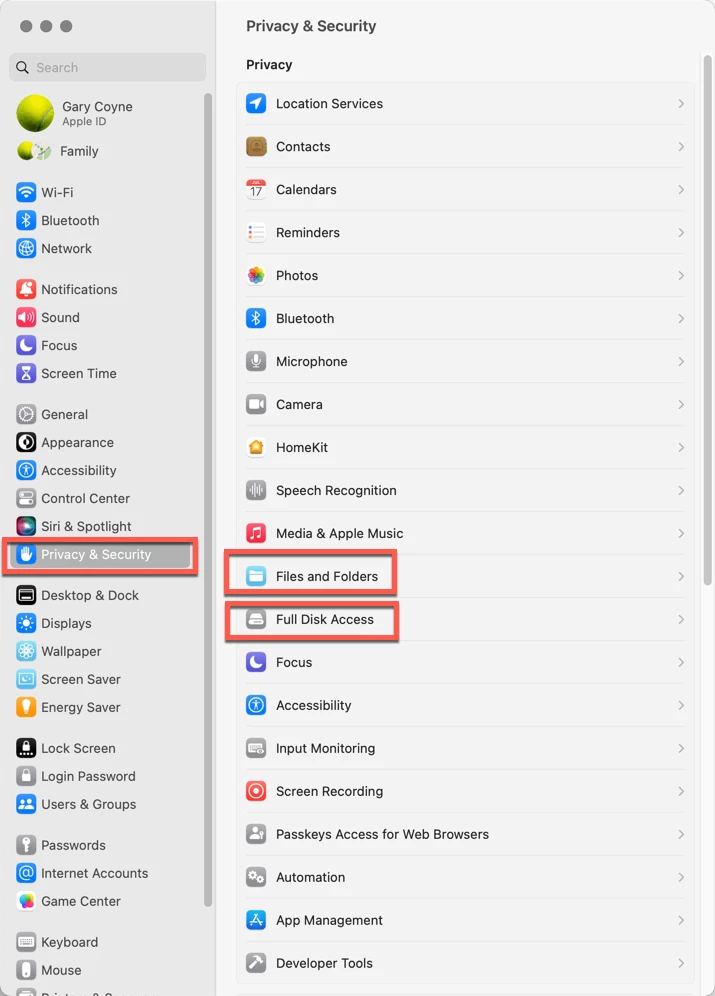
Go into the System Preferences and select the Privacy & Security tab on the left. Note that there are two options on the right you'll need to deal with: "Files and Folders," and "Full Disk Access."
 

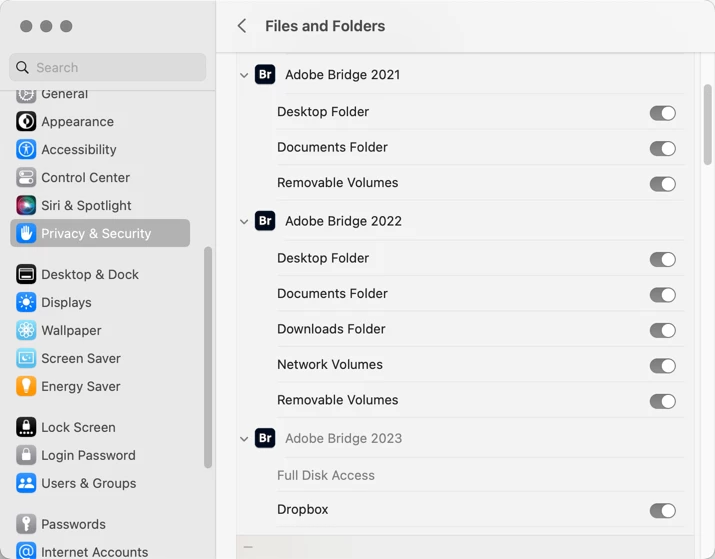
First, going into Files and Folders, note that in various years of different releases of Adobe Bridge, different needs are needed. I do not know why this is, but it's always better to check and make sure that just because you did it for one release, you may or may not need it for a subsequent release.


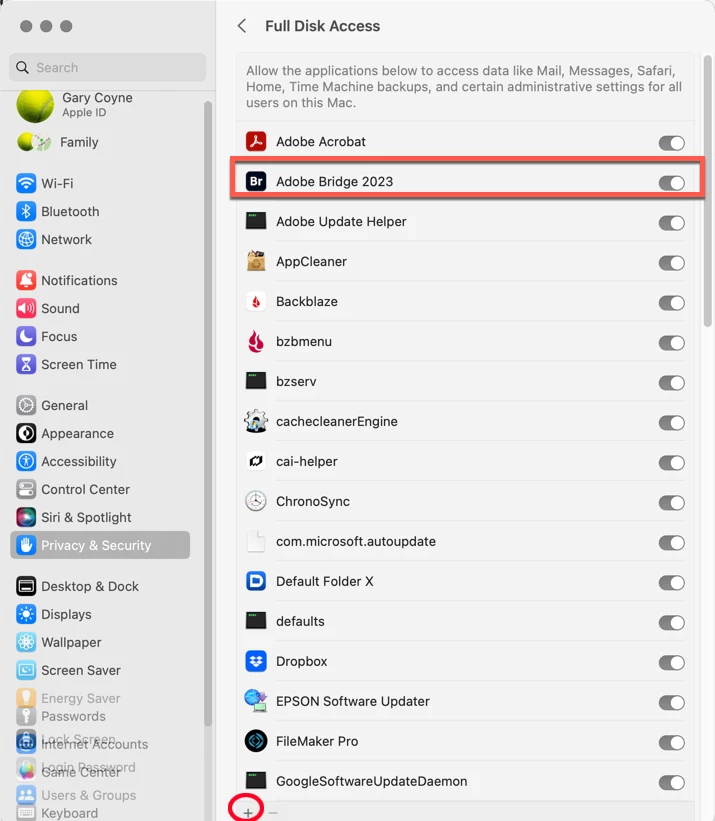
Lastly, go into the Full Disk Access option. If you do not see your application in the list, click on the "+" symbol at the very bottom of the window. This will bring up a standard Finder window. Navigate to your Applications Folder, find Adobe Bridge, and add it to the list (You will need to add your Administrator's password to do this.). Then you can "switch" it to the "ON" position. 
 

This should solve your problem.

Please let us know if that works or not.
1 reply

gary_sc
Community Expert
gary_scCommunity ExpertCorrect answer
Community Expert
January 14, 2024

This sounds like you've not given Bridge permission for Apple's protection. Simply, this is an Apple protection issue, not Adobe's issue. 


Go into the System Preferences and select the Privacy & Security tab on the left. Note that there are two options on the right you'll need to deal with: "Files and Folders," and "Full Disk Access."


First, going into Files and Folders, note that in various years of different releases of Adobe Bridge, different needs are needed. I do not know why this is, but it's always better to check and make sure that just because you did it for one release, you may or may not need it for a subsequent release.


Lastly, go into the Full Disk Access option. If you do not see your application in the list, click on the "+" symbol at the very bottom of the window. This will bring up a standard Finder window. Navigate to your Applications Folder, find Adobe Bridge, and add it to the list (You will need to add your Administrator's password to do this.). Then you can "switch" it to the "ON" position. 


This should solve your problem.

Please let us know if that works or not.

Participant
January 15, 2024

Thank you very much, I had this problem for a long time without knowing where it was coming from. Not being in the habit of posting on the forums I kept this problem telling myself that an update would solve the problem, I can tell you that I waited a long time without any positive result. You're a hero Gary, thank you.

gary_sc
Community Expert
Community Expert
January 15, 2024

Thanks you!!