Inspiring
December 9, 2024
Answered

tranferring old Bridge preferences on a new Mac

  • December 9, 2024
  • 2 replies
  • 1509 views

I am most concerned dabout retaining labeling on my folders and files in Bridge.  I can see where the preferences are in User>Library>Applifation Support>Adobe>Bridge folder, but I am not sure which one handles this?  Is it possible to replace the ones on my new mac with the old ones to get that labeling back?


I should note, on the old mac all the info including worksspaces is in a folder: Bridge 2025.  On the new mac there is an "Adobe Bridge2025" folder and a "Bridge 2025 Extensions" which does not exist on the old mac. 


Can I just replace the Adobe Bridge 2025 with the Bridge 2025 from my old mac?  Or maybe just the contents?


Any helpful advice would be appreciated. thanks.

This topic has been closed for replies.
Correct answer Stephen Marsh

@Regina 7 


Labels, ratings, keywords and other metadata are stored in supported file formats such as JPG, PSD, TIFF, PNG, WEBP, DNG (except for proprietary raw camera file formats, which use XMP sidecar files) – so these metadata entries travel with the file.


The same is not true for a folder/directory, as it isn't a file.


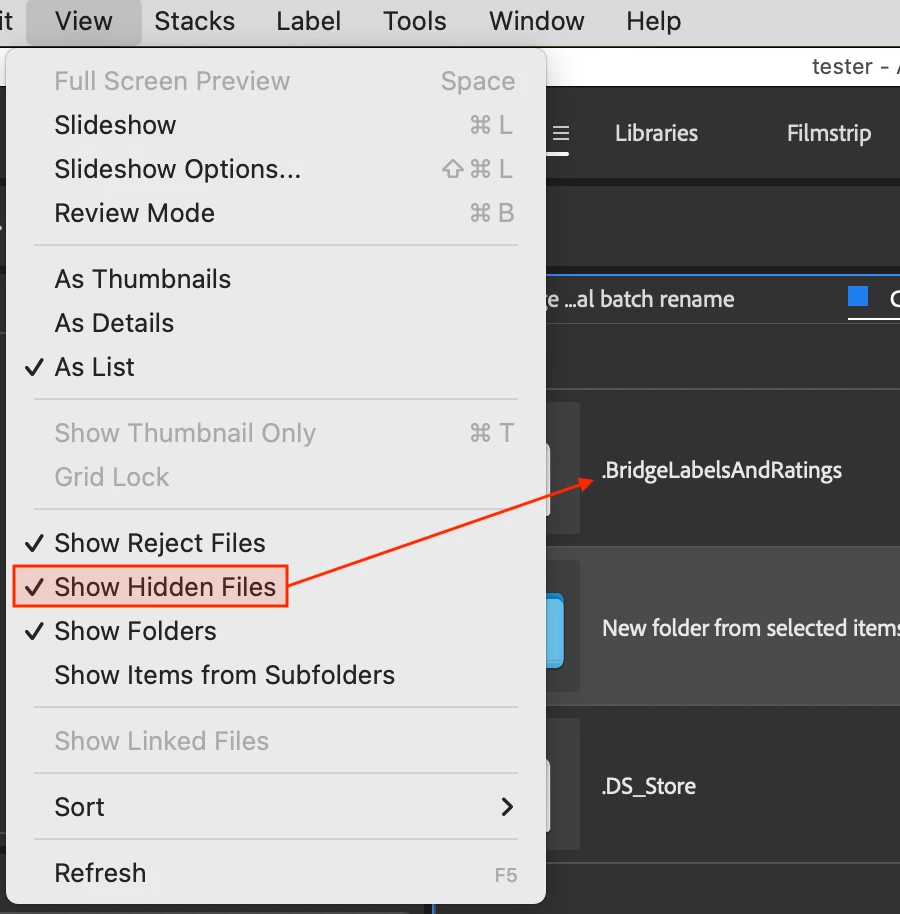
Bridge uses an invisible file/s to store folder related info such as labels and ratings, or custom sort order:


In a quick test, using the Finder to copy the folder copied the invisible file which contains the labels and ratings, as did copying using Bridge.


2 replies

Stephen Marsh
Community Expert
Stephen MarshCommunity ExpertCorrect answer
Community Expert
December 10, 2024

@Regina 7 


Labels, ratings, keywords and other metadata are stored in supported file formats such as JPG, PSD, TIFF, PNG, WEBP, DNG (except for proprietary raw camera file formats, which use XMP sidecar files) – so these metadata entries travel with the file.


The same is not true for a folder/directory, as it isn't a file.


Bridge uses an invisible file/s to store folder related info such as labels and ratings, or custom sort order:


In a quick test, using the Finder to copy the folder copied the invisible file which contains the labels and ratings, as did copying using Bridge.


Regina 7Author
Inspiring
December 12, 2024

Thank you.  I am beginning to understand this.  I think part of the issue was not having my cloud files downloaded on the local drive too.  After I fully downloaded when I switched macs and drives, the folder labels started to appear. Learning as I go. My initial post was working off of the files as seen while still online only and I didn't understand.


I really appreciate the time and attention you all gave to helping me out.  It is appreciated.

gary_sc
Community Expert
Community Expert
December 9, 2024

By far, the easiest way to do this is to use Apple's Migration Assistant Tool. I've been using that since it first appeared, and it does a pretty good job and is far easier and more reliable than trying to remember what to move and where to put it yourself.


As far as Labels and Ratings, those are stored in each file's metadata. So, if you move the file, you'll move the respective labels and ratings with them.


One item of note: IF you shoot raw images and IF you leave them in the native raw format (e.g., CR2 or CR3 for Cannon), the metadata is stored in the .xmp files found in the same folders as the file. So, moving the whole folder around is very important, not just the image file itself. Remember, the metadata not only stores the labels and ratings, but any adjustments you've made in Adobe Camera Raw.


IF you convert your raw images to the DNG format, these, like JPG and TIF files, are container files, and all metadata is stored inside the file.


I hope that helps

Regina 7Author
Inspiring
December 9, 2024

hey,


Thank you for the reply.  My files are mostly AI and PSD files, I don't shoot photographs. 


I was going to use the migration assistant, but I am moving to a new mac provided by my company vs the old one which was mine.  So I was running into a user conflict while trying to migrate info. Not sure if there is a workaround for that and is why I was asking about specific files/preferences.  I hope that makes sense. thanks.

gary_sc
Community Expert
Community Expert
December 9, 2024

Ah, that can be an issue (user conflict), and I do not have any experience with trying to get past that. If you company has an IT person, you can see if they know.


If you've been organized and all of your files are in organized folders, transferring them to the new computer is straightforward. 


The one thing that will be a bit of a challenge is transferring custom Workspaces and application preferences (now settings). The Migration Assistant made that easy; now, not so much.


For Adobe Illustrator, it should be: locate the preference file in your user library folder on your old computer, then copy it to the corresponding location on your new computer; the file is typically found at: "~/Library/Application Support/Adobe/Adobe Illustrator [version number]/Adobe Illustrator Prefs."


Your Illustrator Workspaces can be found here:
Workspaces are located within your user library, specifically in the "Preferences" folder, under the "Adobe Illustrator [version number] Settings" directory; you can access them by going to "Finder" > "Go" > "Go to Folder" and entering " ~/Library/Preferences/Adobe Illustrator [version number] Settings/Workspaces".


Moving Photoshop is a bit easier:
To move your Adobe Photoshop preferences to a new computer, you can export your preferences and then import them on the new computer:
Go to File > Export > Export Preferences
Set your preferences for format, quality, and destination
Go to File > Export and select Export As
On the new computer, import the preferences

To move your PS Workspaces:
Find the workspace files:
Open Finder (Mac) or File Explorer (Windows).
Navigate to your user directory: "Users/[username]".
Go to the "Library" folder (Mac).
Open "Preferences" > "Adobe Photoshop [version] Settings" > "Workspaces".
You will see files with the extension ".psw" which represent your saved workspaces.
Copy the workspace files:
Select all the ".psw" files you want to transfer.
Copy them to a USB drive or cloud storage for easy transfer.
Paste on new computer:
On your new computer, navigate to the same location: "Users/[username]/Library/Preferences/Adobe Photoshop [version] Settings/Workspaces".
Paste the copied workspace files.
Important points:
Version compatibility:
While most workspaces should transfer between Photoshop versions, significant version changes might cause some compatibility issues.


Hope this all helps