Participant
January 7, 2023
Answered

Transfer keywords to photos on external hard drive

  • January 7, 2023
  • 1 reply
  • 1319 views

Hello,


I need to transfer a large number of photos from my MacBook onto an external hard drive. I've previously gone through all the files in Bridge and many have keywords attached to them, which I want to keep.


My question is: if I transfer the photos onto the hard drive, will the keywords have been 'written into' the files and be transferred along? I will need to work with the images in Bridge again in the future, so it's crucial the keywords don't get lost and Bridge can still read them once the files are on my external hard drive.


In addition to this, some of the folders containing these images are already backed up on my external hard drive, however, the files within them do not include the keywords, which were later added on my MacBook. If I copy the files from my MacBook (with keywords) onto the hard drive, will they replace the files on my hard drive and 'attach' the keywords to them?


Alternatively (and maybe much easier): is there a way to simply copy keywords and 'attach' them to the files on my external hard drive? Rather than copying the files themselves.


Grateful for any help/advice!

This topic has been closed for replies.
Correct answer gary_sc

Keywords are attached to TIF, PSD, JPG, GIF, and PNG files. Keywords are attached to the sidecar files for raw files unless you converted the raw files to DNG, and then they are contained within (as are all the other formats just mentioned). [This is one of several reasons I always convert raw to DNG so as not inadvertently lose or misplace the sidecar files.]


As far as duplicate files on your computer's external hard drive AND on your MacBook, as stated: the keywords are contained within each file. As long as you move (and replace) the files in the right direction, you'll be fine. Just be very careful that you're replacing the ones without keywords with the ones with keywords. Also, when you add keywords, because you are changing the original file, it will have a newer date than the others. 


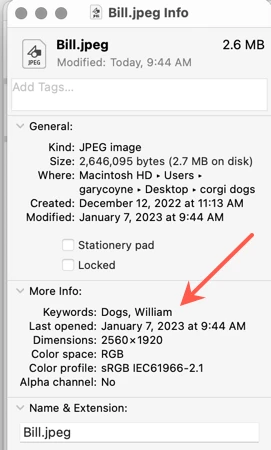
Lastly, as a check, you can always click once on an image in the Finder and click on Command-i to get the info panel. Keywords will show up here IN THE FILE. If there are no keywords, than that line in the More Info section will not even have the word "keywords" in it.


Hope that helps,


1 reply

gary_sc
Community Expert
gary_scCommunity ExpertCorrect answer
Community Expert
January 7, 2023

Keywords are attached to TIF, PSD, JPG, GIF, and PNG files. Keywords are attached to the sidecar files for raw files unless you converted the raw files to DNG, and then they are contained within (as are all the other formats just mentioned). [This is one of several reasons I always convert raw to DNG so as not inadvertently lose or misplace the sidecar files.]


As far as duplicate files on your computer's external hard drive AND on your MacBook, as stated: the keywords are contained within each file. As long as you move (and replace) the files in the right direction, you'll be fine. Just be very careful that you're replacing the ones without keywords with the ones with keywords. Also, when you add keywords, because you are changing the original file, it will have a newer date than the others. 


Lastly, as a check, you can always click once on an image in the Finder and click on Command-i to get the info panel. Keywords will show up here IN THE FILE. If there are no keywords, than that line in the More Info section will not even have the word "keywords" in it.


Hope that helps,


Participant
January 8, 2023

Hi Gary, thanks a lot – this has been very helpful. Just went and followed your advise and everything worked out just fine. Very happy. Thanks again!

gary_sc
Community Expert
Community Expert
January 8, 2023

Delighted to hear that. 


If you need to make copies of files from one computer to another and want to always make sure you're copying the newer to replace the older. I cannot recommend enough an application called Chronosync. It has been serving me for at least 20 years. The guy who runs it is fantastic. He's helpful and obliging. The software is very adaptable and may seem a bit complicated at first but it's absolutely the best there is in what it does.


Good luck