@DJ34201359u0ax I do believe Adobe Bridge has a default setting to not process files larger than a certain size (often 1GB or 1000MB) to prevent performance issues. When a file exceeds this limit, Bridge won't generate a thumbnail or preview for it, resulting in the icon display. Additionally, Bridge relies heavily on its cache for displaying thumbnails and previews quickly. If the cache is corrupt, full, or not set up to handle large files, you'll see problems.
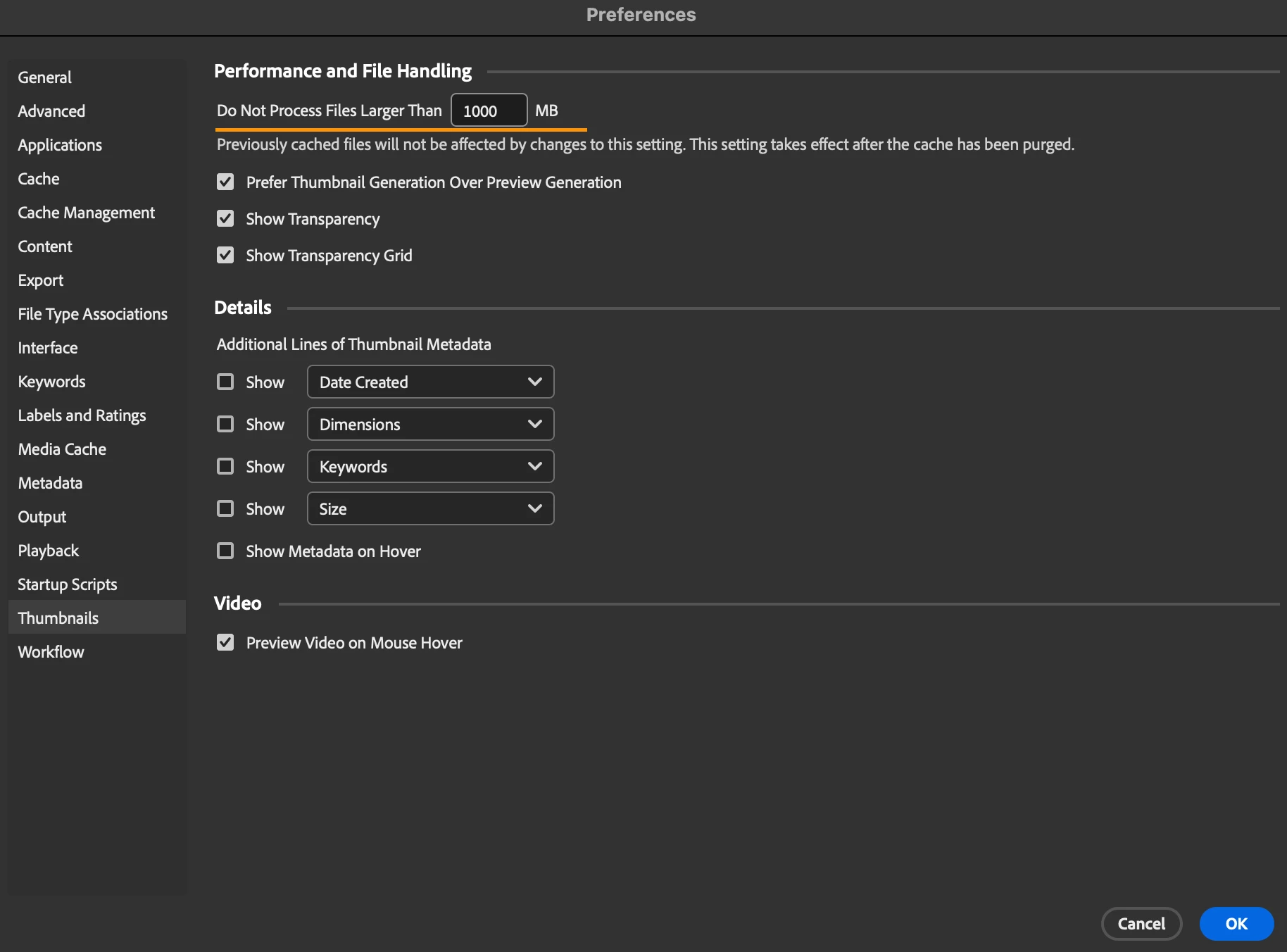
I have to say that's a pretty big file, so, you could try changing the preferences in Bridge. To fix Photoshop files appearing as icons instead of images in Adobe Bridge, especially for large files, you need to adjust Bridge's preferences. Go to Edit > Preferences (Windows), then navigate to the Thumbnails tab. In the "Performance and File Handling" section, locate the "Do Not Process Files Larger Than" setting. By default, this is often set to 1000 MB (1 GB), which is why your larger files are not generating previews. Increase this value significantly (e.g., to 2000 MB, 5000 MB, or even higher, depending on your typical file sizes and system resources). After changing this setting, it's also highly recommended to go to the Cache tab in Preferences and click "Purge All Local Cache Files" to force Bridge to regenerate thumbnails and previews for your files. This should resolve the issue and allow you to see image previews for your large Photoshop files.




 AdChoices