


flyrs88
Known Participant
December 16, 2014
Question

Camera Raw 8.7.1 color issues

  • December 16, 2014
  • 39 replies
  • 21788 views

After the recent camera raw update to 8.7.1 I have noticed some pretty bad color shifts between camera raw and photoshop cs6. The colors in camera raw look very saturated and then when moving into photoshop the saturation shift is pretty dramatic. I never had these issues before the update. I have attached a screenshot illustrating the color issue. I am working on a very good monitor ( NEC PA 242W ) and it is color calibrated using NEC Spectraview calibration system. I have double checked my color setting in photoshop and camera raw to make sure I was viewing the same color space. I am just wondering if this is maybe a bug in the update and others are experiencing the same issues or if I am just missing something.
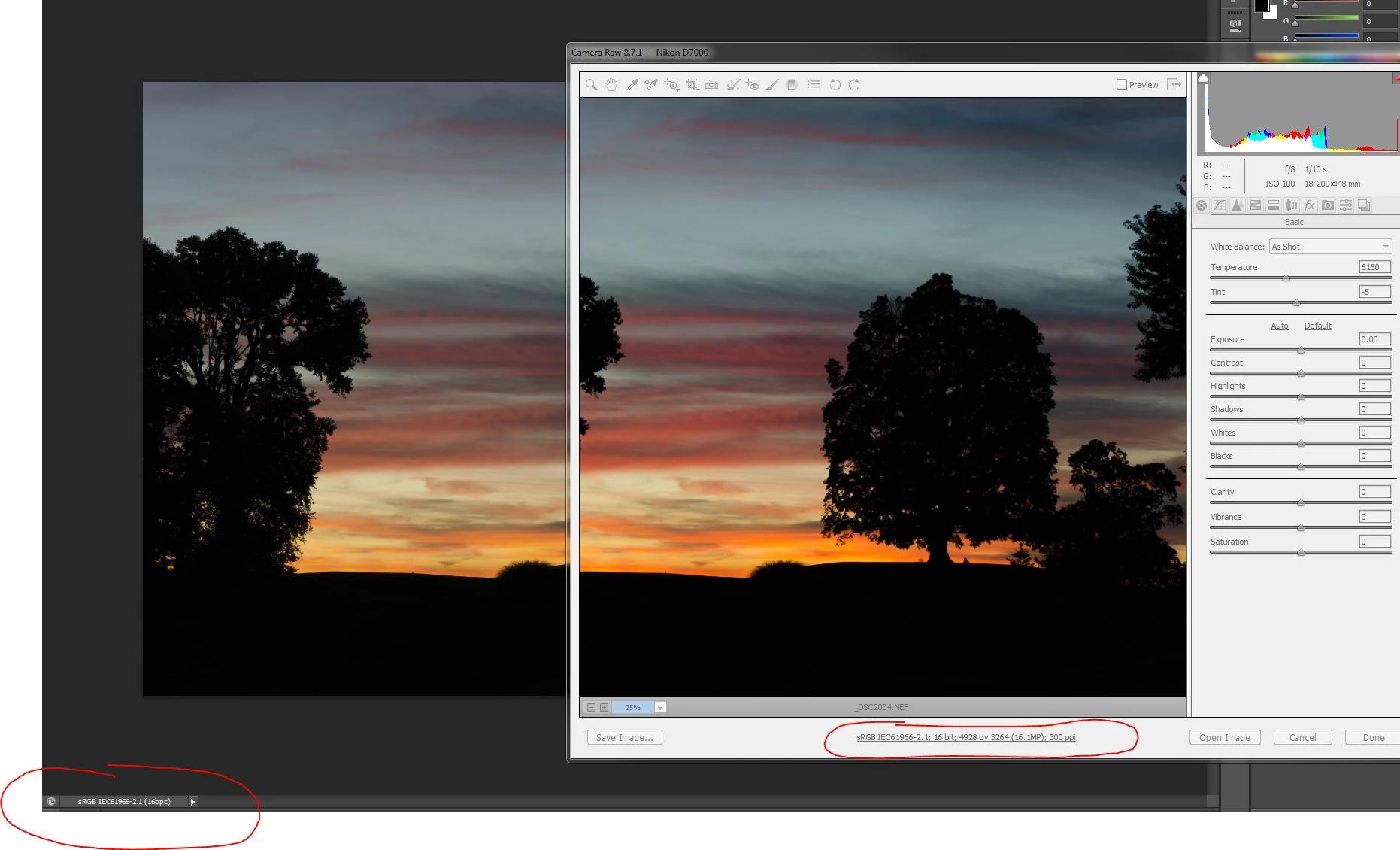
I would also add that I am using the Creative Suite CS6 and not CC. If that makes a difference.

    This topic has been closed for replies.

    39 replies

    November 25, 2016

    I have the same problem with dual monitor on Windows 10.

    The solution with "Main Display" work just one time and stops working after you restart Photoshop.

    This solution correct image in Photoshop, the picture remains the same in ACR.

    You can see that I use the last version of ACR and Photoshop is the latest v. too.

    I try to make working my notebook with sRGB calibrated display and Dell monitor calibrated with i1 Display Pro to AdobeRGB.

    I have no problems with color in other application like Capture NX-D, DxO Optics or Capture One. I think that Adobe need examine this issue with Microsoft or Nvidia, because it's a big problem for users like me and one very little for theirs programmers.

    D Fosse
    Community Expert
    Community Expert
    November 25, 2016

    Let's get this clear: Are you switching main and secondary display in the OS? What exactly are you doing that first clears it and then reverts?

    The problem of ACR using the wrong display profile has been reported often enough (not just in this thread) to qualify as a real bug. What is not clear is which exact display configuration that triggers it. Is ACR on the main or secondary? Is Photoshop on the main or secondary?

    Two minor points here: Don't use the "Nikon Adobe RGB" profile, wherever it comes from (I don't have it). Use the standard Adobe RGB (1998) profile. Camera manufacturers do the strangest things to make their images look "appealing", and I wouldn't trust this profile for a second.

    Also, you don't calibrate your display "to Adobe RGB" or any other profile. You calibrate to its native response, whatever that is, with the parameters you set for white point, black point and so on. Set the monitor to Custom and go from there. The calibrator then makes a unique monitor profile that is completely divorced from any of the standard working space profiles. The monitor profile describes the actual response of the display.

    Participating Frequently
    September 30, 2016

    If you're on Windows - I'm on 10 Pro - go to control panel, color management, and then click on the advanced tab. Set your "Device Profile" to the monitor you're editing on, and then set your "Viewing conditions profile" to System default (WCS profile for ICC viewing conditions).

    I had the same issue and spent three days on the phone with Adobe. No one there was able to resolve the problem, so I just dug into my settings and tried everything until I solved the problem.

    Good luck.

    D Fosse
    Community Expert
    Community Expert
    September 30, 2016

    I'm not sure your problem is the same as the others. A general difference between ACR and Photoshop is usually caused by a defective monitor profile. The OPs problem was that ACR uses the wrong profile in a two display setup.

    Normally you shouldn't touch the "advanced" tab. That just sets system defaults, but shouldn't affect the working profile. If you want to replace a bad profile, you do that in the "devices" tab.

    I don't know what happens if you have a monitor profile set as WCS system default. It's supposed to be sRGB, whatever your working display profile/s is/are.  I'd change it back and do it under "devices".

    flyrs88
    flyrs88Author
    Known Participant
    February 3, 2016

    Ok, I disabled GPU acceleration for ACR and Photoshop but it made no difference.

    Here are a couple screenshots of what I am seeing based on what monitor is set as "Main Display" in windows display settings.

    And both of the screenshots I am viewing the image on my wide gamut monitor.

    - Normal monitor using generic srgb profile set as main display.

    - Wide gamut monitor using the profile generated from SpectraView software set as main display.

    Dragging the ACR window over to the other monitor, letting go, then dragging back still showed the same thing.

    Participant
    July 24, 2016

    Hello.

    I had the same problem. I'm working with two monitors, One is sRGB and the other one is wide gamut. In my old configuration, where the problem existed, I had the sRGB monitor as main, and worked with photoshop in the wide gamut monitor, appearing the same problem like you. Today, I have configurated wide gamut monitor as main, and I open Photoshop and ACR at this monitor. Just with this, the problem has been resolved.

    I think that the problem is related to moving windows from one monitor to another.

    flyrs88
    flyrs88Author
    Known Participant
    February 3, 2016

    Yeah windows is using the correct profile for each display it is just that when Photoshop is first opened it associates the "monitor profile" of whatever display is designated the "main display" in windows. And Camera Raw uses the Monitor RGB for its profile.  So since my main display is just a regular monitor that uses a generic srgb profile when I open camera raw over in my wide gamut monitor the srgb profile camera raw is using makes all the colors way over saturated.

    The only way I have found to fix this is I have to go into "Display Settings" within windows or my nvidia control panel then click my wide gamut monitor and check "Make this my main display".

    Then I have to open Photoshop so "Monitor RGB" reflects the ICC profile of that monitor.

    Then go back into display settings and switch back the main display.

    After that camera raw associates the correct profile until I close Photoshop then I have to repeat that process the next time I open Photoshop.

    That's why I was just wondering if there was an easier way like to make Photoshop always use the same profile for its monitor rgb setting.

    D Fosse
    Community Expert
    Community Expert
    February 3, 2016

    Try to disable all GPU acceleration in both ACR and Photoshop, and check again.

    Just to establish the basics here: Yes, Photoshop will put up the profile for the main display as "Monitor RGB" in color settings, because it has to pick one. But neither PS nor ACR are supposed to be bound by that when actually displaying a file. They should use the monitor profile for the display they happen to be on, whichever that is at any time. When you drag - image or app window - the profile should switch when you cross the mid-line and drop.

    IOW - the Photoshop Monitor RGB listing isn't supposed to matter for actual display. If it does, that qualifies as a reportable bug.

    flyrs88
    flyrs88Author
    Known Participant
    February 2, 2016

    So after living with this problem for the past year I decided to upgrade to newest version of Photoshop CC and Lightroom hoping that the color problem would be fixed, and it was not. So I started digging into this again and I have found what I think the cause is. Per this other post on the forums Adobe Camera Raw uses profile of Windows "main" monitor only in dual monitor setup I also have pretty much the same duel monitor setup. After following the steps the OP outlines as a temporary fix the color shift is totally solved.

    Is there a way to set Lightroom and Camera Raw to load and only use the secondary monitor ICC profile as the file it associates with the "Monitor Profile"?

    D Fosse
    Community Expert
    Community Expert
    February 2, 2016

    flyrs88 wrote:

    Is there a way to set Lightroom and Camera Raw to load and only use the secondary monitor ICC profile as the file it associates with the "Monitor Profile"?

    I'd look at the operating system first. Both Photoshop and ACR should use the profile assigned as default for that display, by the operating system. Main or secondary doesn't matter to PS/ACR, they should use whatever the OS tells them to, for that display.

    So before assuming an ACR bug, make sure the OS is setting up the correct profile for each display. This is done through the normal OS dialogs.

    kastor julien wrote:

    So I think I was right, Camera raw 7.0 did not manage Raw in adobe 1998

    Julien, this has nothing to do with Adobe RGB or not. This is about the monitor profile used, those are two entirely different things.

    The workflow setting for Adobe RGB doesn't apply until the image is encoded into a color space and opened into Photoshop. Inside ACR, you see the image in ACR's internal working space, linear ProPhoto, which is converted into the monitor profile and sent to the display. If the monitor profile is wrong, it won't display correctly.

    kastor julien
    Participant
    January 29, 2016

    !

    Hi,

    I have the same issue :

    I shot with a camera set on adobe rgb 1998 ICC.

    When I open my .cr2 in a soft like ACDSee, no problem, the ICC  adobe 1998 is well interprated and my display is OK.

    But when I open it in camera RAW, after setting properly the camera profiles, my image is oversaturated. If I then open it in photoshop in sRGB profile, my work is dead, there is no way to convert back the colors.

    The only way I found is to open your image in PS in adobe 1998 profile. Then when the conflict ICC profile popup appears, Delete the incorporate ICC profile bring me back the correct colors.

    It is a pain because when I tweak my image in camera RAW, I don't see it with the good colors.

    My opinion is that camera raw is not able to handle adobe RGB 1998 ICC profile. So... What the hell ?!

    Does it ring a bell to somebody ? Another workaround or explanation may be ?

    Cheers

    Edit : I solve the problem : So I think I was right, Camera raw 7.0 did not manage Raw in adobe 1998. It is an instalation problem. I had camera raw  7.0 on my workstation, when I installed camera raw 9.3, the installation seemed to end correctly. But no, it was still camera raw 7.0 when I opened a raw in PS. So after a few research I found that I'd better install camera raw 9.1, what I did, and it worked, no more misunderstanding with my adobe 1998 ICC in Camera raw.

    I hope it'll help.

    Cheers

    einzelbild
    Inspiring
    September 20, 2015

    had the same problem. going back to the old ACR-Version solved it. thanks.

    Participant
    April 18, 2015

    I am seeing the same thing.  Check out my post.

    Re: Camera Raw Bug: Preview not the same after clicking OK

    Will try to go back to 8.6 and see if it fixes my problem as well.

    Participant
    April 21, 2015

    The only other way is to Open as Object and tweak from there, not ideal but otherwise we could be using 8.6 while everyone is on version 20

    Participant
    April 17, 2015

    Can't see anything obvious, updated drivers too

    I don't think it is a change by Adobe that is planned, I think is an issue affecting a small amount of people.

    Participant
    April 15, 2015

    I am having this issue too, now also with ACR 8.8. Win 7 64 too both on CC and CC2014.

    Rolling back to 8.6 rectifies it so it seems an ACR issue than anything else.

    Brendan

    ssprengel
    Inspiring
    April 16, 2015

    Check your NVidia or AMD (or other video card manufacturer) control panel and see if there is something non-default set for colors or gamma.  It could be that newer ACR plug-in versions are using a different OS-function to write to the display so that HiDPI UI-scaling works and that OS-level display function is using different video-driver options that can be affected differently by GPU color settings.

    Also experiment with different GPU / Advanced Graphics settings in PS / Preferences / Performance and see if adjusting those makes a difference, again the theory would be that newer ACR UI-scaling is affected by GPU settings.