


flyrs88
Known Participant
December 16, 2014
Question

Camera Raw 8.7.1 color issues

  • December 16, 2014
  • 39 replies
  • 21788 views

After the recent camera raw update to 8.7.1 I have noticed some pretty bad color shifts between camera raw and photoshop cs6. The colors in camera raw look very saturated and then when moving into photoshop the saturation shift is pretty dramatic. I never had these issues before the update. I have attached a screenshot illustrating the color issue. I am working on a very good monitor ( NEC PA 242W ) and it is color calibrated using NEC Spectraview calibration system. I have double checked my color setting in photoshop and camera raw to make sure I was viewing the same color space. I am just wondering if this is maybe a bug in the update and others are experiencing the same issues or if I am just missing something.
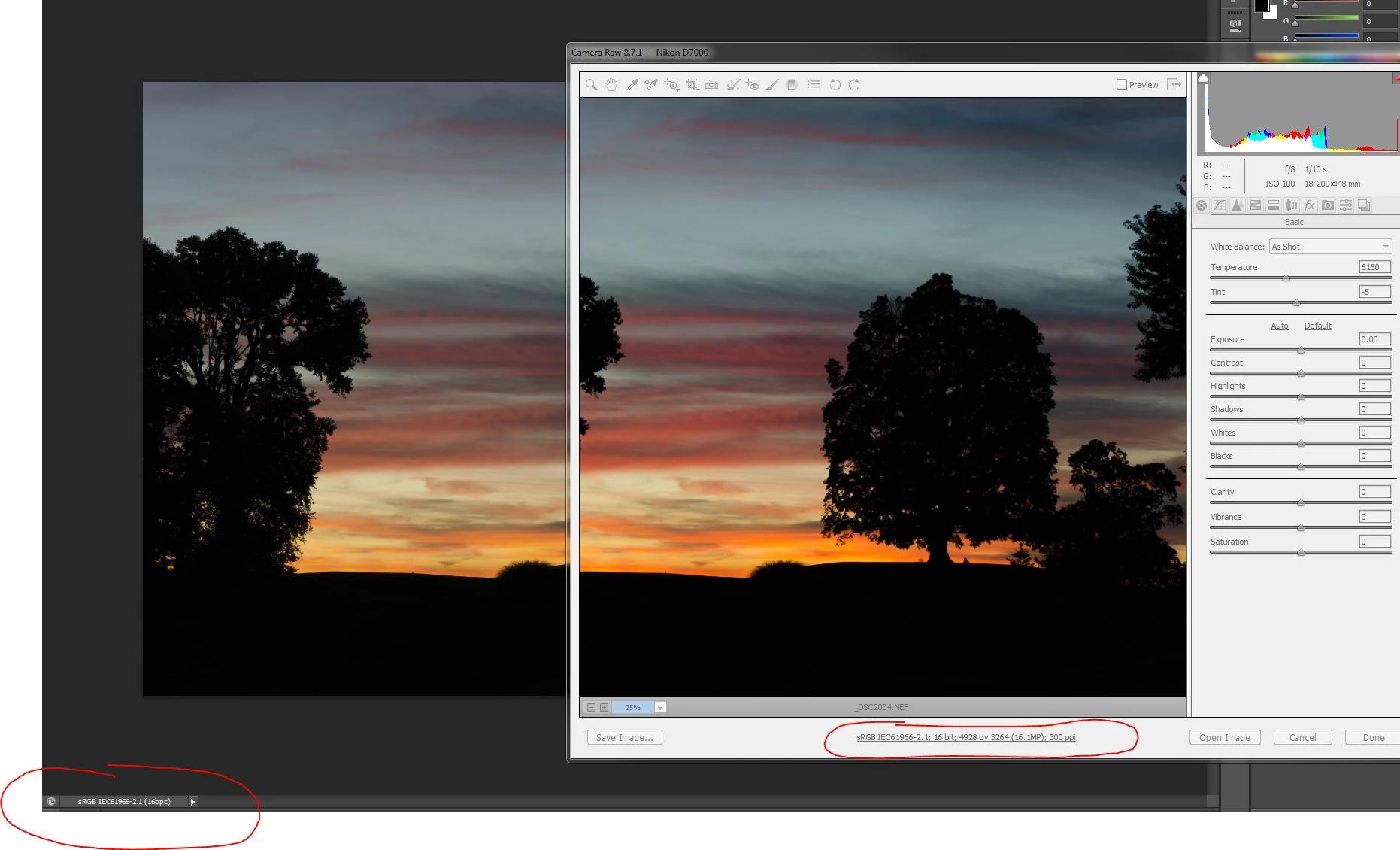
I would also add that I am using the Creative Suite CS6 and not CC. If that makes a difference.

    This topic has been closed for replies.

    39 replies

    flyrs88
    flyrs88Author
    Known Participant
    December 20, 2014

    Using generic srgb and adobe profiles from windows color management displayed the same results. Which makes me think that it is Camera Raw that is messed up. But I don't know if NEC's software loads profiles into the monitor itself and that is causing a problem when trying to control the monitor through windows.

    flyrs88
    flyrs88Author
    Known Participant
    December 19, 2014

    The graphics processor preference made no difference. But if I change my monitor profile to srgb and drag the window in Photoshop I don't see a color shift and that was kind of my suspicion. I think if I limit my monitor to only displaying the srgb color space it gives the appearance that the color difference between camera raw and Photoshop does not exist but it is just because I am not seeing the colors outside of the srgb gamut. Essentially like I am on an srgb monitor. But once I use a wider gamut profile now Photoshop is managing the colors correctly but Camera Raw is not. Like I am viewing an unprofiled photo on an non-color managed application. So I am seeing a color difference because I am on a wide gamut monitor.

    And I know Photoshop is not the problem because when I send a file off to a print lab and compare the print to the image open in Photoshop they are the same. So I am going to contact NEC to see if they can replicate the problem and see if it is their software that is not working with the updated Camera Raw plugin. Otherwise I'm just gonna say screw it and use Camera Raw 8.6 because I had no issues with it.

    ssprengel
    Inspiring
    December 19, 2014

    If you use Windows Color Management to set the Spectraview profile does it work ok or have the discrepancy? That would seem like a viable option, unless part of what the Spectraview software does is load the profile into the monitor, itself, and Windows Color Management doesn’t have the capability.

    flyrs88
    flyrs88Author
    Known Participant
    December 19, 2014

    Ok so here is something else I'm seeing. I have everything set back to way I have always worked, profile generated with nec software, back to square one. The problem looks exactly like my screenshots from above.

    So the image is open in Photoshop then reopened in Camera Raw sitting right beside. If I click the image tab in Photoshop and drag to have it as a free floating window. When I click and start to drag the window the colors shift and look exactly the same as the image open in Camera Raw. But once I let go of the mouse the colors shift back and look less saturated than the Camera Raw image.

    Does that mean anything to you guys?

    ssprengel
    Inspiring
    December 19, 2014

    During the drag, I could imagine that PS is handing off rendering to the video card, itself, which may or may not being doing the same color-management.

    You might turn off using the graphics processor in the Performances Prefs, then reboot, and see if the drag is still that way or not.

    flyrs88
    flyrs88Author
    Known Participant
    December 19, 2014

    Ok, I think I have isolated the problem and concluded that something is not compatible with NEC software and whatever was updated in ether Photoshop or Camera Raw. I kept getting strange and mixed results when going through the Windows color management and doing a custom calibration. So I reset everything back to default, recalibrated my monitor through NEC Spectraview to get back to where I started. Then I started changing the color profiles through the monitor to use the factory set internal calibration profiles set during production ( SRGB and Adobe98 ). And found that as long as I switched profiles using the buttons and menu on the front of the display the problem between Photoshop and camera raw was fixed. It was once I changed the profiles through the software interface the problems came back.

    So I guess my next step is to contact NEC and report this and see if they can duplicate the bug.

    station_two
    Inspiring
    December 19, 2014

    flyrs88 wrote:

    …found that as long as I switched profiles using the buttons and menu on the front of the display the problem between Photoshop and camera raw was fixed. It was once I changed the profiles through the software interface the problems came back.

    That can also point to a defect in the profiles that are activated through the software vs. the ones (presumably built-in) changed through the hardware. It might be wise to provide your profiles to NEC too so they can reproduce your issue.

    flyrs88
    flyrs88Author
    Known Participant
    December 19, 2014

    Ok, I have completely reinstalled windows and reinstalled fresh copies of all my software. The problem is still there. I also did what you asked and applied generic color profiles through Windows Color Management and using the srgb profile the problem appears fixed. But with the generic Adobe98 profile the problem reappears. The colors remain the same in Camera Raw regardless of what profile I use but change in Photoshop when I change profiles.

    ssprengel
    Inspiring
    December 19, 2014

    If you reformatted and reinstalled windows without doing an in-place upgrade then all your settings would have been reset and the only area to check would be your monitor's configuration stored in the monitor, itself.

    If you did an in-place upgrade or even just as an experiment, try doing a Windows Calibration operation:

    flyrs88
    flyrs88Author
    Known Participant
    December 18, 2014

    Yes, I can build different monitor profiles and one of the settings to set is color gamut. So I built a profile using "Native Gamut", then I also built 2 other profiles, one specifically using Adobe 98 and the other srgb.

    The only one that appeared to fix the problem was when I changed my monitor profile to use the srgb profile.

    ssprengel
    Inspiring
    December 18, 2014

    Ok, you’re using your monitor calibration software to create profiles and configurations for your monitor and when you specify you want an sRGB gamut profile/configuration then things are ok, but otherwise they aren’t.

    However, I am asking for you to do something entirely different. Go to Windows Color Management and set the default profile for your monitor to the Windows sRGB profile and then the Windows AdobeRGB profile. This doesn’t involve using your calibration software or configuring your monitor using its menus or software, it something that can be done on any monitor that is hooked up to Windows, using the Windows Control Panel or Advanced Display Properties. The profile won’t be correct as far as colors, but it a way to test the hand-crafted profiles you’re making against a standard profile anyone has access to, and whether the colors between PS and ACR are consistent with these profiles in effect.

    Make a note of what color profile you’re using before you switch it to sRGB and AdobeRGB so you can switch it back, afterwards.

    Here is a webpage that explains how to set the monitor profile to sRGB. Do that, test, and then do the same thing specifying AdobeRGB instead of sRGB, then test again.

    When I follow this process on Windows 8, the profile takes effect immediately and I can just load up PS and see a difference. I’m not sure if Windows 7 is immediate or needs a reboot. I’m also not sure if the software you’re using for your monitor is loading the profile as part of the boot process and therefore might override what you’re doing in the Color Management section of Windows.

    http://www.lightroomforums.net/showthread.php?14070-How-to-assign-an-sRGB-ICC-Profile-to-your-monitor-(Windows)

    flyrs88
    flyrs88Author
    Known Participant
    December 18, 2014

    Monitor profile specifically using AdobeRGB gamut displays the same problem.

    ssprengel
    Inspiring
    December 18, 2014

    The use of "gamut" confuses me.  Did you set your display profile default specifically to AdobeRGB?

    On my side of things, I set my display profile to sRGB, AdobeRGB and ProPhotoRGB, and while the colors were less saturated, especially with ProPhotoRGB, PS and ACR still showed the same things.

    flyrs88
    flyrs88Author
    Known Participant
    December 18, 2014

    Ok great thank you for clearing that up.

    I did some research and from what I have found is that the Spectraview software that NEC uses to calibrate creates ICC v2 matrix-based profiles.

    I also did a few tests where I switched my profile to one only using the srgb color gamut and the discrepancy between Photoshop and Camera Raw was gone. Then upon switching back to the profile using full gamut Photoshop remained the same but Camera Raw changed and went back to looking over saturated. But if I change the raw plugin back to 8.6 and still using the full gamut profile the discrepancy is gone. It only appears in Camera Raw 8.7 and the current 8.7.1.

    ssprengel
    Inspiring
    December 18, 2014

    Try AdobeRGB not just sRGB.

    flyrs88
    flyrs88Author
    Known Participant
    December 17, 2014

    Ok so I don't get why that matters. Correct me if I am wrong but Photoshop and Camera Raw are color managed applications and people see the color within the color space Photoshop is set to, and how much of that color space they see is based on what their monitor can display. ProPhoto being there is no monitor that can display that full color space but that is another argument for why some people advocate working in it for some images and other people say it is pointless.

    So in my case since I had Photoshop set to the srgb color space and Camera Raw workflow options set to srgb. I am seeing the colors within the srgb color space. My monitor being wide gamut is irrelevant. It just means I can see 100% of the srgb color space.

    And yes the screenshots don't have srgb color profile embedded but via "save for web" they are converted to srgb colors. I could have embedded the Adobe98 color profile and someone could be seeing the image all out of whack and nasty looking but they would still see that there is a color difference illustrated that I was showing from me having Camera Raw sitting next to the image open in Photoshop.

    The whole point of this thread and the problem I am having is to show that there is a difference in color from Camera Raw into Photoshop and there shouldn't be.

    ssprengel
    Inspiring
    December 17, 2014

    It doesn't matter to the main point of there being a discrepancy but it would matter as to which one seems more correct--whether PS or ACR is the problem.

    From your point-of-view it is ACR that is wrong because using an earlier plug-in changes how ACR looks and PS is still the same.  When I look at the images the PS version looks a little pale to me, as if it was wrong and the ACR version was more correct.   I does help to know that your screenshots were saved with sRGB color-numbers.

    I wish someone with a wide-gamut monitor would comment if they see the same thing or not.

    Since it does appear, as it has from the beginning, that ACR is responding incorrectly to something at least on your system, is there a way to create a profile for your monitor using the calibration software that uses a different version of ICC (2 vs 4) or uses Matrix vs LUT profile?  These are things I could do with the i1Display software when creating a profile.  I know that in the past Lightroom has needed ICCv2 Matrix profiles, and I wonder if ACR has some Lightroom display code in it, now, that isn't' compatible with the specific type of profile you've created for your display.

    Another experiment would be to set your display profile to the standard sRGB profile, and compare PS and ACR, then set it to the standard AdobeRGB profile and compare PS and ACR, to see if using either of those standard profiles removes the discrepancy.  This would point more toward an issue with the display profile you have and maybe you could upload that for others to test, not that it would be correct for their displays, obviously, but just to see if the same problem exists for them.

    flyrs88
    flyrs88Author
    Known Participant
    December 17, 2014

    I should have clarified why my screenshots are in srgb. When I first noticed the problem I was in ProPhoto, then I switched into Adobe98, then srgb to see if changing color spaces made any difference. And the problem is the same no matter what color space I was in. I just didn't change out of srgb when taking my screenshots but again the color space didn't make a difference with the problem that I illustrated.

    But I also usually work in ProPhoto when editing landscapes and Adobe98 with portraits.

    ssprengel
    Inspiring
    December 17, 2014

    What you mean is that the PS workingspace and the ACR output colorspace were sRGB by the time you were posting screenshots whereas normally they are ProPhotoRGB or AdobeRGB depending on the type of photo.


    The actual screenshot JPGs attached to your posts, raw8.7update.jpg and sidebyside.jpg, have no embedded colorspaces so they will look different to us than what you see on your screen.  Screen captures are in the monitor’s colorspace, so need to be ASSIGNED the MONITOR profile when opened in PS – you should have “warn missing profiles” enabled in your color settings and then you should CONVERT the colorspace to sRGB before posting so browsers can display them properly. 


    Because they don’t have embedded colorspaces, they are assumed to be or assigned sRGB by the browser which is likely not right since your monitor is a wide-gamut monitor closer to AdobeRGB.