


flyrs88
Known Participant
December 16, 2014
Question

Camera Raw 8.7.1 color issues

  • December 16, 2014
  • 39 replies
  • 21788 views

After the recent camera raw update to 8.7.1 I have noticed some pretty bad color shifts between camera raw and photoshop cs6. The colors in camera raw look very saturated and then when moving into photoshop the saturation shift is pretty dramatic. I never had these issues before the update. I have attached a screenshot illustrating the color issue. I am working on a very good monitor ( NEC PA 242W ) and it is color calibrated using NEC Spectraview calibration system. I have double checked my color setting in photoshop and camera raw to make sure I was viewing the same color space. I am just wondering if this is maybe a bug in the update and others are experiencing the same issues or if I am just missing something.
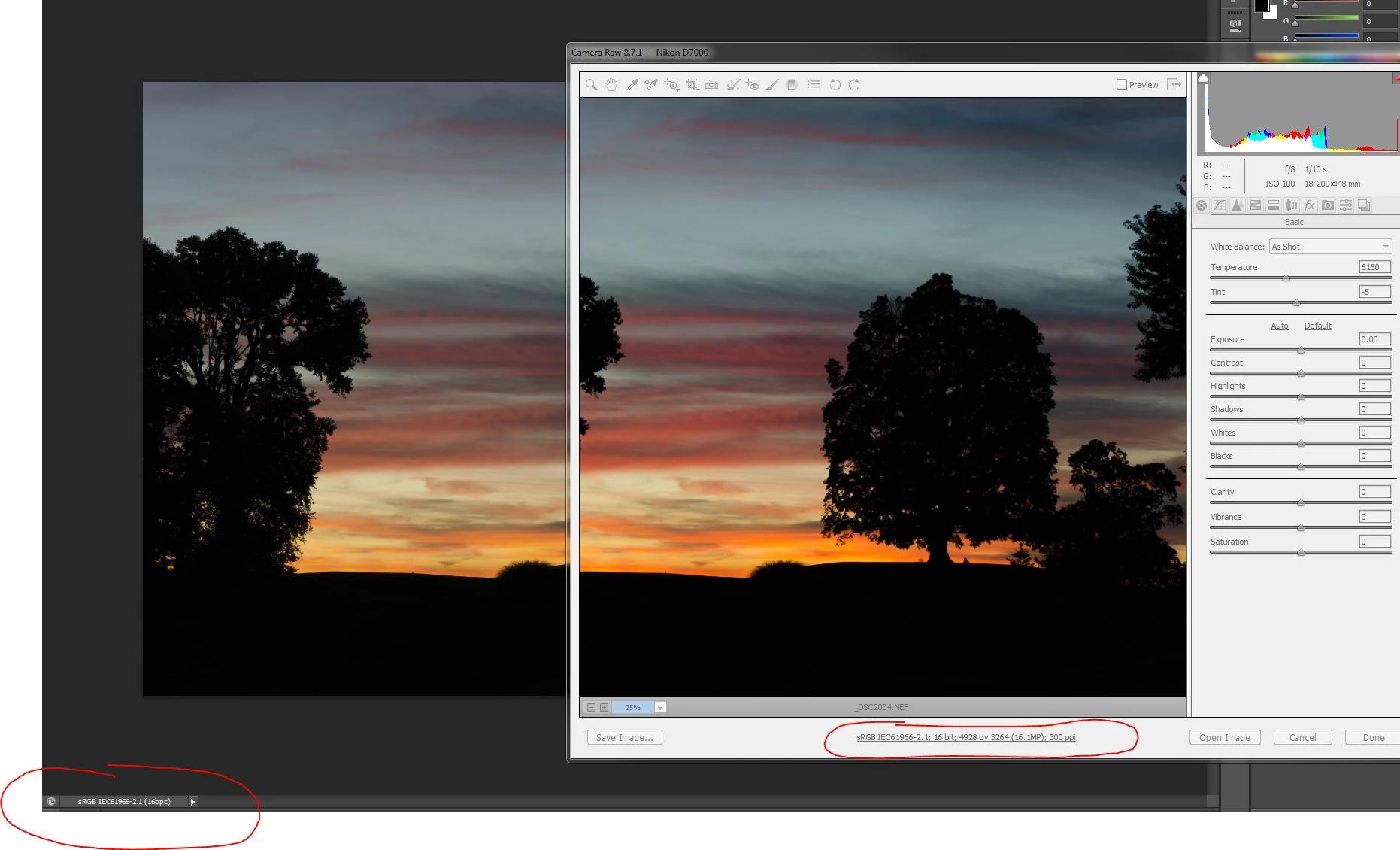
I would also add that I am using the Creative Suite CS6 and not CC. If that makes a difference.

    This topic has been closed for replies.

    39 replies

    flyrs88
    flyrs88Author
    Known Participant
    December 17, 2014

    Great thank you! It would be excellent to get his eyes on this.

    ssprengel
    Inspiring
    December 17, 2014

    What we need are repeatable steps one someone else's computer, to demonstrate that it's not merely an issue with your computer that we haven't quite figured out.  If someone else with a wide-gamut monitor could test an image in PS and the same image with no-non-default settings in ACR it would be helpful.

    flyrs88
    flyrs88Author
    Known Participant
    December 17, 2014

    Yes the issue does occur in 8.7 and continued into 8.7.1. The last version in which it does not occur is 8.6.

    Also I just tested opening files in 8.7.1 and no matter what file I open the problem shows up. The files I have and tested with are as follows.

    .jpg

    Nikon .NEF taken with these camera models

    - D70

    - D7000

    Canon .CR2 taken with

    - EOS 5D Mark II

    - EOS 60D

    - EOS 550D

    station_two
    Inspiring
    December 17, 2014

    I can now confirm there's something fishy in ACR 8.7.1.

    It's immediately putting the Adjustment icon (tiny circle with two slider symbols) visible in Bridge upon opening a raw image without having applied any adjustments whatsoever in ACR .  This is not kosher.

    I hope Eric Chan sees this post.

    station_two
    Inspiring
    December 17, 2014

    I've created a new thread with Eric's name in the subject title just to catch his attention.  In my first post there I linked to this thread here.

    flyrs88
    flyrs88Author
    Known Participant
    December 16, 2014

    Richard thank you for your suggestions. I double checked again that 20% desaturate setting was not checked. Then I did the following.

    1. Opened the photo in camera raw ( all settings zeroed out as shown in my screenshots above ). Then I saved out a jpg with the embedded profile directly from camera raw.

    2. Next reopened the photo in camera raw and opened in Photoshop from there. Then opened the jpg that I saved from the previous step, into Photoshop and compared the two side by side and they were exactly the same.

    3. While the two images were open in Photoshop I reopened the Raw file again in Camera Raw and compared that with the others. The one open in Camera Raw was dramatically different, extremely oversaturated.

    So going forward. Here is the solution I came up with and following are the steps I took in case it could possibly help someone else with a similar issue.

    In my case The Camera Raw plugin version 8.6 works great for me so I downloaded the zip file from http://swupdl.adobe.com/updates/oobe/aam20/win/PhotoshopCameraRaw8-8.0/8.6.28/setup.zip

    Open the zip file and depending on the version of photoshop you are running navigate to..

    32-bit version: -> payloads\AdobeCameraRaw8.0All-230714015400\Assets1_1.zip

    -> extract the file "1003" and rename it "Camera Raw.8bi"

    -> copy it to "C:\Program Files (x86)\Common Files\Adobe\Plug-Ins\CS6\File Formats"

    64-bit version -> payloads\AdobeCameraRaw8.0All-x64-230714021448\Assets1_1.zip

    -> extract the file "1002" and rename it "Camera Raw.8bi"

    -> copy it to "C:\Program Files\Common Files\Adobe\Plug-Ins\CS6\File Formats"

    ( NOTE: ) I am running on Windows 7 64bit using the Creative Suite CS6. So your file paths may be different depending on your operating system, install location and Adobe Packages

    Also I would advise making a backup of the original "Camera Raw.8bi" files before replacing them just in case something goes wrong.

    This fixed my issue and now I have no color difference problems.

    Thank you to all of you guys for your help and suggestions.

    Inspiring
    December 16, 2014

    I can understand you wanting to get back to correct operation, however the problem apparently still exists in your system, and going back-level on ACR is IMO a temporary fix.  I have the same configuration, except I'm PS only, your description seems to indicate a full CS installation.

    I encourage you to report the issue to Adobe, and go thru the agony to resolve, in my experience problems of this type will re-appear.

    Richard Southworth

    Inspiring
    December 16, 2014

    I see one mistake wrt problem chasing - changing the working space in ACR should NOT affect the appearance in the preview window, the image is rendered into another color space, but in a color managed system it's re-rendered properly when sent to the display.  When opened into PS your settings convert it again into the default space, and again the appearance at the display should not be affected.

    However, this doesn't answer the OP's question, why does the PS version differ.  To my eye, although I don't know what the original image should look like, the ACR rendering appears ok (portrait) and the PS rendering appears desaturated, as though the 20% desat setting was invoked in color settings (it wasn't, I checked).  Another experiment would be to save directly out of ACR into a jpg with embedded  profile, and then examine same in PS, trying to pin down where the mismatch occurs, i.e. in the open process from ACR to PS or opening an image directly in PS.

    Richard Southworth

    P.S.  Also temporarily choose Monitor Color in color settings, to verify that Photoshop is using your desired monitor profile, doing so will cause the profile name to show up in the RGB working space field.

    flyrs88
    flyrs88Author
    Known Participant
    December 16, 2014

    I tried deleting the Photoshop preferences but it had no effect. I also verified my NVidia settings are set to "Other applications control color settings". But even if that were not set that way I would think that would be more of a global color shift across all applications and not just in Camera Raw. I guess I will have to just deal with the problem and see if maybe a future update fixes the issue.

    I do have one more question though. Is there a way to roll back to a previous version of Camera Raw?

    I had no color issues with the prior version before this release.

    And thank you for your suggestions and trying to troubleshoot my situation.

    station_two
    Inspiring
    December 16, 2014

    Sure, you can roll back to an earlier version of ACR.

    If you know the exact path to the correct install location, you can do it manually by downloading the version you want, extracting the ACR plugin file and placing it on top of the newer plug-in to overwrite the latter.

    flyrs88
    flyrs88Author
    Known Participant
    December 16, 2014

    Thanks ssprengel for the suggestions and running a side by side yourself. I went through all my settings and applied your suggestions and did a side by side each time. I even uninstalled the entire creative suite on my system then reinstalled and updated and I still get the same outcome. It was fine yesterday with the previous version of ACR. It seems like the updated version is not showing the image preview in any color space. When I switch the color space in the workflow options the histogram changes but it doesn't seem to affect the preview window. And yes the preview button was checked on it was just when I was using the screen grab tool in windows it took focus away from the application so that is why the settings appear grayed out. I have attached more screen grabs below illustrating all my settings. Also here is some system info if anyone out there has a similar setup and would be willing to test.

    Adobe Photoshop Version: 13.0.1 (13.0.1.3 20131024.r.34 2013/10/24:21:00:00) x64

    Operating System: Windows 7 64-bit

    Version: 6.1 Service Pack 1

    ssprengel
    Inspiring
    December 16, 2014

    You could try resetting your PS preferences by pressing and holding Ctrl-Shift-Alt as you start up PS and answer Yes to deleting the preferences file.  You might want to review your preferences in case you've set something on purpose that you need to set that way, again, after the reset.


    And try resetting your NVidia control panel settings:

    Also, my switching between "Other application control color settings" and "Use NVidia settings" does change the color-balance of my monitor so I think "Other application..." is the one that loads my monitor profile.  When I copy/paste a screenshot of the "Other application..." view of the NVidia control panel into PS and eyedropper on the neutral areas I do get all three RGB values the same.

    station_two
    Inspiring
    December 16, 2014

    station_two
    Inspiring
    December 16, 2014

    Your ACR screen shot is irrelevant because you have the Preview box in the ACR dialog box UNCHECKED.

    Go check that box and try your comparison and screen shot again.

    Right now, ACR is showing you the image BEFORE applying adjustments in ACR while Photoshop is showing you the converted adjusted image. 

    ssprengel
    Inspiring
    December 16, 2014

    I'm not seeing a difference in CS6 with ACR 8.7.1 on Windows 8.1.2 with an sRGB-gamut monitor profiled with an i1Display, with ProPhotoRGB as the working space and the ACR-save-as color space:

    The way I generated my side-by-side was to open an NEF in PS which opened ACR then clicked Open Image, then zoomed in to 25% and moved it over in PS, then opened the same NEF, again, this time leaving it in ACR.

    A possibility is that the color-management in PS is messed up due to using the GPU instead of PS, itself.  A way to check this would be to turn of the GPU in Prefs / Performance, and restart PS, then try the same experiment.

    We can't see your PS document title tab so maybe you're in Proof mode.  This would be obvious from the title-tab that's cropped off in your screenshot.

    Another thing to show is your Color Settings, and specifically look for the Desaturate Monitor Colors by xx% setting to make sure it's off.