Participant
March 30, 2021
Answered

How do I get to see the 'Filmstrip' in Camera RAW 13.2?

  • March 30, 2021
  • 8 replies
  • 6501 views

I want to use Superresolution in Adobe Camera RAW 13.2.  Adobe help says to "right click on the Filmstrip" in RAW 13.2  to open the new Super-resolution menu. (I use Command-Shift-A to get to RAW)

My problem is that I never ever see a filmstrip in RAW, only the single image I  work on in Photoshop. How do I get to a filmstrip so that I can click on it??


thanks www

This topic has been closed for replies.
Correct answer Per Berntsen

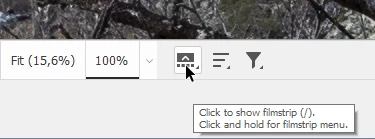
Bottom left corner of the Camera Raw window:


The shortcut for Super resolution is Command-Shift-D.

8 replies

Participating Frequently
January 1, 2024

In Settings>General>Panels select "Use compact layout."

Conrad_C
Community Expert
Community Expert
January 1, 2024

The Use Compact Layout option affects the panel stack on the right, but it doesn’t have any effect on the visibility or appearance of the filmstrip. 

Erik Bloodaxe
Legend
January 1, 2024

Participant
December 27, 2022

I have the same problem.  None of the feeds below have helped at all.   The buttons to enable the filmstrip are not even there.   The shortcut for enhance is not working, and when I right click, I get very few options.  


TheDigitalDog
Inspiring
December 27, 2022
quote

I have the same problem.  None of the feeds below have helped at all.   The buttons to enable the filmstrip are not even there.   The shortcut for enhance is not working, and when I right click, I get very few options.  


By @Karen27711732oy5x

Try resetting your ACR preferences, better? 

Hold down the Command key and select Photoshop > Preferences > Camera Raw (macOS) or hold down the Ctrl key and select Edit > Preferences > Camera Raw (Windows).

Click Yes in the dialog that asks "Delete the Camera Raw Preferences?"


Author “Color Management for Photographers" & "Photoshop CC Color Management/pluralsight"
Conrad_C
Community Expert
Community Expert
May 12, 2021

@Winfried5DE7 wrote:

I want to use Superresolution in Adobe Camera RAW 13.2.  Adobe help says to "right click on the Filmstrip" in RAW 13.2  to open the new Super-resolution menu. (I use Command-Shift-A to get to RAW)


You are running into multiple problems:


If you are pressing Command-Shift-A as you said, you are opening a Photoshop layer in the Camera Raw Filter. Super Resolution is not available that way — you must open an image file, not a layer, directly into Camera Raw, before converting it to a Photoshop document. This means you must either open the image using the Open command in Photoshop, or the Open in Camera Raw command in Adobe Bridge. This limitation is covered in the Adobe Help page you saw; it’s the first item in the Notes box on that page.


The next thing to solve is that “right-click on the filmstrip” is not the only way to get to Super Resolution. Super Resolution is part of the Enhance command, and the Enhance command is available in more ways than the incomplete Adobe help file describes. You can do any of the following:

  • Choose Enhance from the menu that appears when you click the More Image Settings (…) button in the toolbar on the right side of Camera Raw (see the figure below).
  • Right-click the large image preview (not the filmstrip), and choose Enhance from the context menu that appears.
  • Press the keyboard shortcut for Enhance (Shift-Command-D), as shown in the menu below.
  • If the filmstrip is available, hover over the image so that the More Image Settings (…) button appears, click that to open the menu, and choose Enhance.
  • If the filmstrip is available, right-click it to open the contextual menu, and choose Enhance. (This is the only method mentioned in the Adobe help file.)


Although you can make the filmstrip appear when there is only one image, it isn’t necessary because you can use the first three methods listed above even when the filmstrip is hidden.


You will not see a filmstrip if you used Filter > Camera Raw Filter, because the filmstrip represents loading up multiple photo files (not Photoshop layers) into Camera Raw. But you cannot do that with Camera Raw Filter, because that loads only one selected layer in a Photoshop document.

mikeST
Participant
May 12, 2022

Bonkers for the end user now. Adobe needs to get regular people to review some of these workflows in Photoshop for ease of use 

mikeST
Participant
May 12, 2022

Making simple lines and arrows with the line tool is another terrible interface. Such a common thing to do but takes 20 minites to make a simple arrow look the way you want.

Marianne-Deiters
Participating Frequently
April 15, 2021

It sounds like you're working with the Camera Raw filter and not the app

Participant
May 11, 2021

so what should i do to work with the app


Per Berntsen
Community Expert
Community Expert
May 11, 2021

Camera Raw is a plugin for Photoshop, and can also be launched from Bridge. It is a raw converter, designed to work with raw files. When you click Open after editing, a new file, rendered from the raw file, will open in Photoshop. This rendered file can be saved as psd, tiff, jpg, etc.

You can optionally set Camera Raw to automatically open jpgs and tif.

In Photoshop, go to the Edit menu (Photoshop menu on a Mac) > Preferences > Camera Raw > File handling.


The Camera Raw filter is a filter with the same editing options as the Camera Raw plugin.

It is designed to work with rendered files – psd, tiff, jpg etc.

nitnat
Participating Frequently
April 15, 2021

Same problem here. No filmstrip (after resetting preferences and reinstalling Photoshop) and the shortcut isn't working.

JP Hess
Inspiring
March 30, 2021

Well then, maybe it's different on the Mac. I can right-click on the main image in Windows 10 and I have the option.

JP Hess
Inspiring
March 30, 2021

The filmstrip isn't necessary. Just right click on the main image.

Participant
October 1, 2021

I need the filmstrip if I want to make adjustments to a group of images or to merge a group.


Per Berntsen
Community Expert
Per BerntsenCommunity ExpertCorrect answer
Community Expert
March 30, 2021

Bottom left corner of the Camera Raw window:


The shortcut for Super resolution is Command-Shift-D.

Participant
March 30, 2021
THanks for the replies. Unfortunately, none helped. There is nothing to
click in the bottom left corner of the RAW window and Command-Shift-D just
makes the sound of a rejected command. Right click on the main image just
gives me a zoom smaller symbol... WWW