Participating Frequently
January 28, 2017
해결됨

How can I change the background color of a theme that came with Captivate 9?

  • January 28, 2017
  • 1 답변
  • 935 조회

Hi,

How can I change the background color of a theme that came with Captivate 9?  The background is black and I want to lighten it, otherwise I love the theme.


Thank you,

Kasey

    이 주제는 답변이 닫혔습니다.
    최고의 답변: Lilybiri

    I have several blog posts about themes and theme color.

    Smart theme has a combination of a background color + a JPEG image (find that weird, but I didn't create that theme).

    Go into the Master slide panel, to the main master slide and look at the Properties panel:
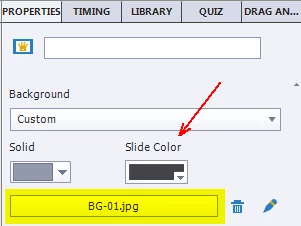
    Depending on the size of the project, the JPEG is smaller than the slide.

    The Color you see (red arrow) is color 6 of the Theme colors palette.
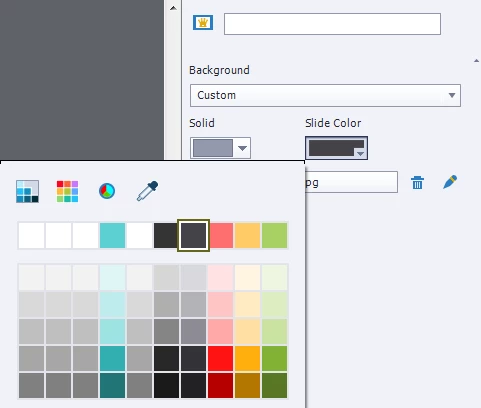
    You could edit the theme colors palette.

    As for the JPEG, you can edit it with the pencil icon (see first screenshot), maybe just increasing the Brightness?

    If the editing is not sufficient, you can find that JPEG in the Library and edit it with any graphical application. I really wonder why they don't use a shape, but ....


    1 답변

    Lilybiri
    Legend
    January 28, 2017

    Can you specify the theme? Some use background color, some use shapes on the main master slide, that is why I'm asking the question.

    kasenbe작성자
    Participating Frequently
    January 28, 2017

    Hi Lilybiri,

    Thank you so much for responding. I am using the Smart theme, it is dark gray and I need it to be lighter for an elearning project.

    Do you have a blog too? I thought I came across it when searching for the answer for this.

    Sent from my iPhone

    Lilybiri
    Lilybiri답변
    Legend
    January 28, 2017

    I have several blog posts about themes and theme color.

    Smart theme has a combination of a background color + a JPEG image (find that weird, but I didn't create that theme).

    Go into the Master slide panel, to the main master slide and look at the Properties panel:

    Depending on the size of the project, the JPEG is smaller than the slide.

    The Color you see (red arrow) is color 6 of the Theme colors palette.

    You could edit the theme colors palette.

    As for the JPEG, you can edit it with the pencil icon (see first screenshot), maybe just increasing the Brightness?

    If the editing is not sufficient, you can find that JPEG in the Library and edit it with any graphical application. I really wonder why they don't use a shape, but ....
