
Inspiring
August 17, 2017
Answered

Master slide objects are displaced in edit view

  • August 17, 2017
  • 2 replies
  • 514 views

Hi,

I'm working with a trial version of Captivate 2017 and am learning how to create responsive courses so I can report back to my boss on what kind of development time we're looking at for future responsive projects.

I'm setting up buttons in master slide view, but when I switch to edit mode, they've shifted to crazy spots. It's the same when I preview and publish. When it's published and I hold my cursor over the buttons, they flicker weirdly.

Am I doing something wrong? Is this a bug? Is there a way to fix it?

Screenshots are below:

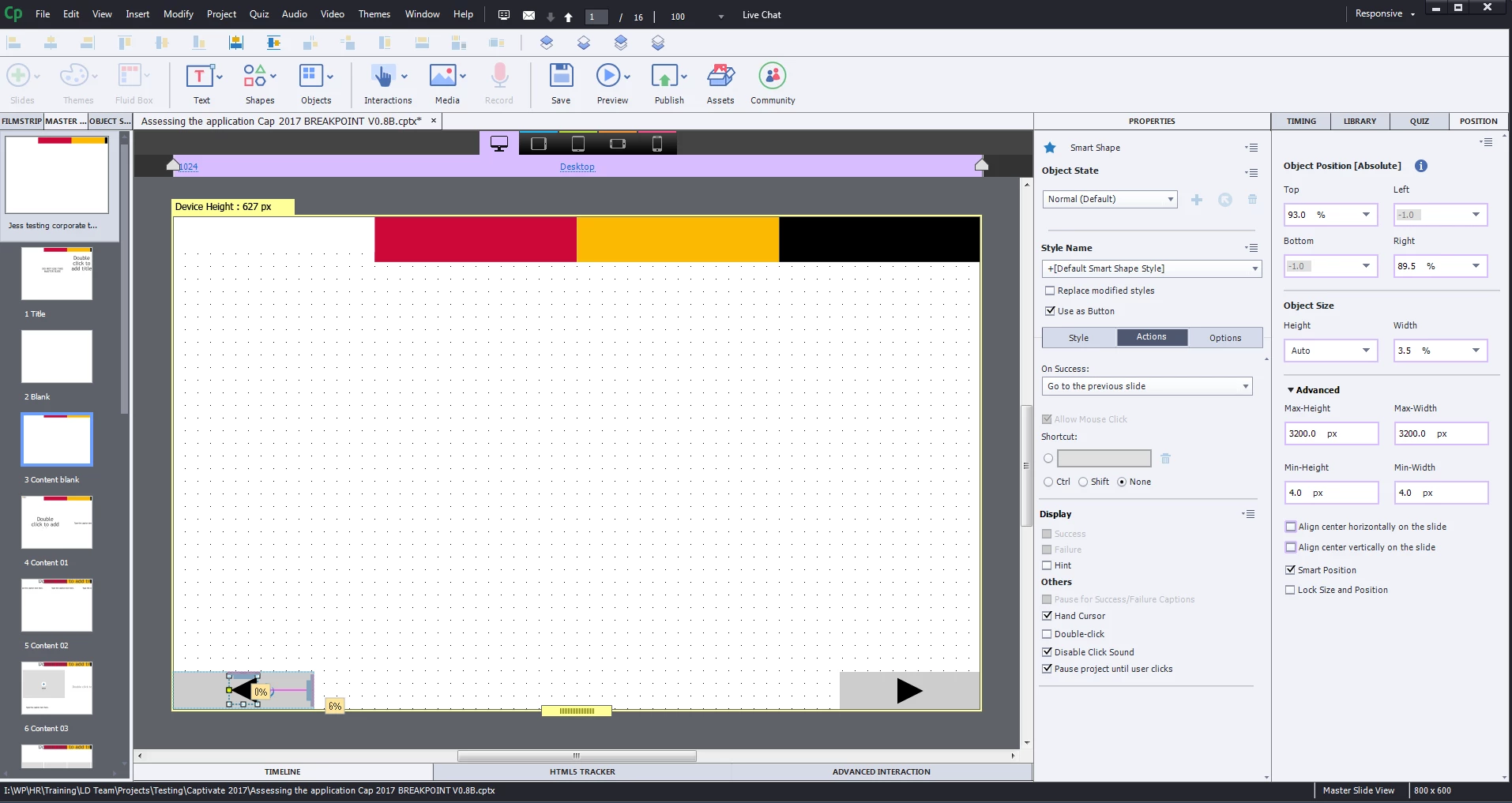
Lovely buttons in master slide view:
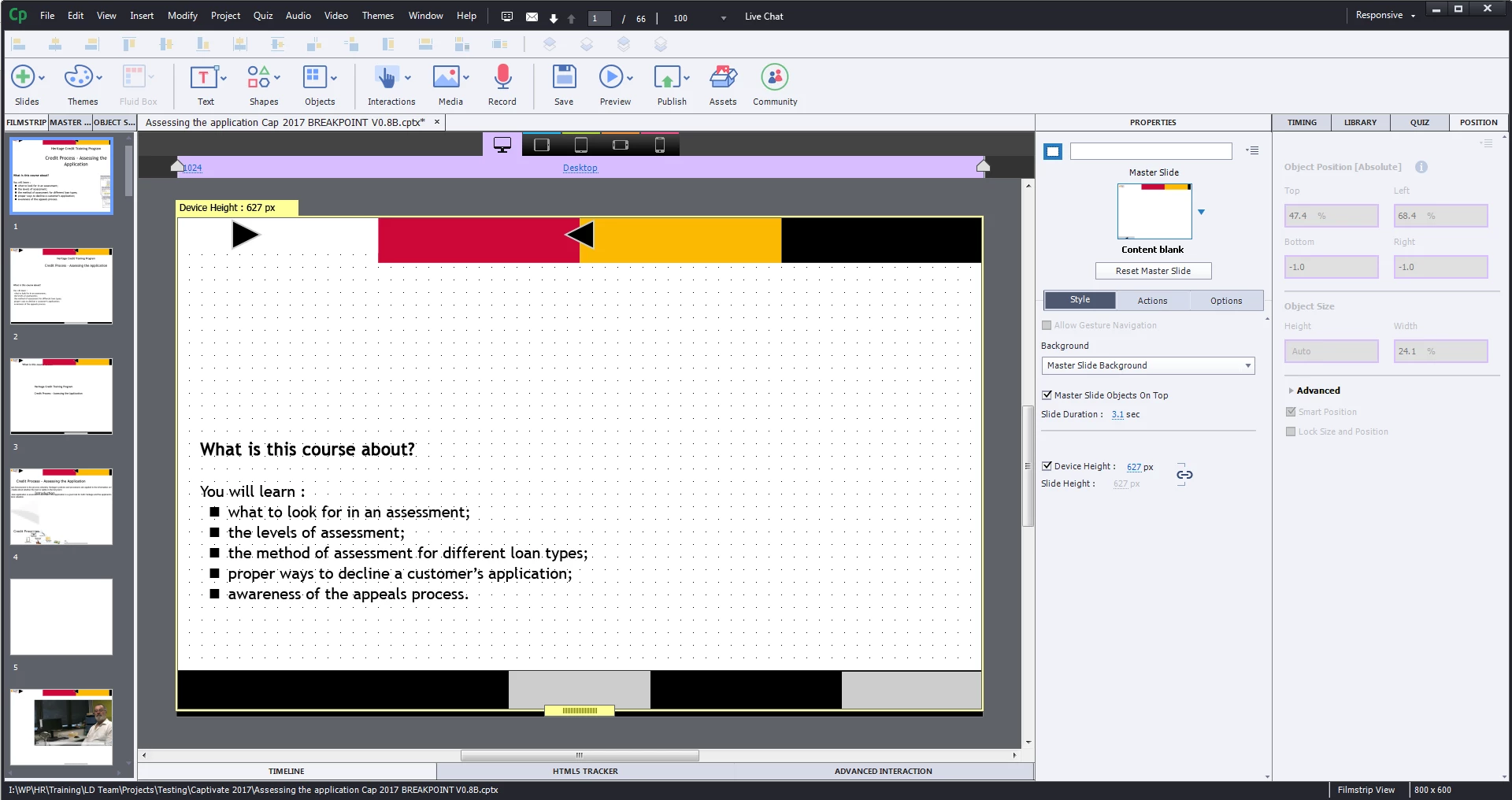
Edit view:
    This topic has been closed for replies.
    Correct answer Lilybiri

    OK, we did the DpiAwareness thing and when I reopened the file, it had the same issue. However, when I deleted the buttons and made new ones, the issue went away. Not sure if it was just new buttons or the dpi thing that worked, but thanks either way!

    Lilybiri​, I'd love to know how to insert the arrow into the shape. Do you have a blog post on that? Thanks!


    I never changed the dpi setting in CP2017, have no problems. It was necessary in CP9 to be able to capture software, not in CP2017.

    For the arrow: you cannot fill a shape with a shape (because your arrow is a shape), nor with a SVG. But here are three possiblities to have a shape filled with an arrow:

    1. Use the shape from the button category in shapes, there is one with a forward, and one with a back arrow; fill and stroke can be styles but you are stuck with the look of the arrow.
    2. Use Wingdings2, which has arrows as characters and create a text in that shape button with that one character.
    3. Create a bitmap image that is an arrow on a transparent background (use png to keep transparency) and follow this tutorial:
      Turn an Image into a Button - Captivate blog

    2 replies

    Lilybiri
    Legend
    August 18, 2017

    Run as Administrator is always recommended but I wonder why this shifting should be due to dpiawareness? Would like an explanation, @papaintegrator? For CP9 this was necessary when using a retina screen, before recording, but I don't see a connection with the present problem?

    I recently posted a blog post about using master slides for responsive projects in CP2017, but it was when using Fluid boxes. You are using Breakpoint Views. I will edit the blog post today, because after more testing on iOS devices, I detected that objects on the main master slide, even if they are correctly positioned with the Position Properties like you did, do not show up correctly on all screens. I didn't test this with the Breakpoint view work flow but wonder if we are bumping onto a bug or limitation in CP2017? More exploring would be required, however I am pretty busy at this moment.

    You are using a daughter master slide as well: how was it set up?

    TIp: instead of using an arrow on top of a shape, insert the arrow in the shape to have one object instead of two. For responsive design, limiting the number of objects is always good practice. If you were using Fluid Boxes, it would even be a requirement since overlapping objects are not possible. I suspect that you choose to switch to Breakpoint views because of the limitations with Fluid Boxes?

    Inspiring
    August 21, 2017

    Thanks papaintegrator​ and Lilybiri​. I don't have admin access, but I'll contact the IT guys and see if they can give it a crack.

    Thanks for the tip on inserting the arrow, I didn't even realise you could do that! How do you insert it in another shape?

    Our business doesn't have any responsive courses at the moment, so I was playing with the Cap 2017 trial to compare the breakpoint view vs fluid boxes. Right now I'm leaning toward fluid boxes, though I'm keen to learn more about both.

    I'm not sure what to say about how I set up the master slide: I'm very new to master slides, so I just bumbled along. Here's a picture if that helps:

    Inspiring
    August 21, 2017

    OK, we did the DpiAwareness thing and when I reopened the file, it had the same issue. However, when I deleted the buttons and made new ones, the issue went away. Not sure if it was just new buttons or the dpi thing that worked, but thanks either way!

    Lilybiri​, I'd love to know how to insert the arrow into the shape. Do you have a blog post on that? Thanks!

    papaintegrator
    Inspiring
    August 18, 2017

    Hi Jessica,

    First of all, launch Captivate as administrator (Right-Click on the icon > Run a administrator) and try.

    Secondly,

    you can make these changes:

    1. Navigate to C:\Program Files\Adobe\Adobe Captivate 2017 x64

    2. Find AdobeCaptivate.ini file

    3. Change the value of DpiAwareness = 1

    4. Save the file

    5. Launch Captivate as admin

    /best