
Participant
July 8, 2015
Question

Opening Captivate Audio in Audition CC2015

  • July 8, 2015
  • 4 replies
  • 1207 views

Hello All,

This is not a question but more of an FYI.

I have Captivate 8 and CC2015 running on a PC. My normal workflow for editing audio in Captivate is to go through the Audio menu > Edit > Project then launch Adobe Audition from the button in the Slides Audio window. This does not work in CC2015. The following error is given.
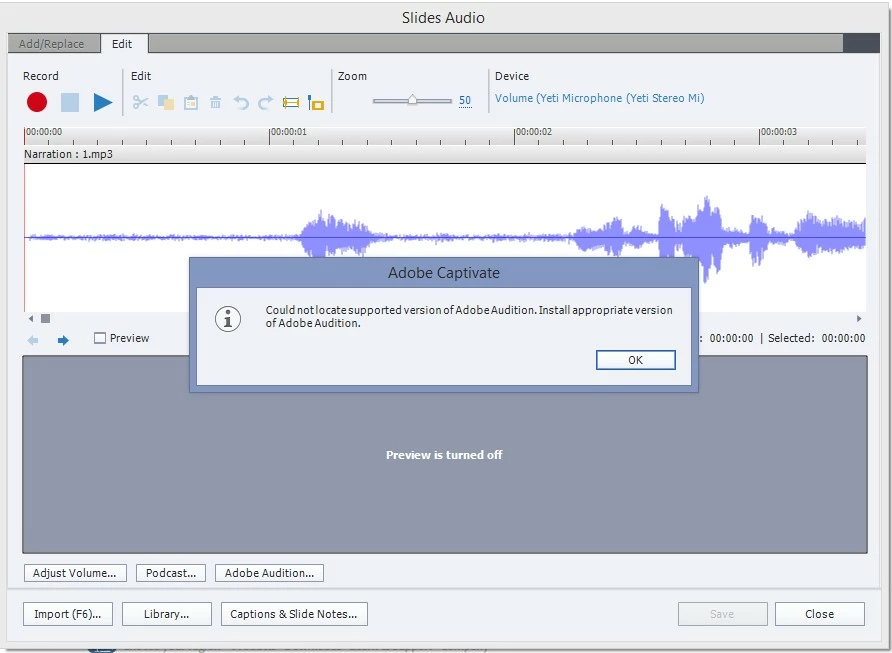
This is a known issue which currently has no fix.

Your options are:

  1. Roll back to CC2014 and await a fix
  2. Edit each clip individually by right clicking on it in the Library and selecting Edit with Audition.
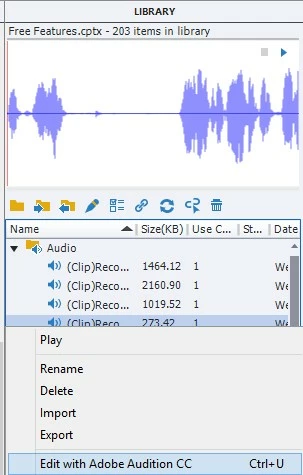
I opted for the former to expedite my editing process. I hope this helps anyone who may encounter the same issue.

    This topic has been closed for replies.

    4 replies

    danield22751223
    Participating Frequently
    September 24, 2019

    It seems that the problem persisits with version 11 of Captivate for MAC.

    When trying to open Audition I am getting this:

    Even when I just installed the Audition.

    Is there anything that can be done to streamline the use of these two together?

    RodWard
    Community Expert
    Community Expert
    September 24, 2019
    It seems to want a particular version of Adobe Audition, but unfortunately does not identify the required version. This might be some MAC incompatibility. I just tried with my own Windows 10 computer running Cp 11.5 and it opened an audio file in Adobe Audition CC 2019 without any problem. So, do the versions of Captivate and Audition match?
    KevinACarter
    Inspiring
    February 26, 2016

    Same problem, I just purchased and refunded my purchase of Adobe Audition

    Inspiring
    July 9, 2015

    Lilybiri: Ah, I see now. Yes, that would be immensely more functional and efficient than this goofy workaround.

    Lilybiri
    Legend
    July 8, 2015

    I have posted this many times and launched warnings on social media. Thanks for doing this as well, but would have preferred an 'official' warning somewhere.

    The workaround was needed already many times in the past, because each launch of a new version of Audition did break the roundtripping with Captivate.

    However this time it is worse for Photoshop because you can no longer import a source PSD file (and keep link, edit Source file functionality) from Photoshop CC 2015.

    Inspiring
    July 9, 2015

    You may also select multiple files from the library, right click, and then click "Edit with..."

    Then find your Audition executable:

    I am still working out some of the fine details of editing this way. It's great if you want to run a batch process and just do some basic sound processing. Inserting into a multi-track takes some finesse. Since the library does not automatically sort into true numerical order (1,2,3,4) and instead does some sort of alphabetical offshoot (1,10,100,etc), when you edit with Audition, it goes in the order that the library is sorted. So, I found that if I re-name some of the files (The first 99 if there are more than 100 files - in this case, I had less than 100, so I only needed to re-name the first 9):

    This will open up the files in chronological (the 'true numerical') order I mentioned above.

    Lilybiri‌, At this point, any changes that you make in Audition will change the original files in Captivate! A slick bit that makes it so we don't have to do any 'roundtripping' - it automatically updates! I kind of wish that Adobe had told us about this. I'm not sure if you knew this already or not, but it's information for everybody reading. Because of the automatic update to my sound files in Captivate after I save in Audition, THAT is why I'm doing it this way - the steps I just mentioned above.

    At this point, if you're just looking to do some sound clean-up, de-clicking, you can run a Batch Process on all of the files, save them, and they will automatically update in Captivate.

    For further editing (editing out "ums", etc):

    In Audition, open up all the files in a Multitrack.

    This is where I get a little stuck. I'm trying to edit things on the Multitrack, but it does not change the original sound file - I need it to change the original sound file that I opened from Captivate so that it auto-updates without having to import. Maybe if I use the Multitrack to just listen to it, use that to figure out which slides need editing, then go and edit the initial slide? I read yesterday that the Multitrack is essentially code that points to the file. So, maybe that's the way to go about it. That's a little clunky, but less clunky than exporting all the sound files, fixing them, importing them, and then dragging and dropping each sound to the appropriate slide.

    Lilybiri
    Legend
    July 9, 2015

    Yes, I knew that, reason why I call it a workaround. The full functionality of the Audition roundtripping was that you could edit the whole project audio, change the slide markers if necessary in Audition and Captivate would accept those changes. That is lost if you have to use the workaround. Maybe I should have been more explicit in explaining it.