

Participant
June 30, 2015
質問

Variables and the kindness of strangers

  • June 30, 2015
  • 返信数 2.
  • 190 ビュー

I am flummoxed by Captivate's variables/advanced actions. For the life of me, I can't figure out how to make them work.

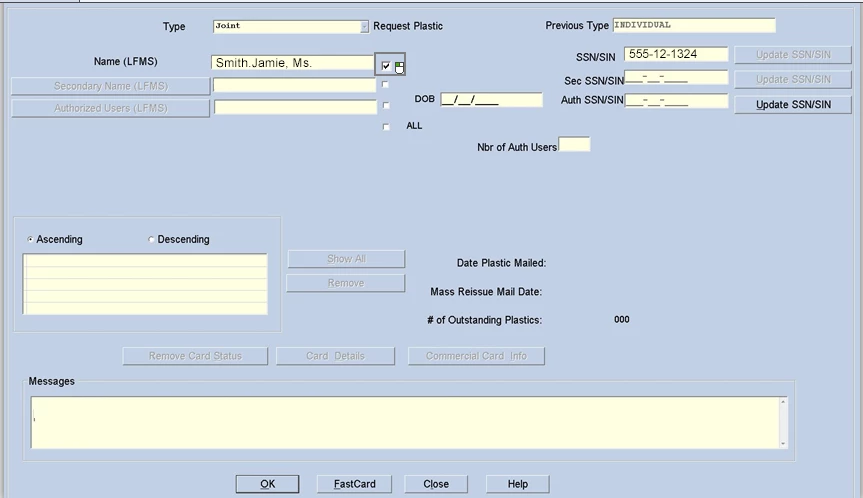
Here is my scenario:

  1. Learner clicks several items before progressing to next screen.
  2. At the end of the Name field, a click (and I have tried both a SmartShape and a click box) displays a checkmark graphic.
  3. At the bottom of the screen there is a FastCard button.
    1. If the user clicks on this after clicking on the name, she advances.
    2. If user clicks on the Close button, she goes back to a prior page.

This should be easy. And in some apps I use, it would be. But I cannot  figure out how to assign variables in CAP8, and advanced actions are not making much sense. I've looked at tutorials and blog posts, but I can't seem to put these things into usable actions.

I've posted a few things here lately, and the community has been helpful.  I just need a process to go about doing this, and I can't seem to find one.
    このトピックへの返信は締め切られました。

    返信数 2

    Lilybiri
    Legend
    June 30, 2015

    If you want to use the full power of Captivate, and it has a lot more power than many concurrent tools you are referring to, you need to spend some learning time. Rod's book can be an answer, although I would really use shared actions in this case, since I suspect you'll need those actions more than once. I am busy with a Shared Actions cookbook.

    OK, will leave you to Rod. This is indeed a pretty easy use case. You have to understand the variable associated with the Text Entry Box in which you enter the name. The confirmation of the entry can be done by a shortcut key (Enter). This is not a validated TEB, which means you have only a Success event. You can use that event to trigger a conditional advanced action that checks if the variable associated with the TEB is not empty. Look at: Where is Null? - Captivate blog

    If the name field is filled (condition) you can either show the 'checkmark' in the box as an image, or use a checkboxes widget and change its associated variable to pop up a nice checkmark. Have a look at: Tips - Learning Interactions - Captivate blog

    You can turn the Fastcard button in a real button using its image to create a shape button: Turn an Image into a Button - Captivate blog  or if you don't need the advantages of a shape button by putting a click box over it. The Success event of that click box has to trigger again a conditional action, since you say that it can only be functional when the name has been entered? You don't tell what has to happen when there is no name entered? Maybe a warning message?

    As for the Close button you can use a simple action (to be chosen from the dropdown list for the Success event of the click box): Go to Previous slide.

    Since you really seem to be a newbie, I wonder if you are aware of the importance of the Timeline panel, of the pausing points of interactive objects? Tiny Timeline Tidbits - Captivate blog

    Some other very old articles, explaining Variables and their use: Curious about Variables in Captivate? - Captivate blog

    Unleash the Power of Variables in Captivate with Advanced Actions - Captivate blog

    All is for free, you can also download some free tables on my blog, start with the system variables: System variables in Captivate 8 - Captivate blog

    RodWard
    Community Expert
    Community Expert
    June 30, 2015

    It sounds like you probably need to get your head around all the fundamental aspects of Variables, Events, Single Actions, Standard Actions, Conditional Actions and Shared Actions.

    There are quite a few blog posts on the web about these things. (Lilybiri has kindly written many) but f this is important to you, this e-book might be what you need:

    Master the Art of Captivate's Advanced Actions | Infosemantics Pty Ltd

    The first few chapters are available from other pages on the same website.  See the drop-down menu under the main Advanced Action link to see other pages.