
Freshman@56
Known Participant
December 16, 2017
Answered

Ai's Layers "Eye" and importing into Ch

  • December 16, 2017
  • 2 replies
  • 517 views

Every day you are providing great new Ch information on how to build puppets better and it's terrific. Thank you.

My question is slightly elementary... what matters regarding the "EYE" layers symbol in Ai when importing into Ch?  Is there a simple rule regarding layers and turning them on or off in Ai before importing them into Ch? Does it simply define the opening image in Ch?

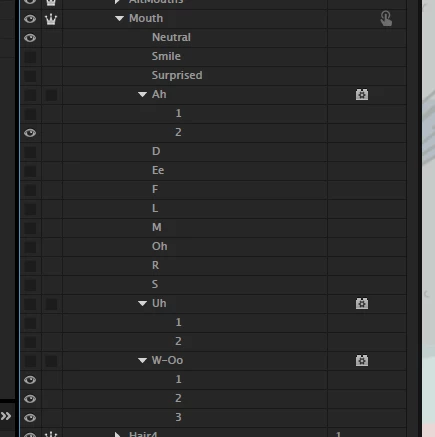
For example, below, Alamasol's mouth has inconsistencies, some things with the eye on, etc. W-oo has all three layers lit, while Ah has only one of two. Does it matter? Will Ah work just as well as W-oo even though one of it's layers isn't chosen?
Thanks for helping with this.

Evan

    This topic has been closed for replies.
    Correct answer TDFAP

    Hi Evan, the "eye" that you are referring to is Adobe's way of telling you if that particular layer is visible or hidden. In AI, PS, AE is matters if it is selected or not because it obviously displays artwork on that layer or hides it. In CA the artwork can be shown even when it is marked as hidden (or hidden even if marked as visible) because of CA's ability to use triggers and swap sets.

    So, in the example in your screenshot of Alamasol above, the "Ah", "Uh" and "W-Oo" mouth shapes are made of several layers that are rigged with a behavior (that's that little Lego looking icon with the gear in it) - probably to cycle layer animate. The "Ah" only has layer 2 visible, but the behavior will cycle through all the layers in the "Ah" group when it is triggered. Similarly, whenever the "W-Oo" viseme is required, CA will display the sequence of three layers (which are all marked as visible.)

    Now the only time this gets a bit tricky in CA is when you use PS or AI to edit a puppet that is already open already working with in CA. When you change a puppet in PS or AI, CA automatically updates your puppet file. So sometimes if you have a puppet that is already rigged, and you change the visibility of layers in PS or AI, it turns them off completely in CA, when it updates. Just go into CA's rigging mode and turn them back on.

    I hope this makes sense. Good luck and happy animating!

    2 replies

    Freshman@56
    Known Participant
    December 16, 2017

    This is clarifying. Thank you for your helpful response.

    TDFAP
    TDFAPCorrect answer
    Inspiring
    December 16, 2017

    Hi Evan, the "eye" that you are referring to is Adobe's way of telling you if that particular layer is visible or hidden. In AI, PS, AE is matters if it is selected or not because it obviously displays artwork on that layer or hides it. In CA the artwork can be shown even when it is marked as hidden (or hidden even if marked as visible) because of CA's ability to use triggers and swap sets.

    So, in the example in your screenshot of Alamasol above, the "Ah", "Uh" and "W-Oo" mouth shapes are made of several layers that are rigged with a behavior (that's that little Lego looking icon with the gear in it) - probably to cycle layer animate. The "Ah" only has layer 2 visible, but the behavior will cycle through all the layers in the "Ah" group when it is triggered. Similarly, whenever the "W-Oo" viseme is required, CA will display the sequence of three layers (which are all marked as visible.)

    Now the only time this gets a bit tricky in CA is when you use PS or AI to edit a puppet that is already open already working with in CA. When you change a puppet in PS or AI, CA automatically updates your puppet file. So sometimes if you have a puppet that is already rigged, and you change the visibility of layers in PS or AI, it turns them off completely in CA, when it updates. Just go into CA's rigging mode and turn them back on.

    I hope this makes sense. Good luck and happy animating!