Participant
May 1, 2018
Answered

animated gif

  • May 1, 2018
  • 1 reply
  • 1116 views

How can I export my character animator project as an animated gif?

This topic has been closed for replies.
Correct answer alank99101739

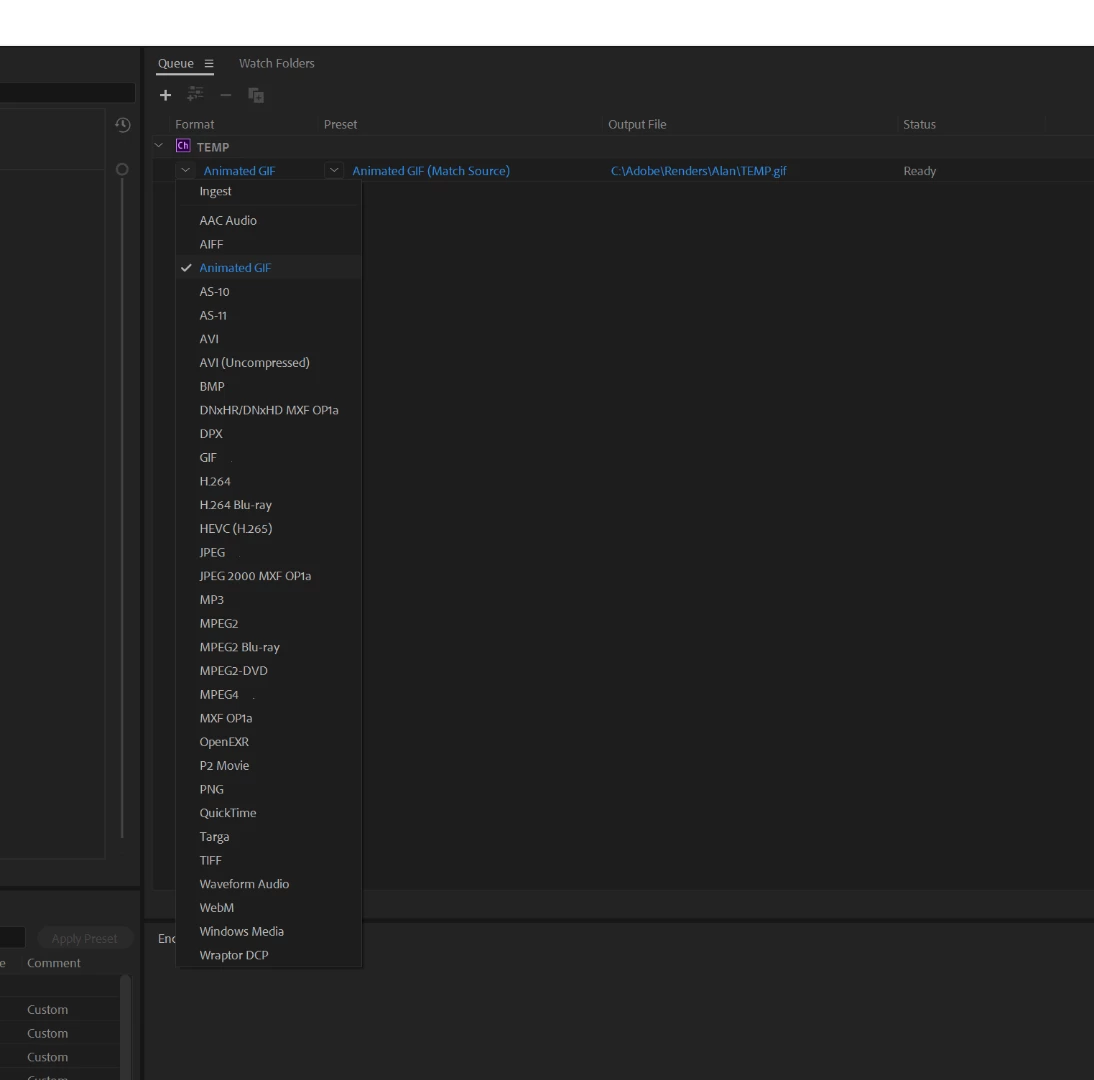
If you do a media export, export as H.264, then that will bring up Adobe Media Encoder window. Before starting the encoder job there, change the encoder to Animated GIF. You can also set the output render size etc as well if you need to scale the image down.
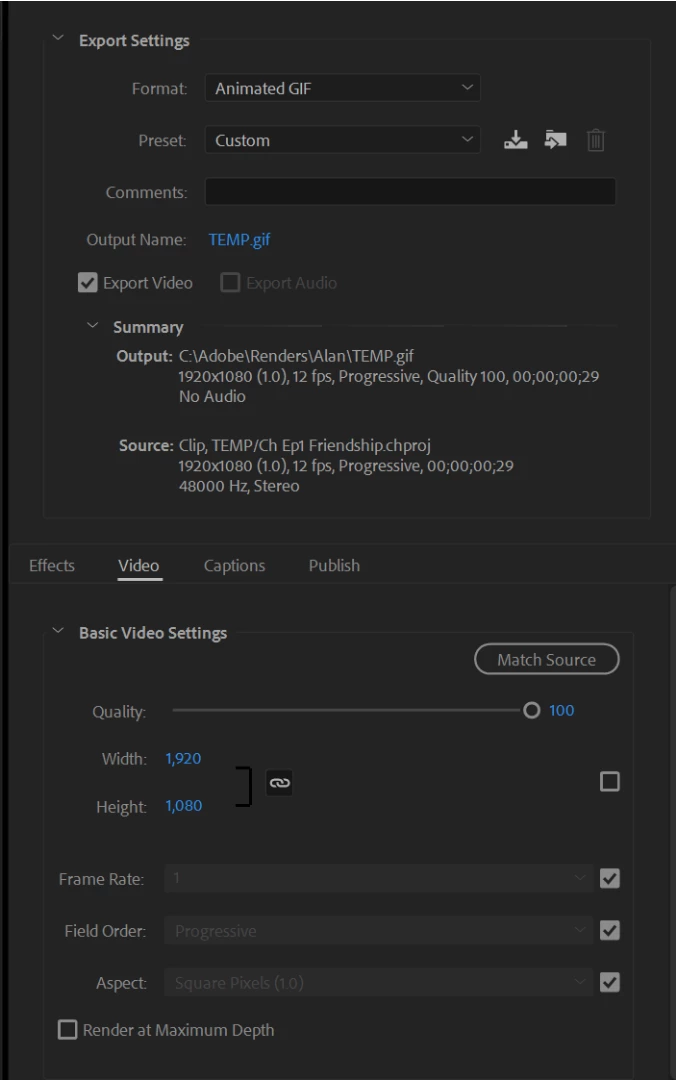
If you click on the second column (mine shows "Animated Gif (Match Source)" above) you can change the settings. If you want to change the resolution, quality etc you can change it here. (You can save presets as well if you want to reuse them.)  If you don't want to match source, untick the checkbox next to the width and height settings.
1 reply

alank99101739
alank99101739Correct answer
Legend
May 1, 2018

If you do a media export, export as H.264, then that will bring up Adobe Media Encoder window. Before starting the encoder job there, change the encoder to Animated GIF. You can also set the output render size etc as well if you need to scale the image down.

If you click on the second column (mine shows "Animated Gif (Match Source)" above) you can change the settings. If you want to change the resolution, quality etc you can change it here. (You can save presets as well if you want to reuse them.)  If you don't want to match source, untick the checkbox next to the width and height settings.

alank99101739
Legend
May 1, 2018

In case helpful, I tried creating a video showing how to export Animated GIF and videos with transparency. The instructions above are probably enough, but I wanted it for future reference (and experimenting). Exporting Animated GIFs and videos with transparency from Character Animator - YouTube

(But I discovered how much time it can take when the tools play up - the video kept playing double speed in Premier Pro - took me hours of fiddling to make the OBS captured screen recordings work correctly - by triming them in different ways until it worked. Bizarre.)

Participant
May 1, 2018

Thank you - that worked, but I lost the transparent background in the process. Is there a setting for that? I looked around but didn’t see one.