Participant
December 2, 2017
Answered

CA - create snapshots to cycle

  • December 2, 2017
  • 4 replies
  • 833 views

Hi!

It's easy to drag the puppet to create new positions. It would be great if you could take snapshots of these positions to use in a cycle, just snap and name and then easy and quick make a cycle out of it. It would be more natural too, because if you draw different positions in Photoshop, then you would not draw in relation to the sticks you have on the puppet, so when you have the sticks drawings blended with that, it would also be like blending two characters with different body physics.

Thanks!
    This topic is closed to new replies. Start a new post to keep the conversation going.
    Correct answer KJerryK

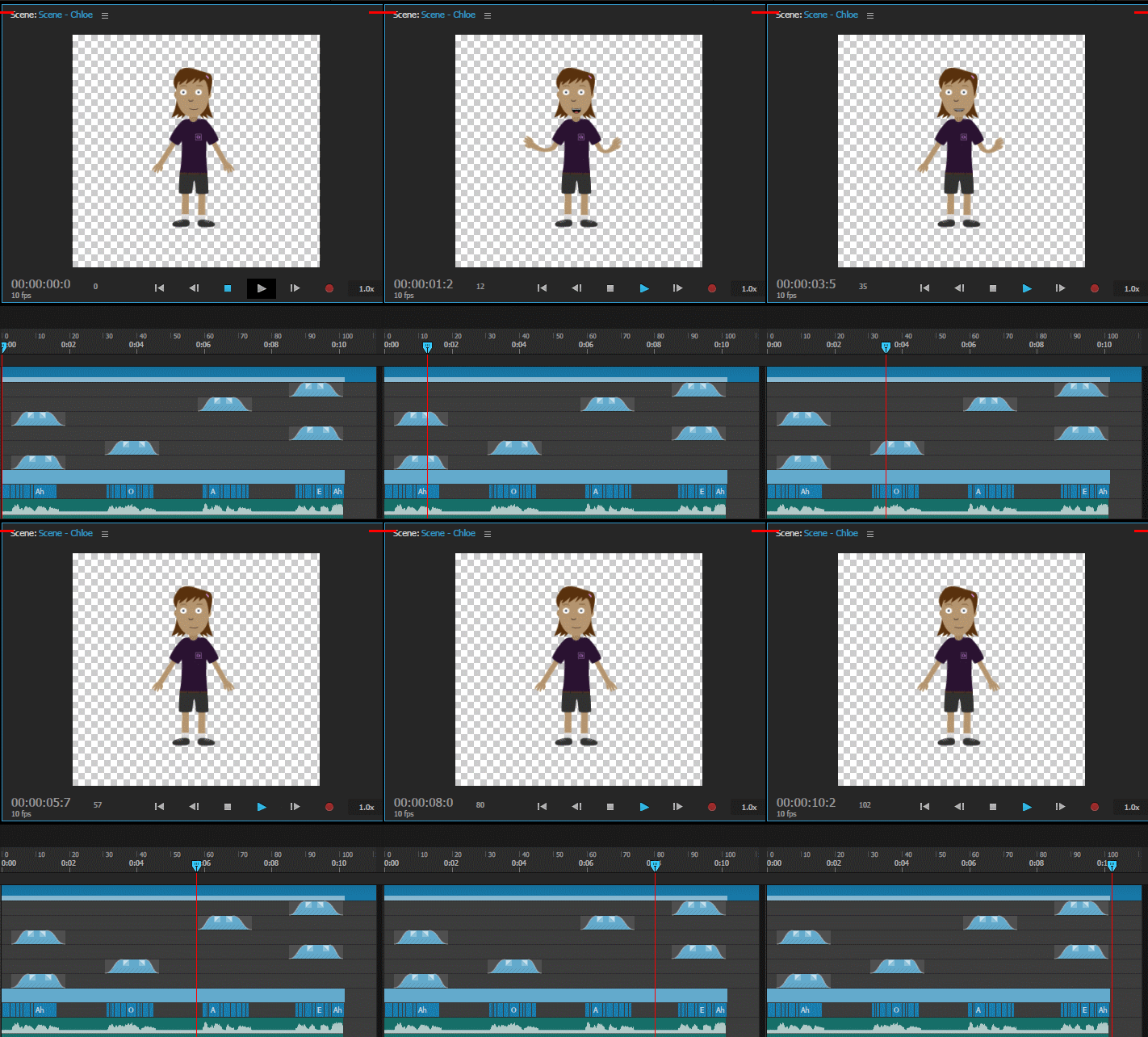
    Here's a quick example I did to get arm motion to match audio. The steps I took were:

    1. Disable all behaviors except dragger

    2. Adjust arms.

    3. Ctrl+2 to get one take of each arm. Note that each arm has it's own take.

    4. Duplicate the takes (Ctrl+D) several times

    5. Drag takes to correspond with voice in the audio.

    6. Drag upper corners of takes to smooth transition

    7. Disable dragger, enable lip sync.

    8. Record.

    4 replies

    Participant
    December 2, 2017

    So it's possible with fram snapshots, but maybe it could be a bit more possibilities with them? For example:

    - transparent frame snapshot icon on the record scene, for fast and most important obvious way to take a snapshot

    - that you can save snapshots for a cycle

    - that you can see previous snapshots in a cycle at some transparency. When you do in Photoshop you can see all layers you make in a cycle. To be really useful for use in a cycle, you would need to see all taken snapshot frames (in the serie), and also be able to edit previous snapshots in the cycle.

    KJerryK
    KJerryKCorrect answer
    Legend
    December 2, 2017

    Here's a quick example I did to get arm motion to match audio. The steps I took were:

    1. Disable all behaviors except dragger

    2. Adjust arms.

    3. Ctrl+2 to get one take of each arm. Note that each arm has it's own take.

    4. Duplicate the takes (Ctrl+D) several times

    5. Drag takes to correspond with voice in the audio.

    6. Drag upper corners of takes to smooth transition

    7. Disable dragger, enable lip sync.

    8. Record.

    KJerryK
    Legend
    December 2, 2017

    Look here, and page down to "frame take" to see if that is what you want

    Record and playback scenes in Adobe Character Animator CC

    Participant
    December 2, 2017

    Thank you! That is great. It could be easier to do, but at least it's there. Do you know how I can turn these frame snapshots into a cycle?