
Participant
February 9, 2021
Answered

Change FPS in Character Animator

  • February 9, 2021
  • 1 reply
  • 4345 views

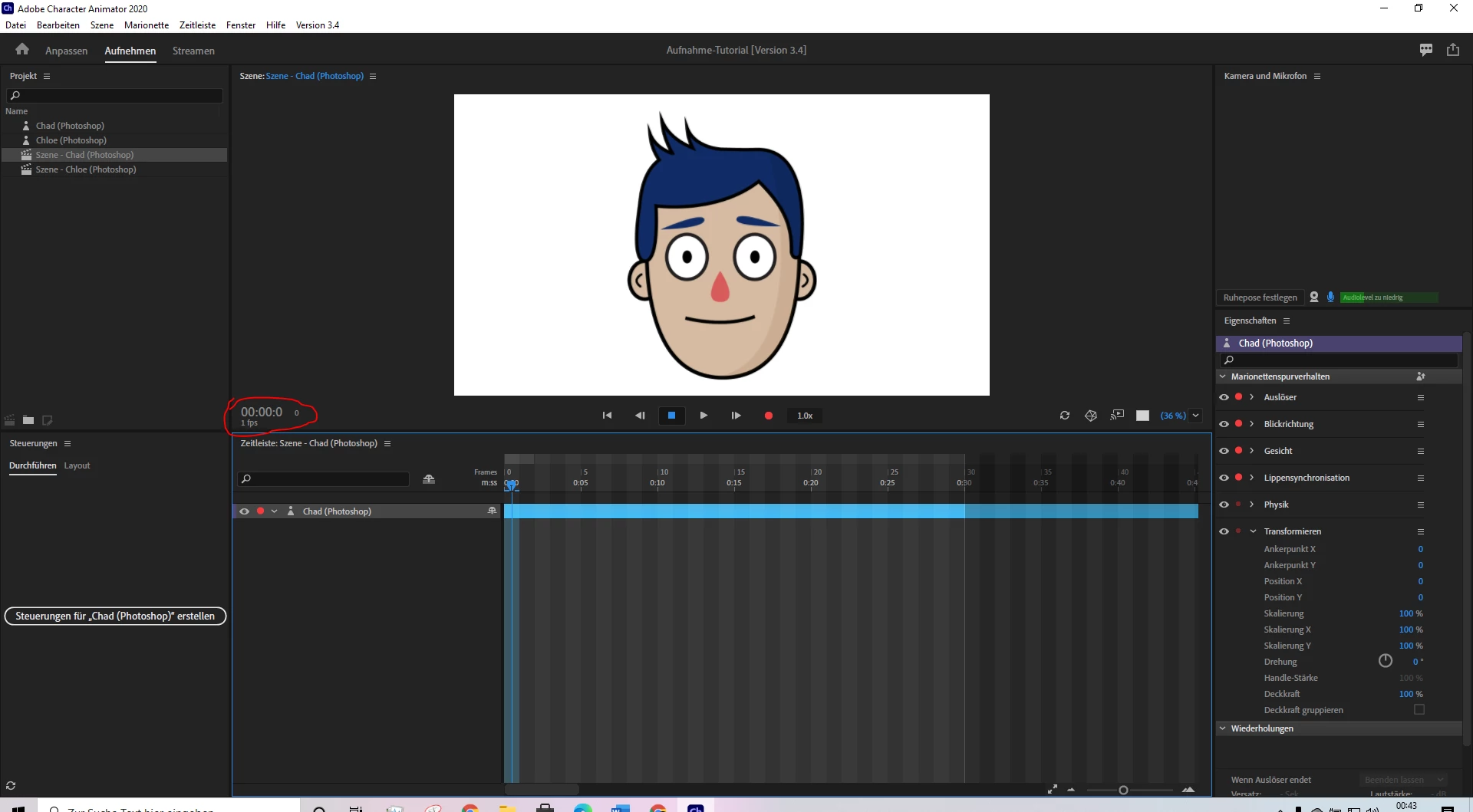
In Adobe Character Animator I notice my Characters are moving real slow. So I tested with Chad or else but these Characters are slow speed. Then I see my Project is running on 1 FPS and I don't know how to change the FPS setting or else I should click. The Tutorials are running on normal 24 FPS.

For example, I have Chad for the Picture and I marked my problem with a red circle.
 

This topic has been closed for replies.
Correct answer Erica Schisler

Hi!
In the Project Panel select your Scene. 
Then in the Properties Panel you'll see Frame Rate - FPS. And you'll see a number in blue. You can simply hover over it and then click-drag the numbers to the left or right to increase or decrease. Or you can just click and type the exact FPS that you want. 

The Properties Panel is also where you can set Duration and the Width and Height. 

1 reply

Erica Schisler
Erica SchislerCorrect answer
Inspiring
February 10, 2021

Hi!
In the Project Panel select your Scene. 
Then in the Properties Panel you'll see Frame Rate - FPS. And you'll see a number in blue. You can simply hover over it and then click-drag the numbers to the left or right to increase or decrease. Or you can just click and type the exact FPS that you want. 

The Properties Panel is also where you can set Duration and the Width and Height. 

NGWAuthor
Participant
February 15, 2021

Thank you bro I was kinda frustrated. Thanks 🙂