samh19821728
Known Participant
May 31, 2018
Answered

Character animator CC 2018-Puppet

  • May 31, 2018
  • 11 replies
  • 2116 views

Hi,

I made my puppet on photoshop as an original, and I was trying to make it move, but it isn't do you have any ideas?

Correct answer alank99101739


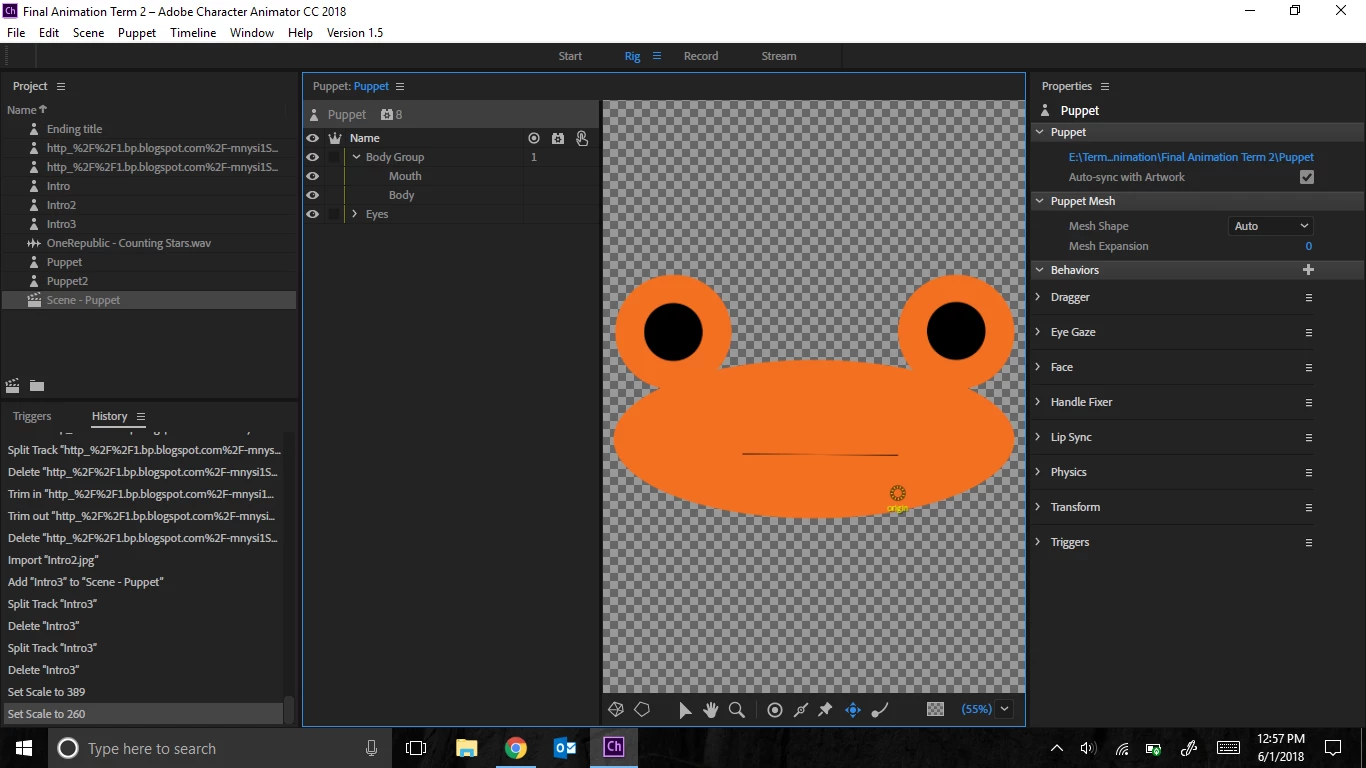
Perfect, thank you. the layer hierarchy needs some more work. You typically want a single root layer called something like “+Frog”. Put body under that. Also put a layer called Head there and put the eyes and mouth on the head. The lack of Head layer is why the face movements is not working (Most likely).

11 replies

KJerryK
Legend
May 31, 2018

Need more details -- the puppet details, how you rigged it, how you are trying to move it, etc

samh19821728
Known Participant
May 31, 2018

In terms of the puppet, I created it from scratch in photoshop, using simple shapes and tools such as the ellipse tool. i am trying to move it like any other automatic template puppet would move its face, such as the"Blank Face" puppet template. I have made them all on seperate layers. I have a body and a face layer, and a mouth, eye, and pupil layer also. (Seperate Layers) I also have a body layer.

alank99101739
Legend
June 1, 2018

Can you share a screen shot of the hiearchy in the rigging panel? Are you trying to use a dragger to move it, or head movements? For dragging, have you added Draggers in the “rig” mode? If trying to use head movements, did you call the head layer “Head” etc? CH will tag specially named layers with “tags” (visible in the puppet property panel). Things like head movements look for these tags to work out the structure of the puppet. Showing a screen shot of the hierarchy is the quickest way to have a look.

This blog post https://extra-ordinary.tv/2018/04/21/debugging-character-animator-eyess/  is beyond what you probably need at the moment, but shows a sample screen shot and talks about layer names and tagging in amongst lots of other stuff you probably don’t need yet (!!).