


Known Participant
November 10, 2018
Question

Cycle layer behaviour not working

  • November 10, 2018
  • 1 reply
  • 1022 views

Hi There,

I'm having trouble with the cycle behaviour. I'm look at the videos but not sure where i'm going wrong.

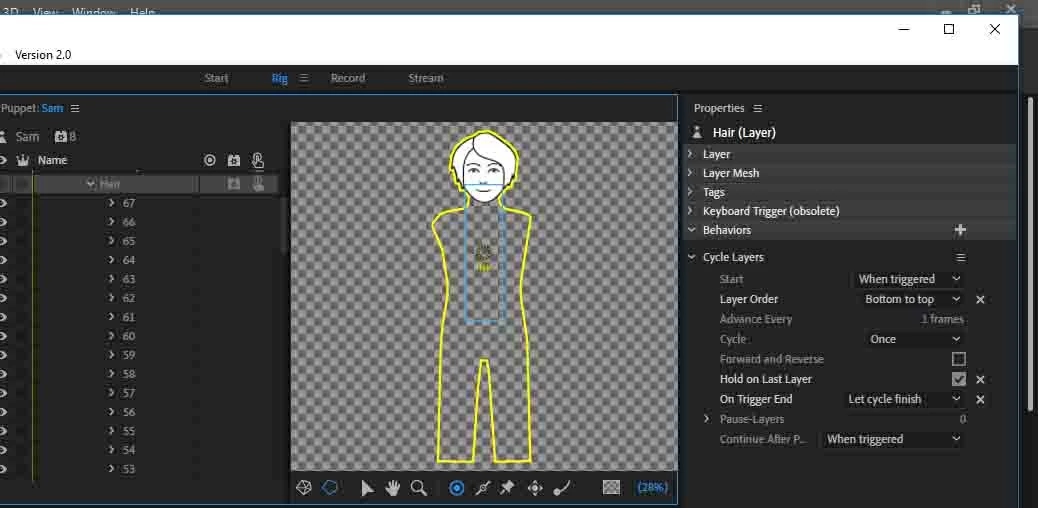
I've attached a screen shot called hair which show the puppet in rig mode to see how i've set up the layer and the behaviour.

I've created the layers from 1 to 67 and i want it to just do layers 1 to 67... but for some reason it kind of missed a few and repeats itself.

How do i fix this?

Also if i wanted to slow down each frame so that hair appear slowly how would i do this?
This topic has been closed for replies.

1 reply

alank99101739
Legend
November 10, 2018

I am not sure why it is skipping layers - are you sure all the sublayers are in the correct order? I don’t know if it looks at the numbers, or it just cycles through the layers in the order defined. Having said that, I have only tried it with like 5 layers - not 67! I wonder if it just fails to keep up. Did you observe the frame dropping during playback or media export? Playback in CH makes aproximations to stay responsive - it might drop the occasional frame to keep it real time and responsive. The Media export mode on the other hand takes as long as it needs to render each frame correctly.

To slow down the replay rate, you can adjust the “Advance Every” value. Selecting “2 frames” instead of “1 frame” will make it play back at half the normal speed. Note that the FPS setting for the scene also affects the playback rate - doubling the FPS of the scene will speed up the cycle layers playback rate.

Known Participant
November 10, 2018

Thanks for that. I'll need to check. I haven't exported the media yet.

I've been looking everywhere but can't seem to figure out how to export it from characters to a viewable mp4 or similar file? I don't need to take it into after effects or premier. I did manage to get it into after effects but now the background is black (i want it white) and I can't even figure out how to play it. Then I tried it in media encoder.

I've tried googling it but there are so many options. I really just want the character as it in a playable file.

alank99101739
Legend
November 10, 2018

In case useful, I have been recording a series Of screenshares - Project Wookie - YouTube . Episode 3 records a simple scene, episode 4 exports via media encoder, 5 and 6 use Rush and Prem Pro to join different video snippets together. So 4 might be interesting to you.

When you use File/Export to export via media encoder, in the latest release there are now two options - export MP4 and export with transparency (uses QuickTime GoPro Cineform). You should be able to just hit ENTER in AME and the defaults Ch sets up should just work. I rarely change any of the settings (I only do so if generating an animated GIF).

If you just have a character (no background in CH), then AME for MP4 will make it black. This is because MP4 does not support transparency. That is why the added the second option in the latest release. That version does support transparency, making it easier to overlay videos in Prem Pro/After Effects etc.

Be warned that AME (Adobe Media Encoder) is much slower to generate the MP4 file. That is normal. How much slower depends on your machine.