


Distorted Webcamera Using Elgato Game Capture HD60Pro
Hello there!
First time on the fourms, so please let me know if I've done anything wrong 🙂
Background
I used Adobe Premiere Pro regularly to edit videos. Recently, I've decided that it might be cool to learn how to use more applications included in my CC subscription. I decided to start with Adobe Character Animator, as it looked fun!
The Problem
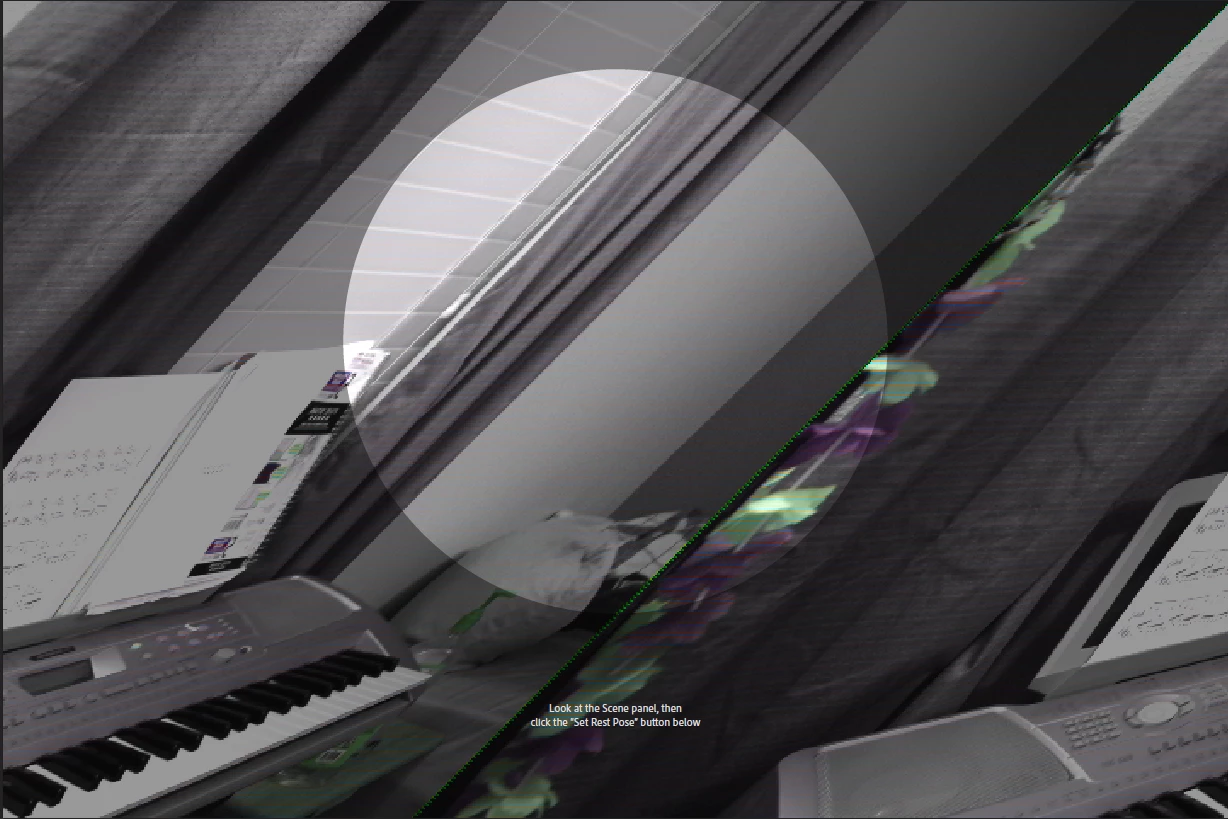
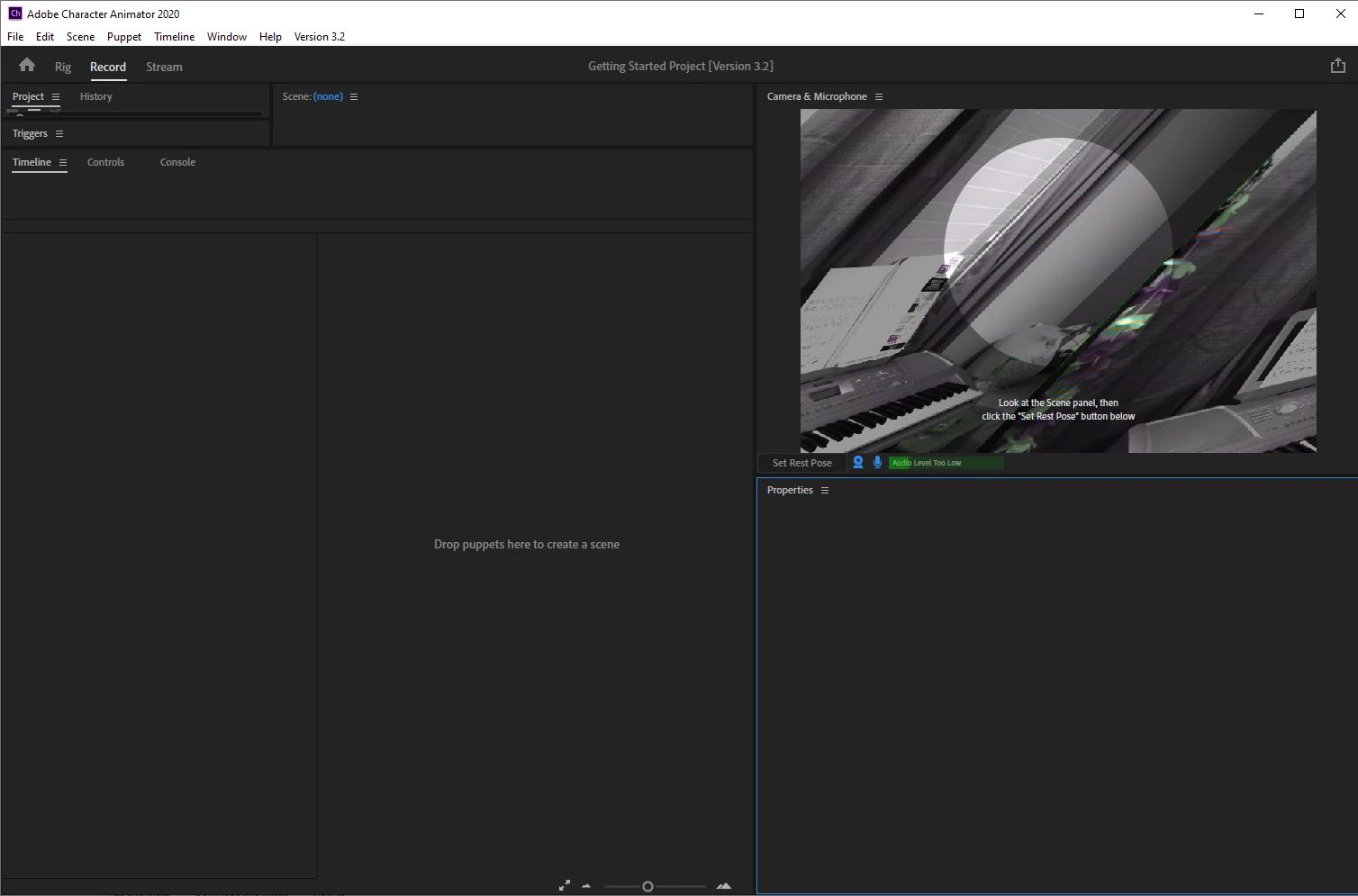
Adobe Character Animator 2020 (Version 3.2 Build 65) displays a distorted and discolored (mostly desaturated) view of my webcamera.
Additional Details
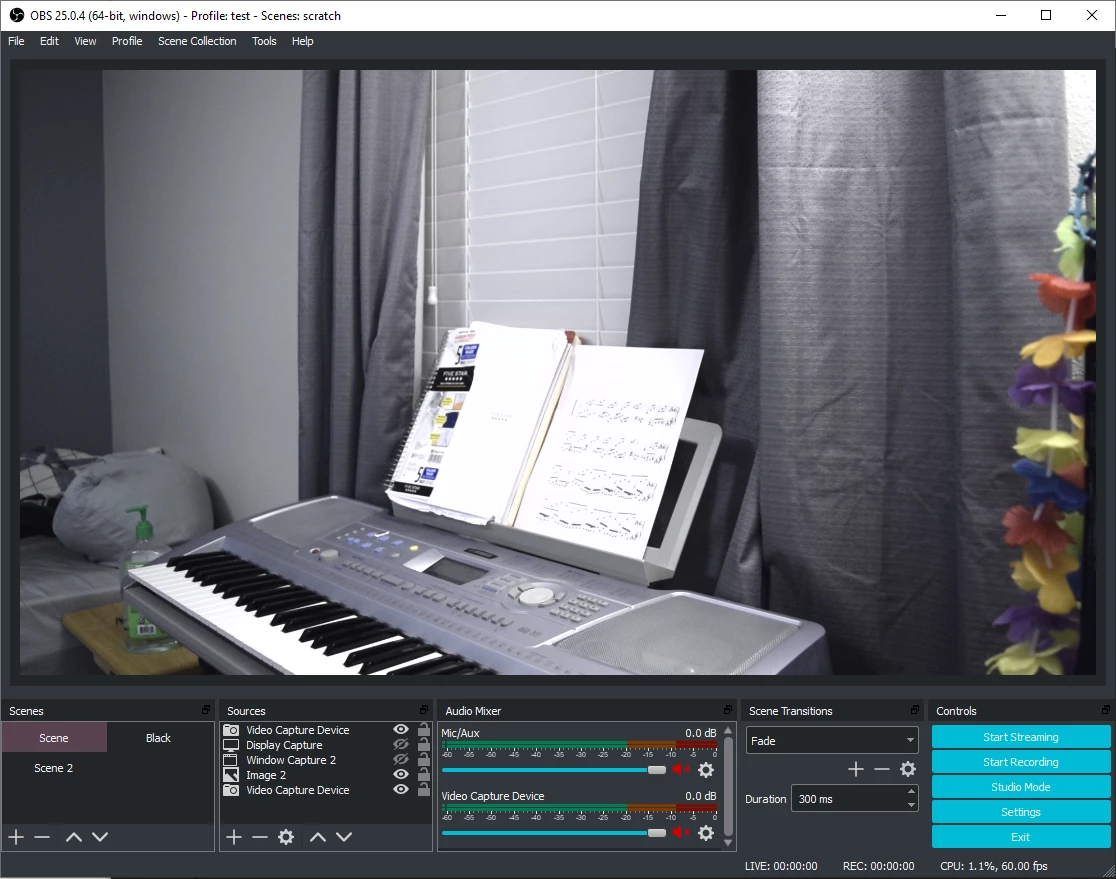
My 'webcamera' is a Nikon DSLR plugged into an Elgato GameCapture HD60Pro via HDMI. Skype, Discord, OBS Studio, and Zoom all recognize this as a camera input with no problems.
The drivers for the capture card are up to date. Character Animator is up to date (just installed it!)
System Specs
AMD Ryzen 9 3900x
32GB DDR4 3200MHz RAM
Nvidia GTX 1660 Super
Windows 10 Education Version 1909 (Build 18363.752)
What I Have Tried
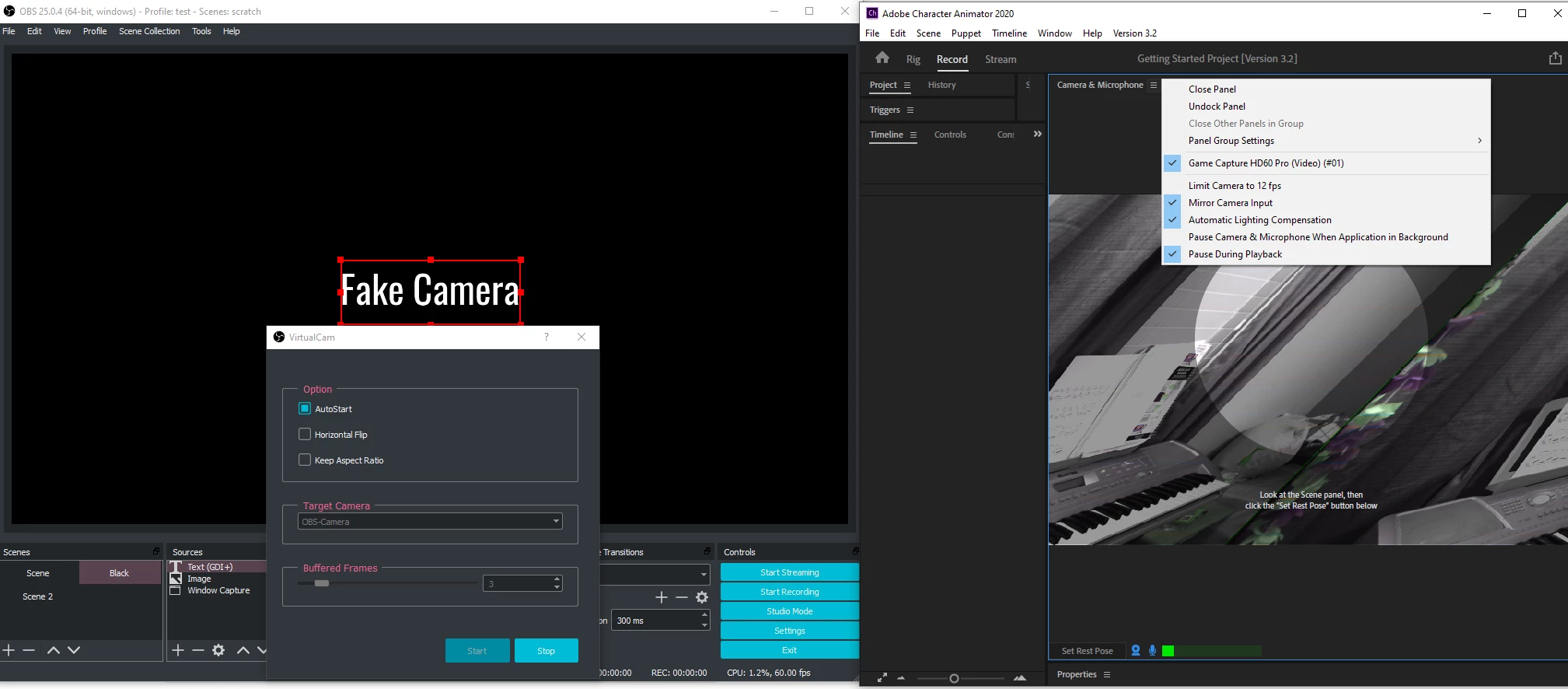
Thinking the problem might involve issues interfacing with the Elgato capture card, I attempted to use OBS Studio to create a 'virtual webcam'. It should be noted that all of the applications listed above (Skype, etc) recognize the OBS Virtual Camera source just fine. I cannot seem to find a way inside of Character Animator to switch webcams, although looking at the menu system it seems that should there be multiple cameras detected they would appear in the menu system. Alas, only the capture card shows up in the menu (see pictures), even when the virtual camera is started BEFORE opening Adobe Character Animate.
In addition, I've tried the usual troubleshooting steps: restarting the computer, applying Windows updates, and restarting Adobe Character Animate.
My Plea
If anyone has any suggestions about how to either resolve the distortion or use the OBS Virtual Webcamera inside of Adobe Character Animator I would greatly appreciate it!
If you need any more information, just ask 🙂
I've attached a video to this post as well. It will hopefully paint a clear picture of the problem.
Supplementary Images
See the captions for explanation of the images.
 AdChoices