tundrav49346140
Inspiring
May 12, 2019
Question

Fixing not working properly?

  • May 12, 2019
  • 5 replies
  • 3056 views

Hello there,

I'm having an issue that I've been trying to solve for hours and hours...

I've had a similar issue before, then I figured it out, but now I guess I've changed something in my PS file that caused my puppet to reset all the work I've done to it so far.

I'm trying to fix it, but the puppet is all distorted now.

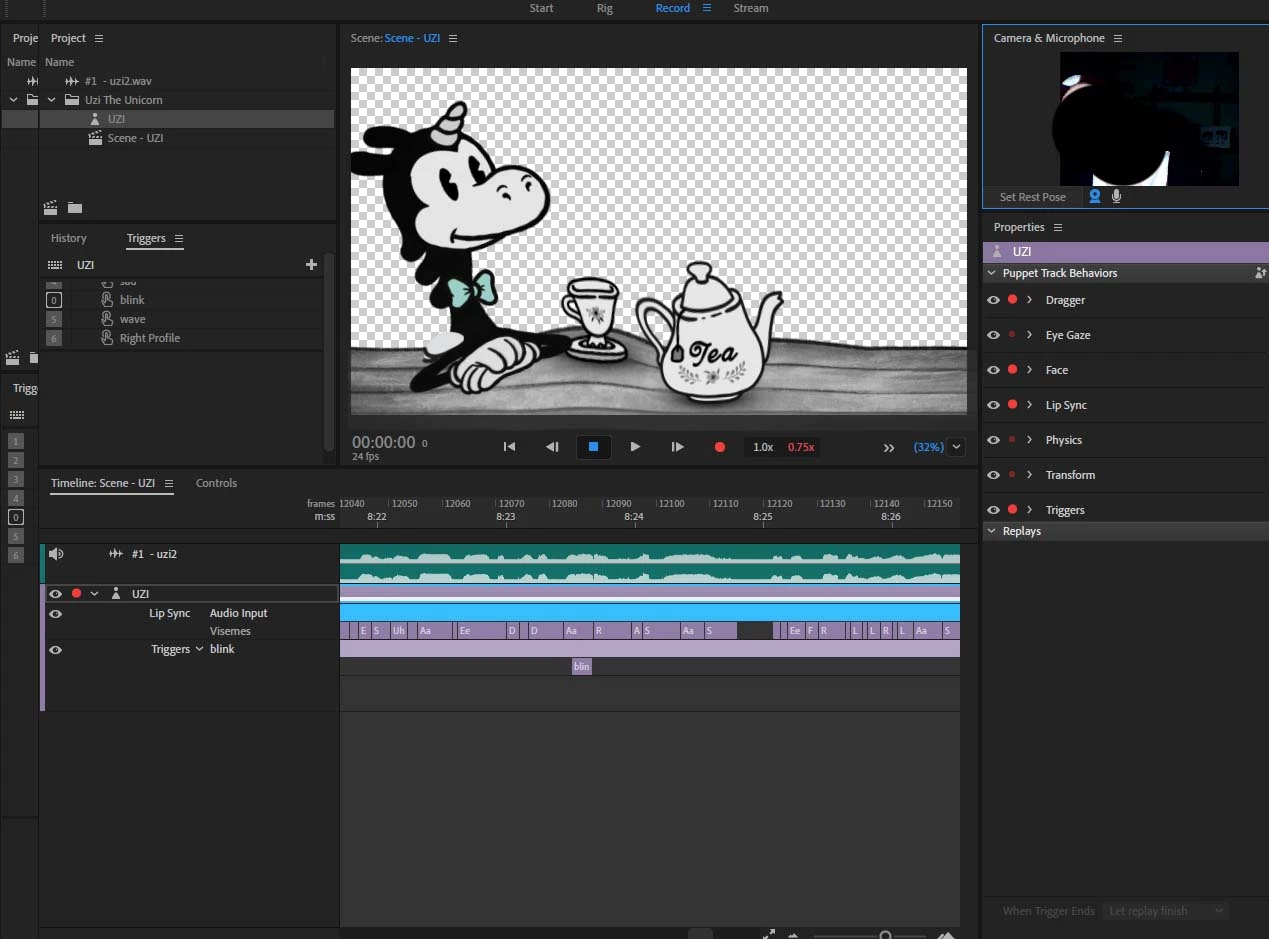
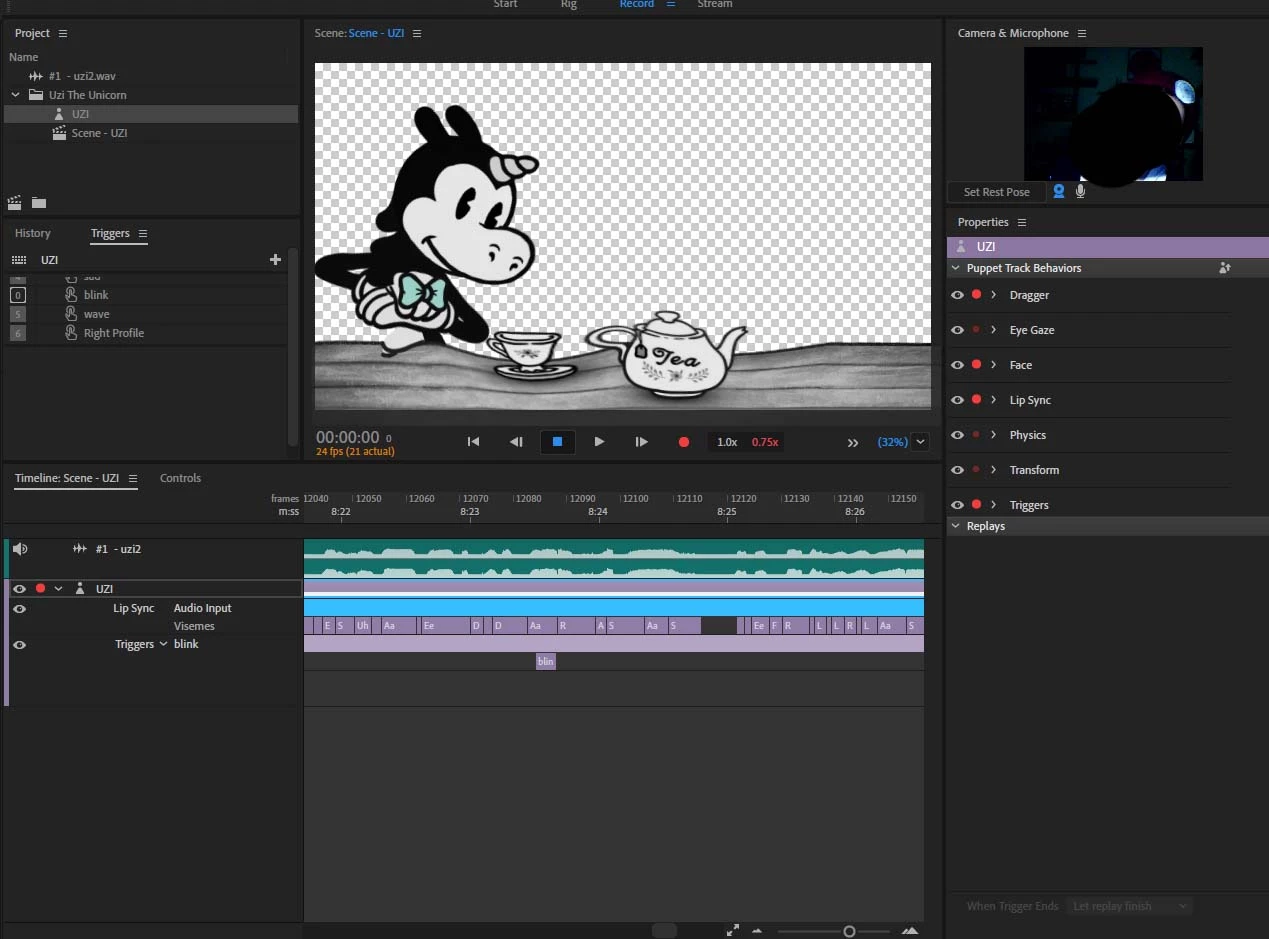
My puppet is on a table, and apparently, I can't fix the table or make it apart from the puppet. When the puppet moves, the table moves with it, and it's not a "crowned" item.

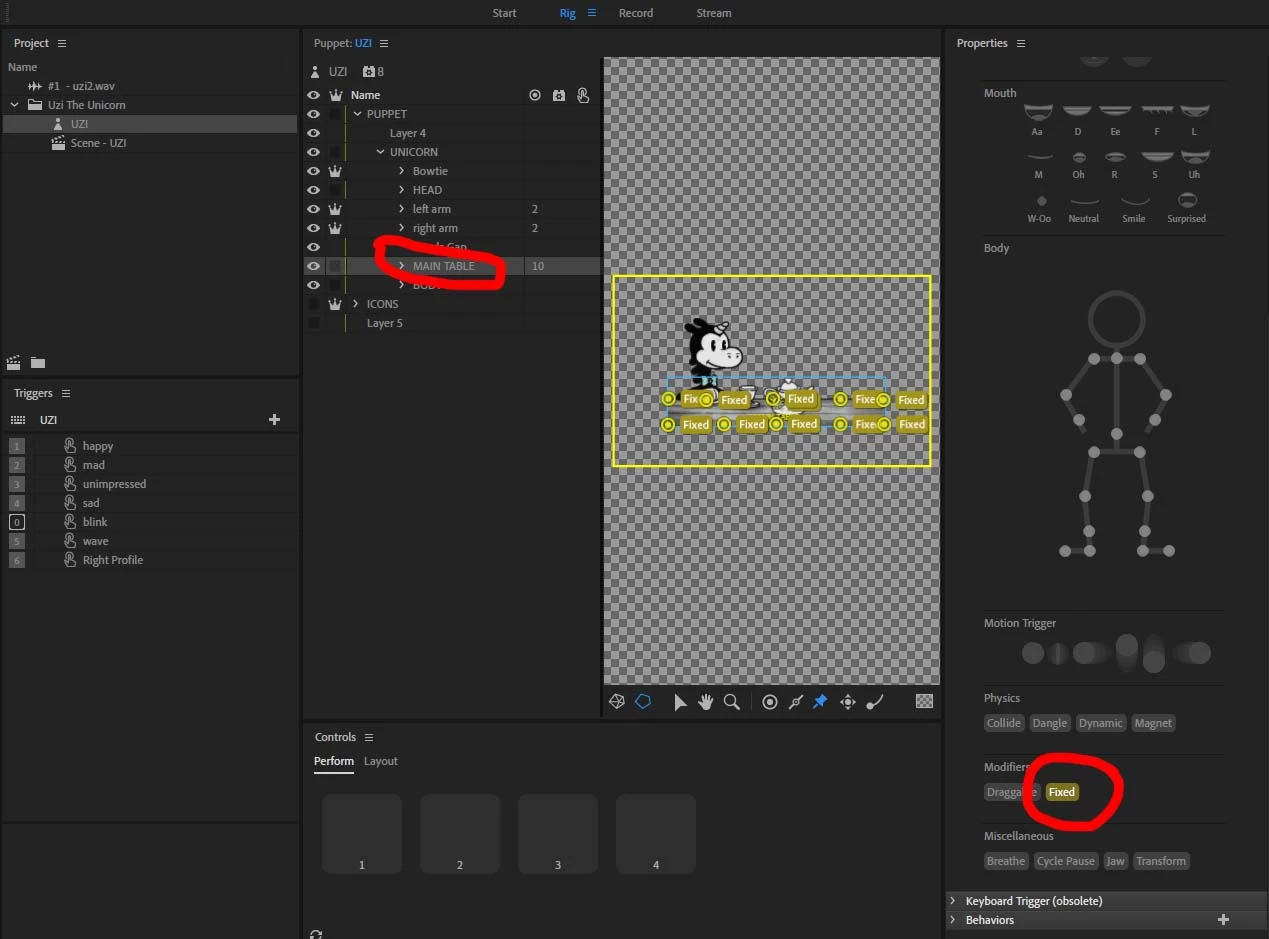
I just placed a ridiculous amount of pins to it, but it still distorts when the puppet captures my webcam movements. I've tried to look at some puppets with tables on it like "wizard girl" or "almasol", and I can't seem to figure out what they did to fix the table so the puppet doesn't interfere with it. The puppets "wizard girl" and "almasol" don't seem to have any fixing pins or the tables tagged as fixed. So I have no clue on how they've managed to make the table still. Also, I've pinned the arms and tagged the arms properly but they're moving funny as well.

Things I've done:

I've attached pins to fix - With no effect.

I've tagged the table as "fixed" - With no effect

The main table is not "crowned"

I don't know what else to do... Can someone give me some tips?

Thanks in advance.
This topic has been closed for replies.

5 replies

alank99101739
Legend
June 5, 2019

In your scene window there is a mesh icon (pentagon filled with triangles). You can turn that on in the scene window during playback etc as well. It sometimes gives good hints what is distorting and why. E.g. if you see the hand stretching off to some point on the head, so there a stray tag on the hand related to the mouth etc. Looking at the mesh is my suggestion of where to get started.

tundrav49346140
Inspiring
June 6, 2019

Thanks for the tip Alan, you're right, when the mesh icon is activated it's pretty useful. However, I can't seem to find out what's going on, still.

I think I'm just going to move forward without head movement performance, because when it moves the arms distort and I can't seem to solve it. Good thing it's a 30's animation-inspired cartoon, so the head movements are not super required. Maybe one day I'll be able to fix it and introduce head movement to the character.

Thank you, Alan and Dave, so so much for all the help,

alank99101739
Legend
July 18, 2019

Hi. I am not sure if what you shared is what Samurai shared with you, but sharing some personal opinions in case useful or interesting. I tend to do the same limited things over and over again because they work and avoid variation. That is, the variation might be fine - I just avoid it in case it causes problems.

I avoid multiple roots in the one puppet. So I would move "Pot" and "cup" into their own artwork file and puppets. They don't need to be in the same file. I would also delete "ICONS". Then put independence on for the remaining puppet (click the crown on). (I would rename it "+PUPPET" if starting from scratch.)

Next, turning on the mesh, its covering the whole area. And there are lots of "fixed" pins all over the place. So I started deleting ones I thought not important. In particular, you have MAIN_TABLE in front of the torso and behind the arms. Great! But I would make it independent because body movements should not distort the table.

Luckily that improved the mask a fair bit!

So something in the table layer is a bit strange, but since it never moves I don't need to care about that any more!

I then deleted all the Fixed pins and sticks from the MAIN_TABLE layer. My goal was to reduce the number of triangles on the screen, which reduces the rendering effort needed by CH. It went from:

to

I moved the origin from the center of the table to where the hands were.

I threw a random image off the web behind and exported a short recording as a GIF. It took a long time to render so going to post this and will follow up with a separate post shortly. I am wondering if can further simplify the puppet and so reduce render time etc. Its taking like 5 mins to render a few seconds.

alank99101739
Legend
May 13, 2019

In the bottom left corner there are mesh icons. It should cover the artwork with yellow triangles. It should hug the outline of the artwork. I think it does not From the screenshot.

This is normally happens if there is unconnected artwork in the same mesh. A mesh should be connected. It might be a matter of making teapots independent as well - it is a bit hard to see. It can also be caused sometimes by stray pixels.

tundrav49346140
Inspiring
May 13, 2019

Ok, when I turn the "Show Mesh" icon it shows triangles all over the place and some origin points out of place, indeed. Will try to figure out the mesh thing then... Alan, thank you so much for your precious tips! Ahah

oksamurai
Legend
May 13, 2019

Here's a quick mockup I did with a table + objects and fixed sticks that seems to work. https://adobe.ly/2W0JpkD

alank99101739
Legend
May 12, 2019

Oh, just looked at original pictures again. You DO want waist stuck to desk as your artwork does not extend below the desk (my character artwork does extend below desk). So for your puppet, do what oksamu showed, If you do independence, you will see a gap, plus the crossed arms will look strange.

tundrav49346140
Inspiring
May 13, 2019

Hello Alan,

Thanks for showing me your video as a reference, I just gave it a thumbs up, good job, btw.

Yeah, the sticks make it better, but some parts are still bending. I guess I really managed messed up my puppet and hours and hours of work... Bummer.

alank99101739
Legend
May 12, 2019

Regarding crown, i did forget to talk about setting the origin of the table. It will move with respect to its origin compared to puppet. So you might want to set origin of the desk layer to close to where the feet of the puppet would be.

It depends if you want the puppet to move from side to side behind desk. Sticks like ok showed will anchor puppet to desk. If puppet wants to slide from side to side behind desk, you need them independent.

It might not be very clear, but if you look closely you will see waist is not stuck to desk. The Silly Dilly Song - YouTube

Using sticks is easier and more reliable if that effect of waist stuck to desk is what you want,

alank99101739
Legend
May 12, 2019

If you don’t want the table to warp, the normal way is to make it an independent mesh. That is, add the crown. Independence is designed to stop something from being warped.

The other way is to use sticks rather than pins. Put a stick along the edges of the table (one stick stretching the full length). That will limit movement. Pins limit points (so it can still warp between the points) - sticks limit the whole line.

tundrav49346140
Inspiring
May 12, 2019

Hey Allan, thanks for answering me. Well, when I do crown the table, it's even worse and this happens :