Participant
July 15, 2025
Question

Followed All Guidelines, But Body and Arms Remain Static – Need Help

  • July 15, 2025
  • 1 reply
  • 221 views


Hello,
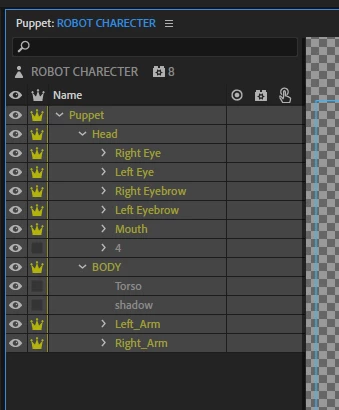
I'm creating a flat 2D character in Adobe Character Animator and following all the official guidelines.
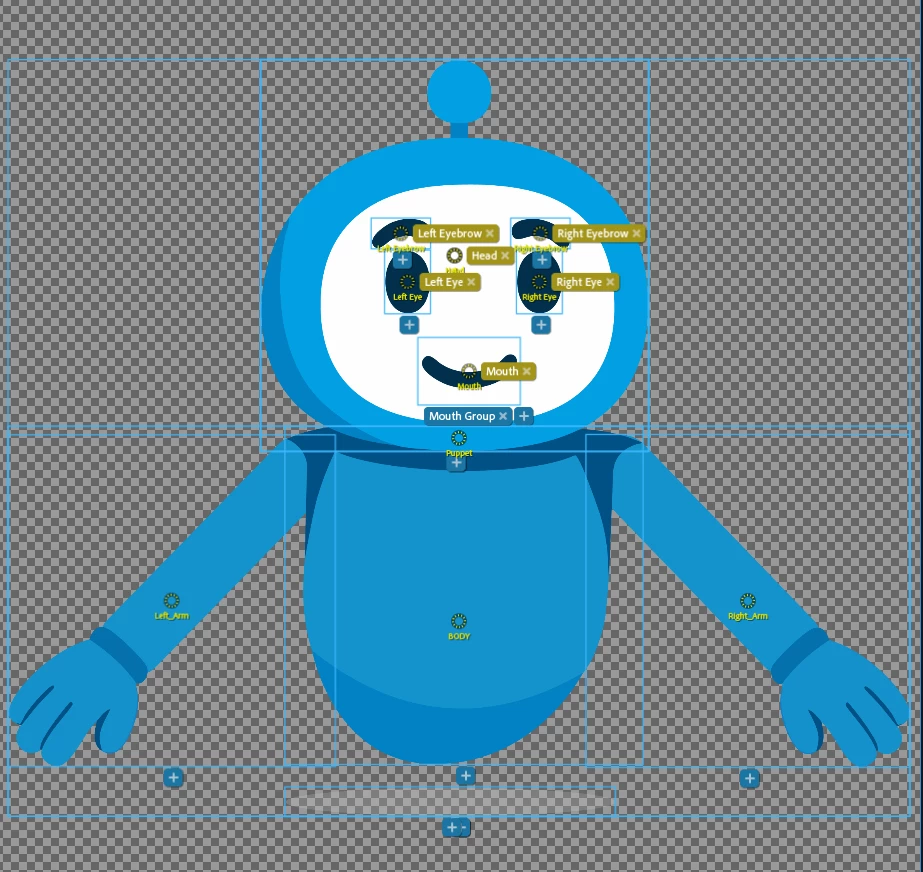
Although I’ve carefully set up the layer structure, tagging, and applied all necessary behaviors – the body and arms don’t move at all, only the head is responding.

I’ve watched several official tutorial videos, and there are things that don’t happen in my setup, for example:

  • The character is supposed to move as one unit (head, body, and arms together), but in my case, only the head reacts.

  • In tutorials, you can see a dotted line connecting the arms to the torso – I don’t see that line in my puppet.

  • When properly connecting the arms to the torso with an origin handle, the entire body should turn green, indicating the connection – but that doesn’t happen in my case, even when I place the handles exactly as shown.

What I’ve done so far:
✔️ Added the Body behavior
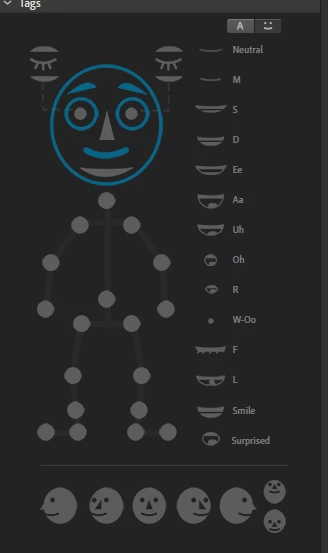
✔️ Tagged Left Shoulder / Right Shoulder
✔️ Placed origin and dragger handles
✔️ Verified that all layers are named and structured properly

Still, the body remains static and unresponsive.

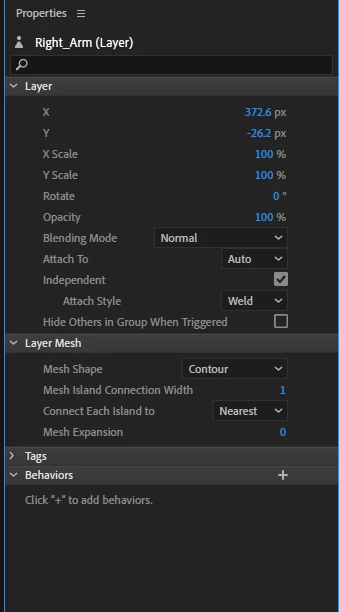
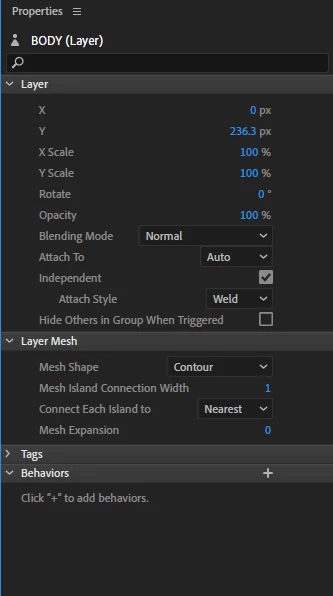
I've attached screenshots from my project to demonstrate.
I’d appreciate any help, or I can send the project file for review if needed 🙏
1 reply

TheOriginalGC
Community Expert
Community Expert
July 15, 2025

If I understand you correctly, you want to use the camera to capture body movements? Please make sure that the body icon (between the camera and microphone icons below the camera window) is selected. It should be blue, like the camera and microphone icons. Use this video for more information: Body Tracking (Adobe Character Animator)

Also, I am not seeing any rigging on your character's arms. For the program to be able to move the puppet's arms, there needs to be nodes placed and tagged for the shoulder, elbow and wrist. This video explains the process: Intro to Rigging (Adobe Character Animator)

Participant
July 20, 2025

Hello,
Thanks for sharing the “Intro to Rigging” tutorial. I’m working on creating an avatar in Illustrator and importing it into Adobe Character Animator using your guide. I’ve attached two screenshots—one from my project and one from the tutorial—showing the green dashed line I’m referring to.

Issue:

  • I imported my Illustrator file into Character Animator (AI → Puppet).

  • The body moves with the head correctly, and I added fixed handles to the feet.

  • However, when I click on the Right Arm, no green dashed line appears connecting the arm to the torso, unlike in the tutorial screenshot.

  • I also can’t manually create that connection—nothing turns green when I move the handle.

Questions:
1. Do you know why the green dashed connection line doesn’t appear automatically?
2. If not, could you recommend another tutorial or explain how to set up the arm connection manually?

Thanks in advance for your help!


Hila

k_oshiro
Community Expert
Community Expert
July 20, 2025

You can view the mesh outline by clicking on the icon at the bottom.

k_oshiro(AdobeCommunityExpert)