


Participant
November 11, 2022
Answered

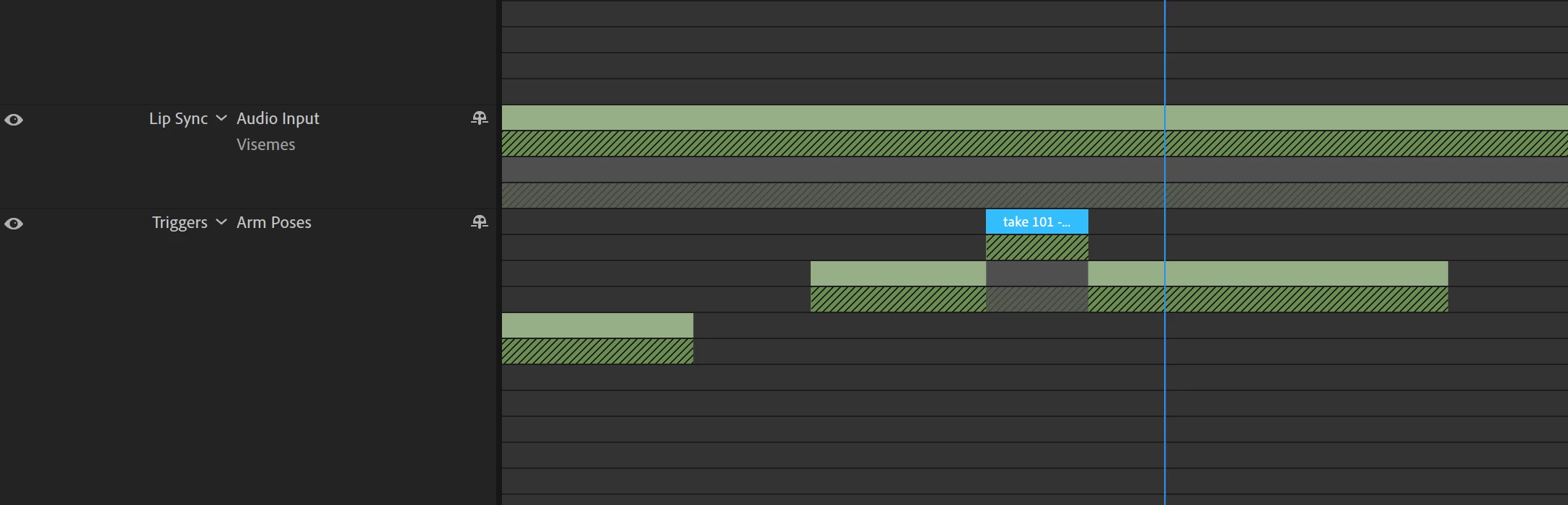
Greyed out triggers and visemes on timeline

  • November 11, 2022
  • 2 replies
  • 655 views

Hi! A few minutes ago I could see, blend and move keyboard triggers for my puppet and then these grey bars showed up, and I can no longer see or edit them on the timeline, they just show hreyed out under each take like this. Does anyone know how to get them back?

This topic has been closed for replies.
Correct answer TheOriginalGC

The new take supercedes what was happening at that point in the timeline. When you move the new take, the grey section moves with it. So if you want to edit something that's in the grey area, you'll have to move (or remove) the new track. But as far as the timeline goes, you'll need to zoom in to see the individual portions that you were editing. Choose the slider in the bottom right of the timeline to change the view.

2 replies

Participant
November 11, 2022

Thanks for responding! Nothing happens if I try and select the former take. The issue is not that I want to delete the new track or the old ones, it's that previously, every keyboard trigger I had used during the recording of a take would show up in sequence for each take rather than just as a grey bar, and I could slide each trigger around, delete them, or right click on the track to just add another movement without starting a new recording. Now I longer see each trigger on the timeline, I just see the grey bar under each take.

TheOriginalGC
Community Expert
TheOriginalGCCommunity ExpertCorrect answer
Community Expert
November 11, 2022

The new take supercedes what was happening at that point in the timeline. When you move the new take, the grey section moves with it. So if you want to edit something that's in the grey area, you'll have to move (or remove) the new track. But as far as the timeline goes, you'll need to zoom in to see the individual portions that you were editing. Choose the slider in the bottom right of the timeline to change the view.

Participant
November 11, 2022

oh my goodness-- yes, I was literally just not zoomed in far enough! so silly. thank you!

TheOriginalGC
Community Expert
Community Expert
November 11, 2022

What happens when you select the former track? If you no longer want the new track, click on it and press delete on the keyboard to remove it.