


Inspiring
August 31, 2020
Question

How to trim the timeline

  • August 31, 2020
  • 2 replies
  • 1165 views

I have done this before, but obviously it was just luck.


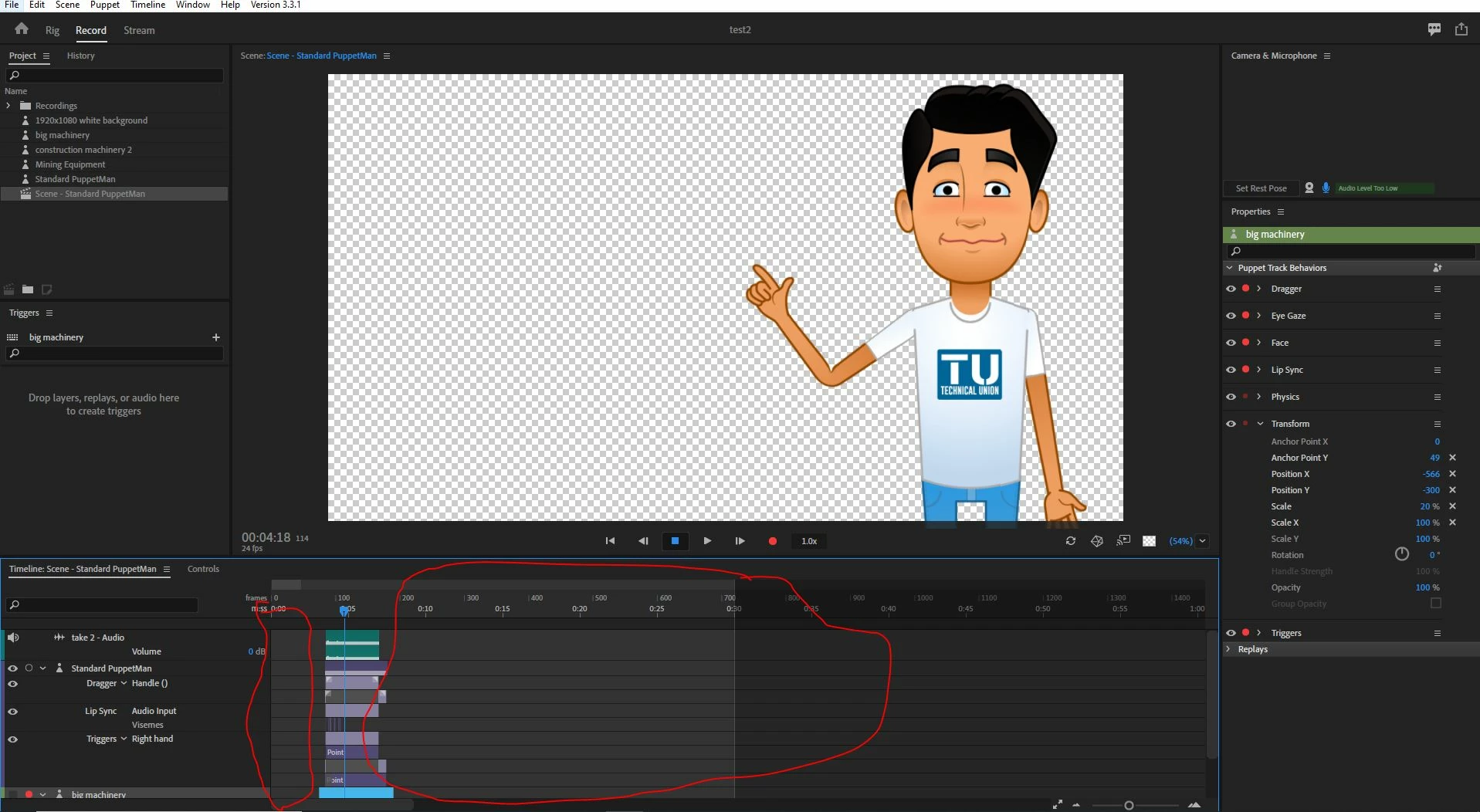
How can you trim the entire timeline? 


I know you can go to  Timeline> Trim in to playhead or Trim out to playhead.  But for some reason I am NOT triming the ENTIRE timeline, an d instead only triming sections of items in the timeline.


How can I trim everything at once and cut the actual time in the timeline? 
 

This topic has been closed for replies.

2 replies

alank99101739
Legend
August 31, 2020

Platty Pus provided a correct answer to the question. (You can set the Duration property of the scene as well, but its more manual.) It does not delete content beyond the end of the scene in the timeline however - you would have to trim all the takes back to the scene end if that was important to you (I never bother).


The other option that might be of interest is you can set a workspace start and end and export that range instead. I do this sometimes as you don't have to move the contents to align with the start of the scene (e.g. when experimenting). It can be useful sometimes. (The main reason I actually use it is to let hair dangles settle down for long hair before the "real" contents of the scene starts.)

Platty Puss
Inspiring
August 31, 2020

Hi Elindo,

     The only way I know of trimming the beginning of the timeline is to move all the "items" in the scene to the beginning of the time line. Regarding trimming the end of the scene, you might consider this: Place the playhead (Time line indicator) at the position in the scene where you want the scene to end. Right Click on the timeline and select "Set scene duration to play head". That should do the trick.