
carlineg53676476
Participant
August 24, 2020
Answered

Issue with color overlay from Photoshop to Character Animator

  • August 24, 2020
  • 2 replies
  • 665 views

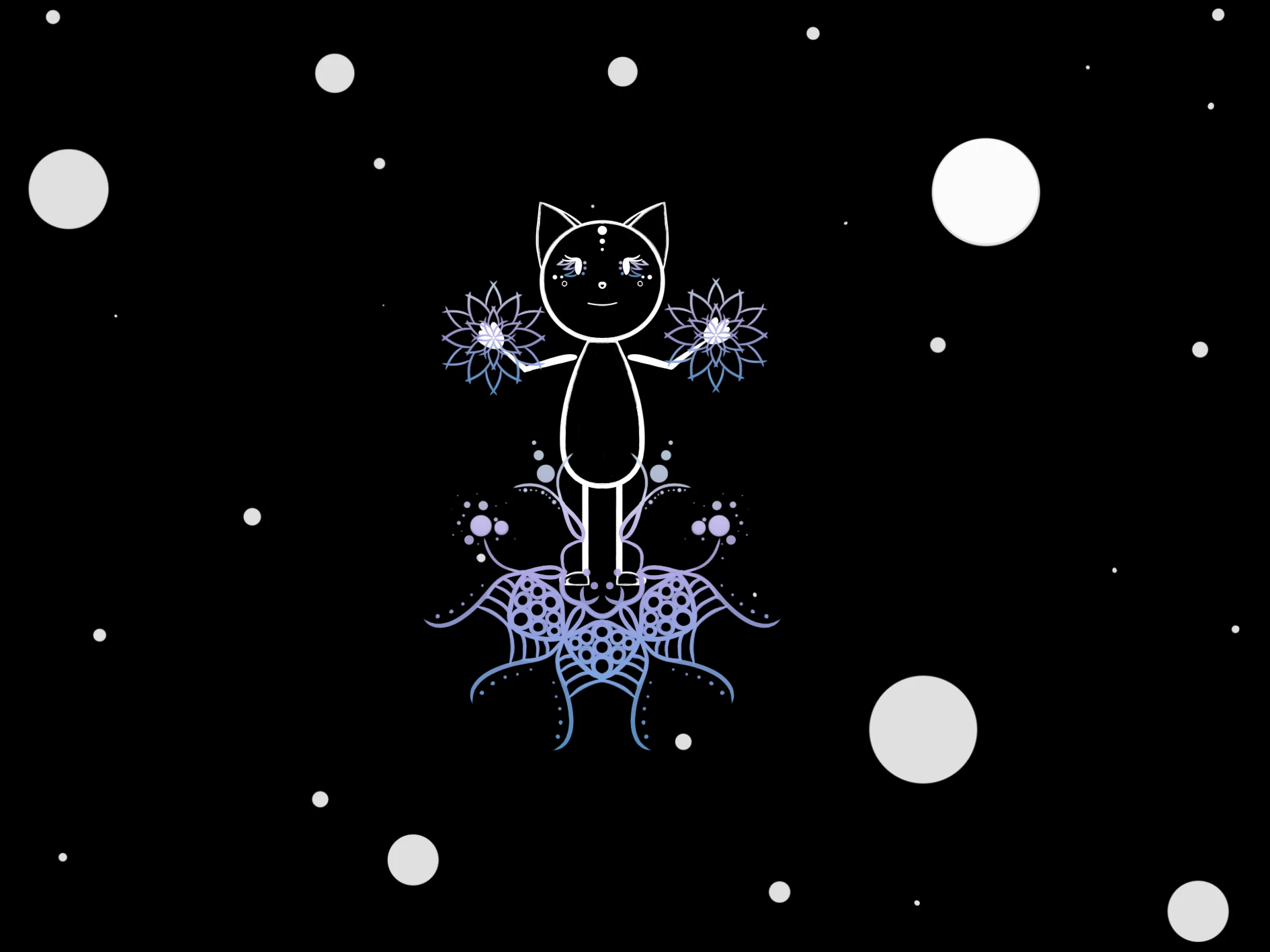
Hey! 🙂 We have an issue with a puppet that has been drawn in black with a color overlay on Photoshop to make it white ; when we copy it on Character Animator, the white overlay from Photoshop is not taken and the puppet appears black. Do you have and idea on how to solve this? We tried to use the paint buck tool to make it white in Photoshop but it appears in very low quality and we can't really use it this way (pixels everywhere on round surfaces). I guess there might be a way to merge layers to have it white by default?


Thank you! 🙂

This topic has been closed for replies.
Correct answer keiko.yamada

Hi,
Thank you for your PSD.
Color Overlay applied on the group (folder) is dropped. I see the same result (dropping layer styles on groups) in AE as well.

If I apply Color Overlay to each layers, it works.


Here are steps to apply same style to multiple layers:
1) In Photoshop -> Layer Style dialog, save Color Overlay as a new style, e.g. "Style 1"
2) In Photoshop -> Layers panel, select all layers that you'd like to apply Color Overlay
3) double click "Style 1" in Libraries panel.


I file this issue as bug (DVACH-7102), though it may be the current limitaion. 
If there is any better way to workaround, I will post here, too.


Thanks.

2 replies

carlineg53676476
Participant
August 25, 2020

Thanks a lot Keikoyamada! It worked for us 🙂

keiko.yamada
Community Manager
keiko.yamadaCommunity ManagerCorrect answer
Community Manager
August 24, 2020

Hi,
Thank you for your PSD.
Color Overlay applied on the group (folder) is dropped. I see the same result (dropping layer styles on groups) in AE as well.

If I apply Color Overlay to each layers, it works.


Here are steps to apply same style to multiple layers:
1) In Photoshop -> Layer Style dialog, save Color Overlay as a new style, e.g. "Style 1"
2) In Photoshop -> Layers panel, select all layers that you'd like to apply Color Overlay
3) double click "Style 1" in Libraries panel.


I file this issue as bug (DVACH-7102), though it may be the current limitaion. 
If there is any better way to workaround, I will post here, too.


Thanks.