


Stinkhorse
Known Participant
July 3, 2022
Question

Linking objects on in separate layer groups

  • July 3, 2022
  • 1 reply
  • 656 views

I have a particular visual style I'm working with where shadows are heavily posturized. Here's an image zoomed way in on the eye and side of the head (the blue on the left hand said is hair).
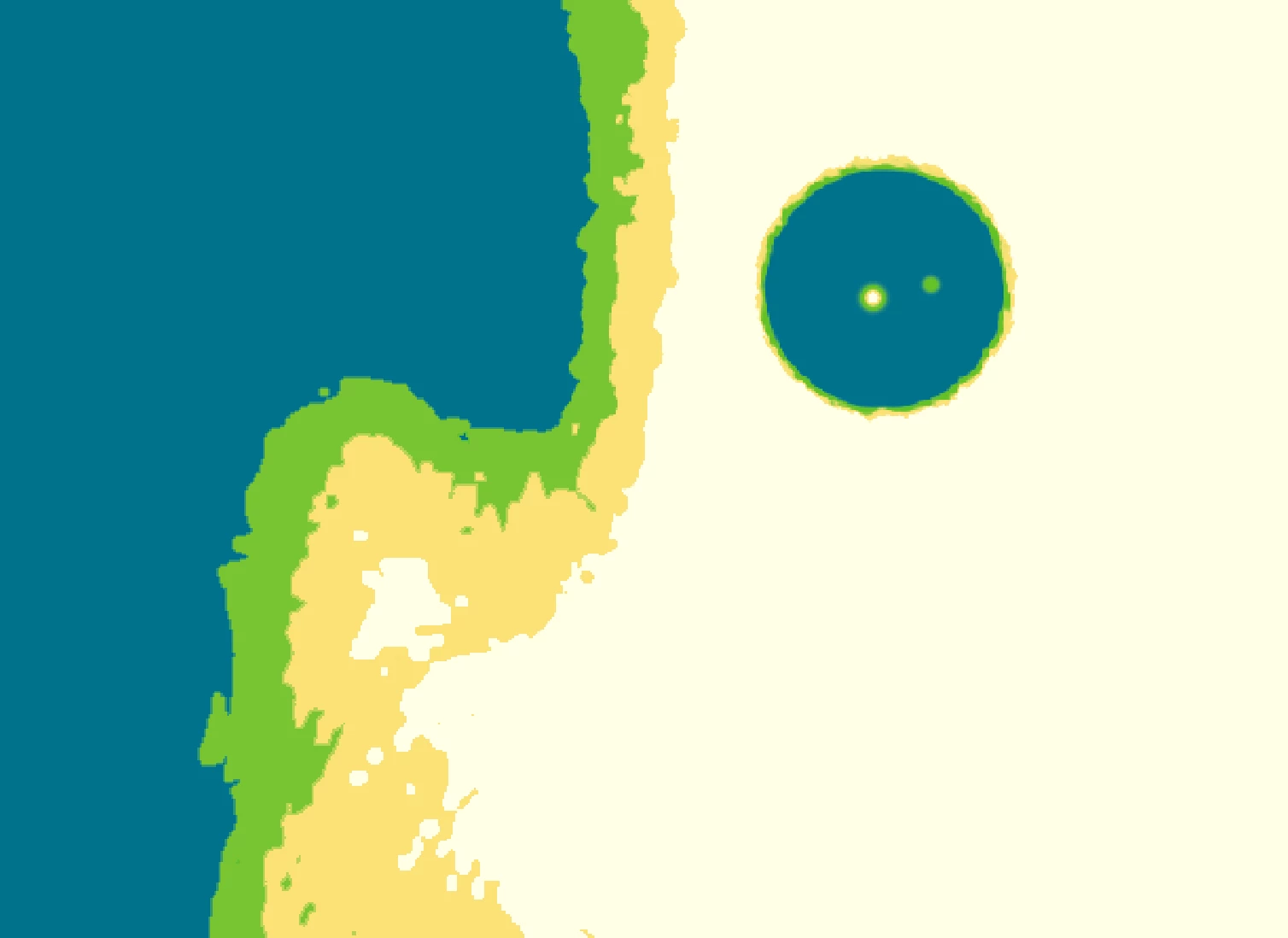
 

Here's how the objects are layered.
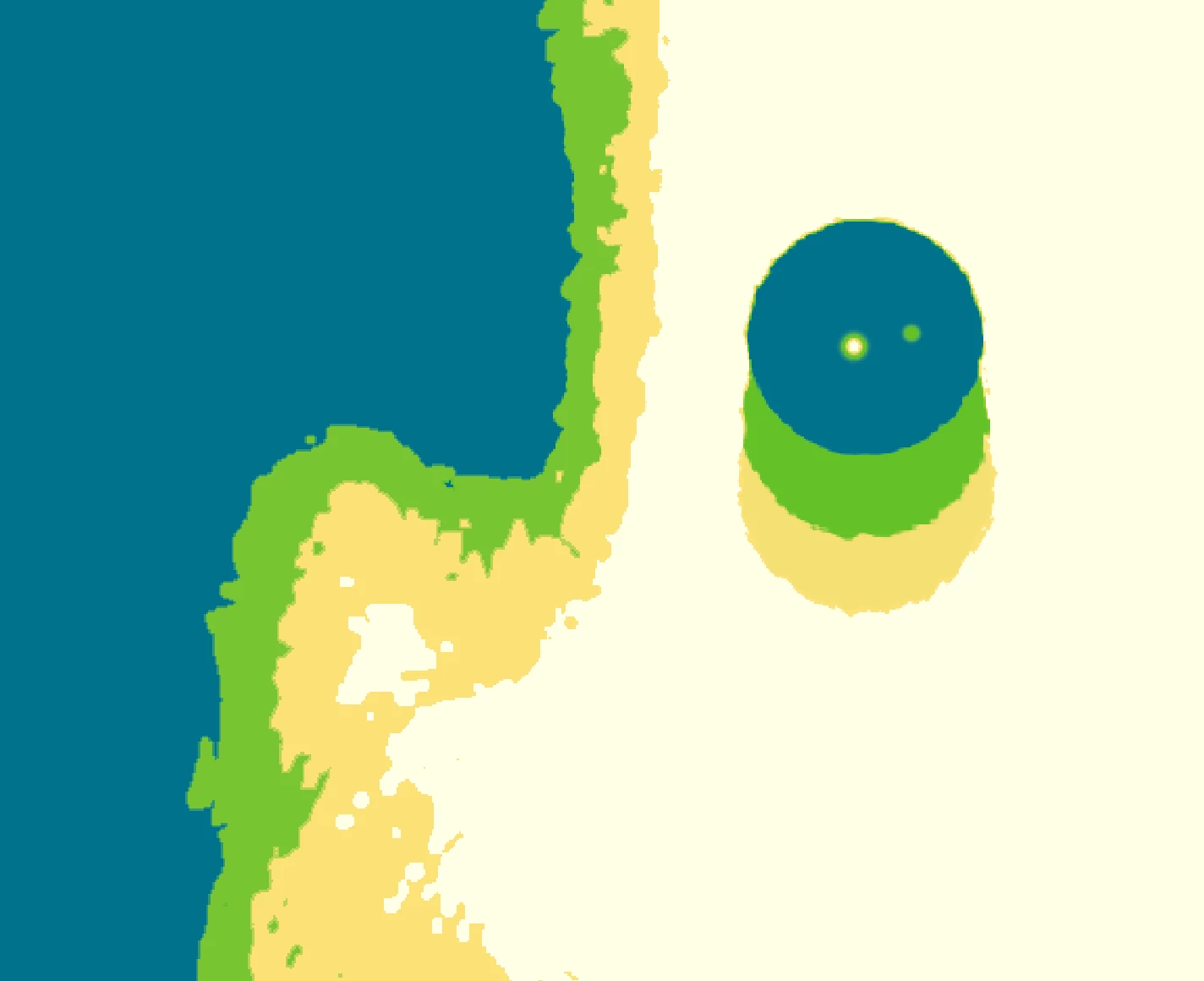
 

The expectation is that when the eye moves the layers respect the fake lighting. Green disappears under blue, yellow disappears under green.

 

I'm looking for some sort of parent/child grouping system, but all I'm seeing is leader/follower which seems to only be intended for IK rigging.

Is this something that can be done or is it simply impossible?

This topic has been closed for replies.

1 reply

alank99101739
Legend
July 4, 2022

To be honest, I don't really understand the effect you are after. The question that came to mind is if you click on a layer, in the properties panel there is a "blending mode" drop down with lots of different modes. I was wondering if you could somehow have separate layers of artwork color, then use "subtraction" or similar so the eyes knock colors out of some of the layers... or something like that.


But not quite understanding the effect you are after, what layers are eyes, etc I am not sure how much that is worth suggesting! ;-).


The most common thing people do with Ch is have layers in front of layers and move them around. I have not seen many people using the blending mode, so advice might be harder to come by.

Stinkhorse
Known Participant
July 5, 2022

Thanks for the responce. Let me get a few more pictures of what I'm building here.

Here's the whole puppet.

I have the blue, green, yellow, and pale yellow on seperate layers, and each of them represents a level of shadow in the image. I would like to have the pupils to have the same blue, yellow, & pale yellow,  like this,


but because of the way the puppet layers are set up one of those colors will intersect with the other colors incorrectly, like this,


To avoid that visual error I've settled for just using a solid blue pupil,


For it to work in the way that I want it to I would need to be able to set my layers up with eye parts that arent in the eye sub group, like this.


My expectation from Character Animator is that I should be able to tell the program that certain layers and objects are linked to objects that are outside of a layer group and have them move in tandem. I thought the "Leader" and "Follower" tags were for this, but I can't seem to find anyone explaining how to use them outside of limbs.


If this isnt something Character Animator can do, it's not the end of the world but it does mean I'm going to have to start looking at another program to experiment with.

alank99101739
Legend
July 5, 2022

Leader and Follower might work. The concept is simple - one layer moves around following another layer, even though it is not a child. CH does not care if its an arm etc. I think @k_oshiro  had a video using it for rear hair groups for example from memory. I am not near a computer for a bit so cannot try - I wonder how easy it will be to have two layers following one leader for example. I have not used it enough to be sure it will work. But its certainly not limited to arms/limbs.


Another approach that might also work is to effectively create 3 sets of eyes controlled by separate eye behaviors. As long as the eyes have the same input controls (webcam, mouse, etc), they should move around in sync. It can be a little tricky to set up. Some behaviors will find the first match and stop, and they might look for Head first, then L/R Eye, then L/R Pupil. So you might have to create 3 color heads inside your real head, then attach the eye behavior to those heads, so it finds Head/Eye/Pupil to keep it happy.


Other than that, I can only suggest that other blend approach - e.g. you might need to use pure red, green, and blue for the 3 colors so the blending works better, then use a post processing layer in Premier Pro or After Effects to make the three pure colors to the final colors you want. (And no, I have no idea how to do that!)