
Participant
November 26, 2016
Question

Misplacing puppet parts? (beginner)

  • November 26, 2016
  • 7 replies
  • 3874 views

Hello, I started using Ch just a couple days ago, with no experience on the animation field at all, and I must say that it's going pretty well so far, I'm amazed by the simplicity and effectiveness of this program and I'm totally in love with it.

I made 3 puppets already, which I'm still working on because I'm a bit of a perfectionist and I always tend to challenge myself more and more.

So the problem I'm having is that, I make the basic structure on Photoshop, grouping and layering everything properly (I hope) And it works great....

Until I get a new idea and I want to add more stuff into the basic puppet... let's say, more hair strands or a dress.

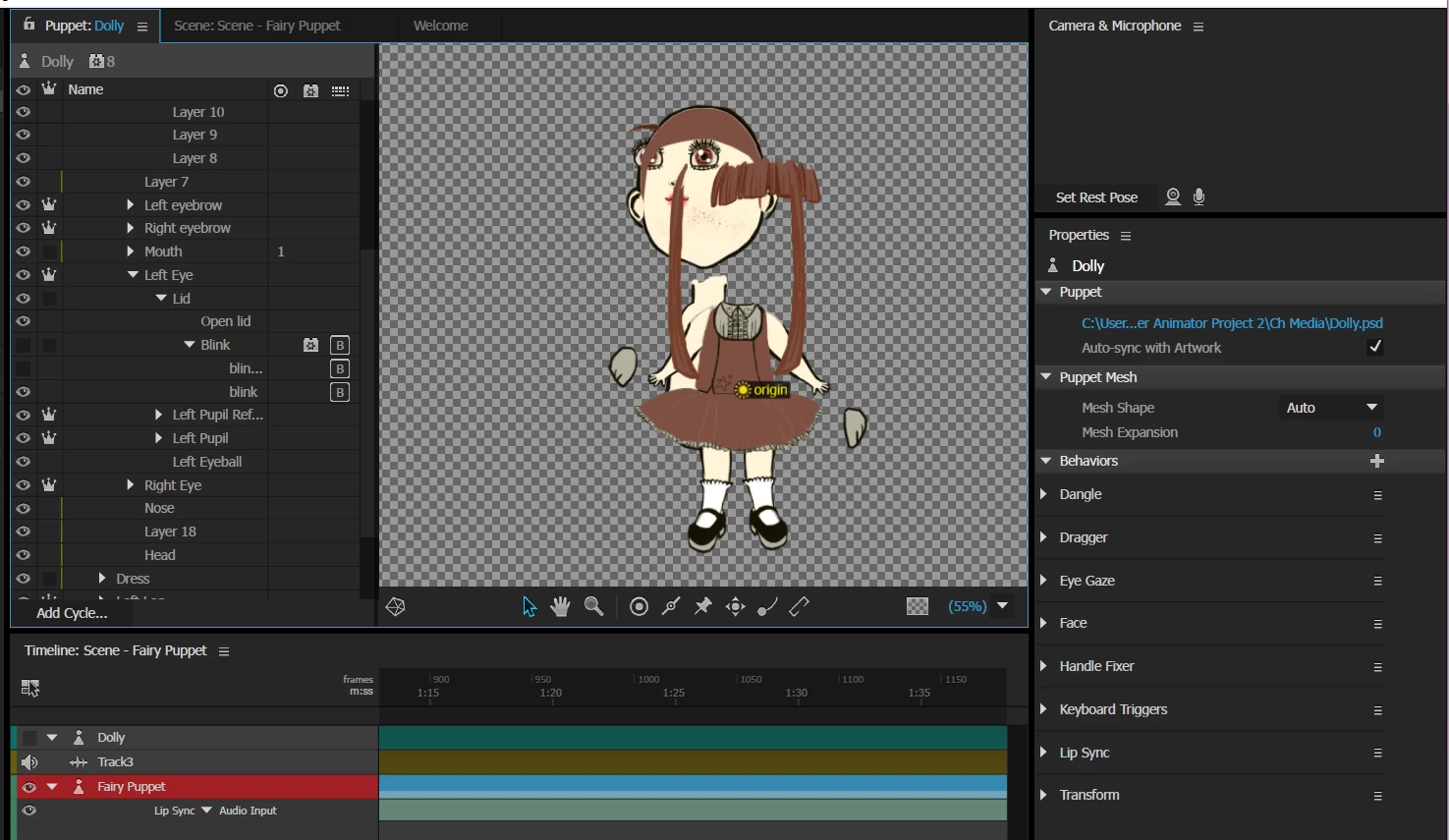
At first I was having no problems whatsoever, but after a while Character Animator decided that after every single Photoshop edit, it will misplace everything... and I would have to manually place the parts back together myself.

Am I missing a step?

This is confusing and very time consuming, so hopefully I'll manage to fix this. I hope someone can help.

Thanks!

Example:
This topic has been closed for replies.

7 replies

MonklynAuthor
Participant
December 7, 2016

I'm just gonna post here.

So I have a little of an ''organization'' problem here.

I had a few puppets saved with slightly different structures to see what works best or worse but, every time i switched between them I didn't realize I was actually creating so many different scenes. I actually just deleted like 10 of them.

And it's getting confusing cause I can't figure out which scene belongs to which puppet, and sometimes I change lots of things and see no changes because I'm looking at the wrong scene!!

Very confusing.

How can I avoid this?

oksamurai
Legend
December 7, 2016

If you're trying out different structures to compare, it may work better to add multiple puppets to one scene. So instead of clicking Add to New Scene for each one, drag them into an existing scene and reposition them with the Transform behavior. Then if you select multiple puppets at once you can see them all work at the same time, which is helpful for comparing.

The File menu also lets you make folders, which can help with organization. Then you could keep puppets and their scenes together.

December 7, 2016

This is a brilliant tip! You can even click more than one Puppet in the Timeline and see how they work at the same time! Great!

MonklynAuthor
Participant
December 7, 2016

The automatic click by click saving is one of my favorite things about this program! Since I often forget to save.

I fixed my problem by editing a random  layer on Ps. So I can't tell what happened.

I'm having a bit of issues with layering right now. I don't know whether is best to start a new thread or just post the problem here.

December 7, 2016

Hi!

Some of these discussions can go on a bit..... I would start a new discussion, or question, especially if it could be something different!?

oksamurai
Legend
December 7, 2016

Either works for us!

Inspiring
December 6, 2016

Quit and restart the program has worked with varying success for me. Seems like CA gets tired after a while and just can't deal anymore. Of course, if you haven't saved your puppet, or you're still editing in IL or PS, you'll have to re-import and set all your puppet tweeks again. SESO.

December 6, 2016

I know how Ch feels.... I often get to feeling.. 'I just can't deal with it anymore!'

Just like me, I think it's a memory issue... doesn't like dealing with too many things at once!?

Good hint of what we all need to do when using Ch... Save Often!  Am I right in thinking Ch auto saves?

CoSA_DaveS
Adobe Employee
Adobe Employee
December 6, 2016

Actually, Ch saves on every mouse click or keyboard press, so you never need to save. And the entire history is also saved (see the History panel to access it). History is cleared via File > Clear History, when updating from a different version of the app, and via Save Project As. However, only the latter case actually reclaims the disk space.

November 30, 2016

There is this problem when you change the structure in Ps, that you loose tags in Ch and this is being looked into.

However, the problem with Monklyn's issue seems to be something different. I found it hard to crash Ch from anything I changed the structure of the character I was creating in Ps however, if I changed the structure in Ch... Ch crashed!

You can only change the position of objects in Group... be that other groups or layer, but if you do, Ch will generate errors and Scene will no longer be available. I wonder if Monklyn changed the structure in Ch?

Inspiring
November 30, 2016

Hi Richard. Can you send me the project? dramirez_at_adobe.com

Thanks,

Dan R.

CH QA

November 30, 2016

Hi Dan... sorry I dont save these as project. I just use them as working/tutorial, then delete.  I was just working on how groups and layers work with Tags. I usually work with as few groups and layers as possible that will allow me to experiment in my attempt to understand Ch.

MonklynAuthor
Participant
November 29, 2016

Ookay. I was able to reset all the layers successfully but now the scene doesn't work?

oksamurai
Legend
November 29, 2016

Are you able to add the puppet into a new scene, or does this always happen? Did this scene have anything else in it?

If it always shows up, can you please share the exported .puppet file via google drive / dropbox / creative cloud / etc, either posting the link here or DMing it privately to me?

MonklynAuthor
Participant
November 28, 2016

Awesome, thanks for the tip!

Reset layers seem to work  mostly good....except for the Left Arm layer....a bit odd?

Still easier to fix.

Also why is the area around the arm so big? it isn't as big on the other arm.

CoSA_DaveS
Adobe Employee
Adobe Employee
November 28, 2016

Maybe due to one of the layers or groups _within_ the Left Arm group needing to be reset?

Or, when the bounding box for a layer is too big, it can also be due to a stray pixel. In PS if you select the layer and hit cmd-T, do you see the same big box? One way to clear out stray pixels in a selected layer in PS: draw a selection box around the expected pixels, hit cmd-shift-I  to invert the selection, then hit backspace/delete.

November 27, 2016

I can't offer any solutions... but can tell you they are aware of this.. Dave mentions it in one of his video.. and they say that they will be fixing this problem. No it doesn't help you now!

Here is the link to Dave's Video that I mentioned: it's about 18 1/2minutes in.... when he talks about the structure...

Making Your First Character (Adobe Character Animator Tutorial) on Vimeo

Files do tend to grow quickly and can get a bit complicated, so I use SnapShots in History when using Photoshop... If you right click on the Snapshot you can save it as a psd and then you've always got a record of what your project was like at a given time. This could be a good practice whenever you're about to make changes to the structure of your puppet.

Your Project is looking good!

CoSA_DaveS
Adobe Employee
Adobe Employee
November 27, 2016

For a layer that you've edited in PS and is now offset in the wrong position, try right-clicking on it the layer name or group name in the Puppet panel in Ch, and choosing Reset Layer. That should make it match PS.

Another option is to re-import the artwork, but that requires re-adding any manually-applied behaviors and setting parameter values.