Inspiring
Dec 4, 2020 3:14 AM UTC
Answered

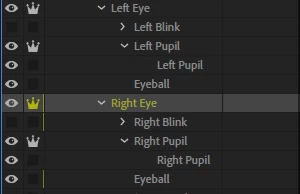
Only one pupil moves in puppet

Hi!

For some reason, only this puppet has this issue, the others work fine. The layer structure is correct as well (at least at first glance).

Help, please?


This topic is closed to new replies. Start a new post to keep the conversation going.
k_oshiro
k_oshiroCorrect answer
Community Expert
Dec 8, 2020 3:55 AM UTC

English to Japanese with translation software.
I've seen the puppets you've made.
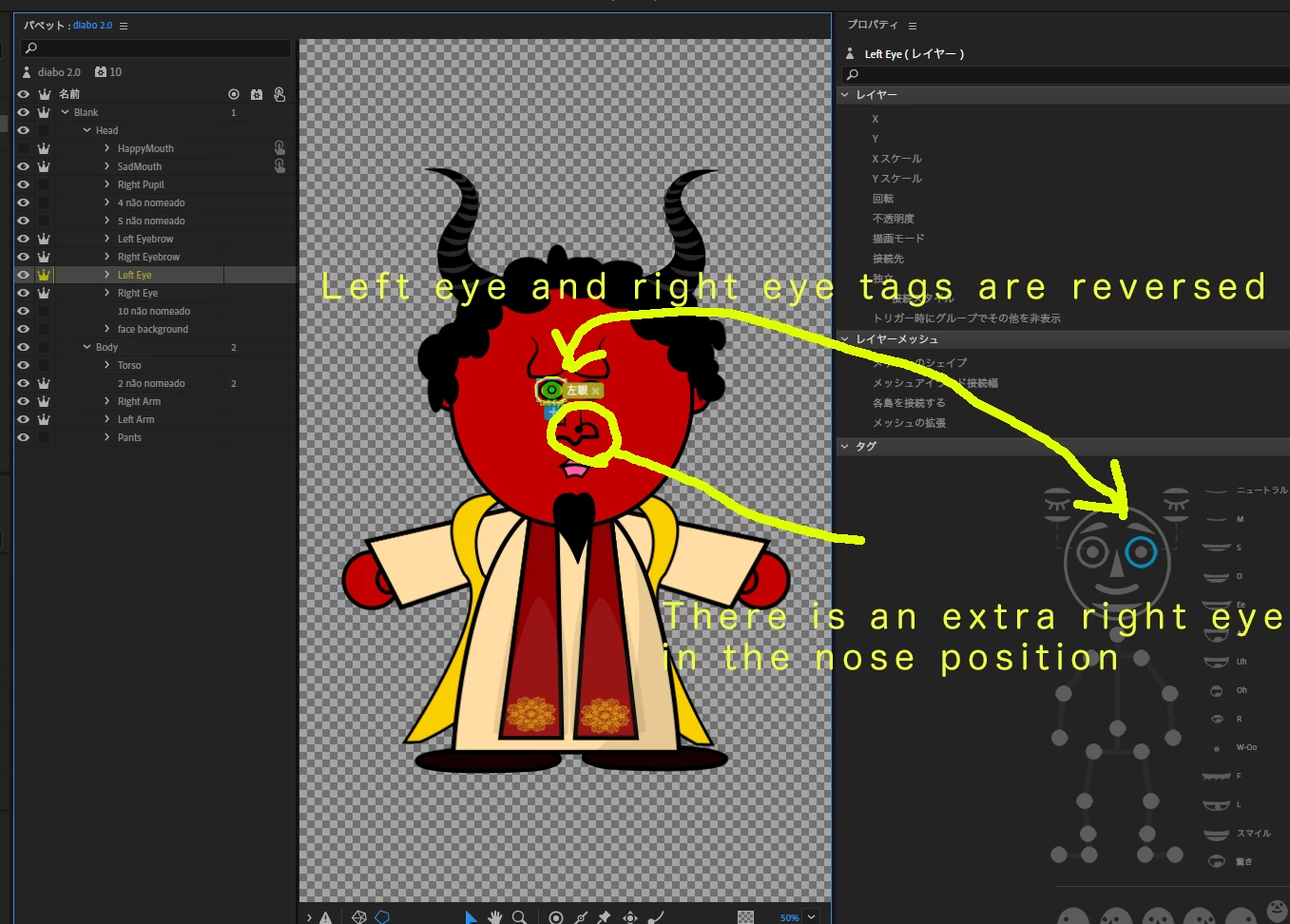
1) The left and right eye tags were tagged backwards.
2) An extra right pupil was placed at the position of the nose.

I fixed it. Download the project and check it out.
https://www.dropbox.com/s/359cxq1v54i3x0p/edit_eye_sample.zip?dl=0 ...

Notes
Walking behaviors are turned off.
The eyes move up, down, left and right with the arrow keys on the keyboard.

Glad to help you.

k_oshiro(AdobeCommunityExpert)

8 replies

k_oshiro
Community Expert
k_oshiroCommunity ExpertCorrect answer
Community Expert
Dec 8, 2020 3:55 AM UTC

English to Japanese with translation software.
I've seen the puppets you've made.
1) The left and right eye tags were tagged backwards.
2) An extra right pupil was placed at the position of the nose.

I fixed it. Download the project and check it out.
https://www.dropbox.com/s/359cxq1v54i3x0p/edit_eye_sample.zip?dl=0 ...

Notes
Walking behaviors are turned off.
The eyes move up, down, left and right with the arrow keys on the keyboard.

Glad to help you.

Translate
k_oshiro(AdobeCommunityExpert)
Inspiring
Dec 9, 2020 2:29 AM UTC

Really? It was that simple all along? I almost feel embarrassed haha.

Thank you very much! 

Translate
Inspiring
Dec 5, 2020 3:50 AM UTC


I'll also post a link with the puppet, just to be safe: https://shared-assets.adobe.com/link/8011cfb2-1db6-43ea-502a-978654914e33

Translate
alank99101739
Legend
Dec 4, 2020 10:10 PM UTC

Two suggestions - can you please share screenshots showing the pupil and eyeball layers selected, so the yellow outline is clear. Also please expand the eye gaze behavior to show the layers it has bound to (expand the handles section etc). This post might also help: https://extra-ordinary.tv/2018/04/21/debugging-character-animator-eyess/


But eventually it can be too hard to debug via the forums. If you are able, use export puppet from the menus then upload that file to dropbox/google drive etc and get a shared link to post here (or send via DM). Sometimes it is quicker looking at the actual puppet. (Don't zip the whole project - just export the puppet and share that - much smaller)

Translate
Inspiring
Dec 4, 2020 8:16 PM UTC

The eyeball range of both eyes are the same - I tried renaming the pupils layers to R pupil and L pupil, and mannualy adding the pupil range tag to the eyeball layers (which are renamed R eyeball and L eyeball).


Result: now they don't move at all. 

Then I tried to delete the tags in the eyeball layers (pupil range tag) and put it directly to the Left/right eye groups.

Result: this time only left pupil moved, so back to square one.

Then I tried to tag the pupils thenselves as pupil range (I was getting out of ideas) and nothing moved.

I... don't understand - how and why is this happening when both eyes and pupils are tagged exactly the same?!


Translate
Inspiring
Dec 4, 2020 1:43 PM UTC

Agreed. If it's not stray pixels, then it's either because you have two layers named "Right/Left Pupil" or you don't have enough space in the yellow part for the pupil to move around in. Like Alan said, the range tags can help (you can also put hidden shapes in your original art layer with "Right/Left Pupil Range" that will specify where the pupil can travel.


But try fixing things so you only have the actual pupil named "pupil" and either ungroup it (if that's what the second instance is) or rename the yellow part of the eye to something else. Duplicate layer names can often cause problems because CH dynamically tags things based on name.

Translate
alank99101739
Legend
Dec 4, 2020 5:43 AM UTC

The other issue can be stray pixels in the wrong artwork layer. If you click on each layer, you should see the yellow outline. Are they the same for both eyes?

Translate
alank99101739
Legend
Dec 4, 2020 5:41 AM UTC

Try left eyeball and right eyeball as the layer names, or manually add the left pupil range and right pupil range tags to the layers. It is frequently a tag issue that is the problem.

Translate