



Problems with layers when importing from Illustrator to Adobe Character Animator
Hey!
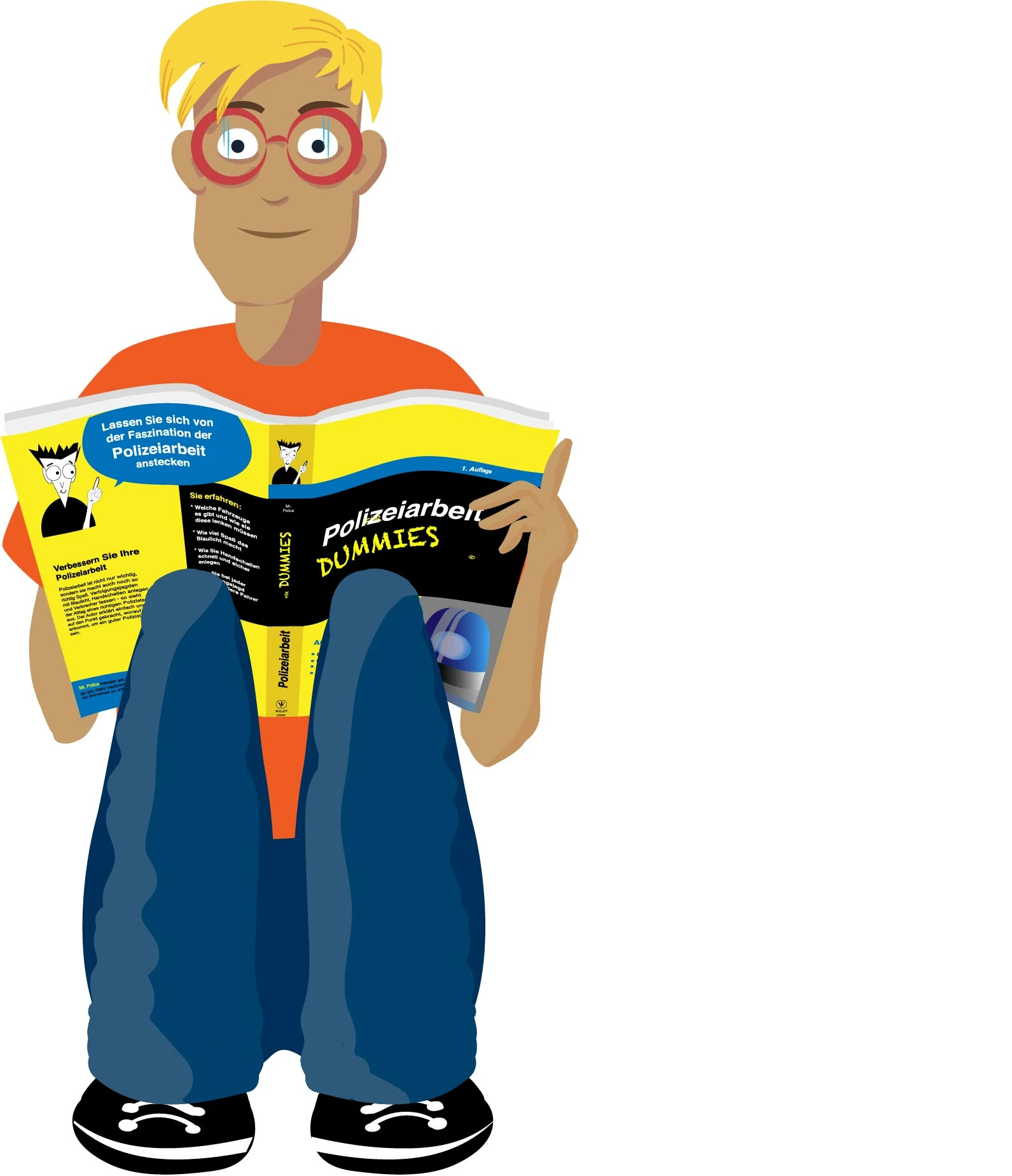
I drew this character in Illustrator, editing and adjusting the "Chloe.ai"-Template from Character Animator.
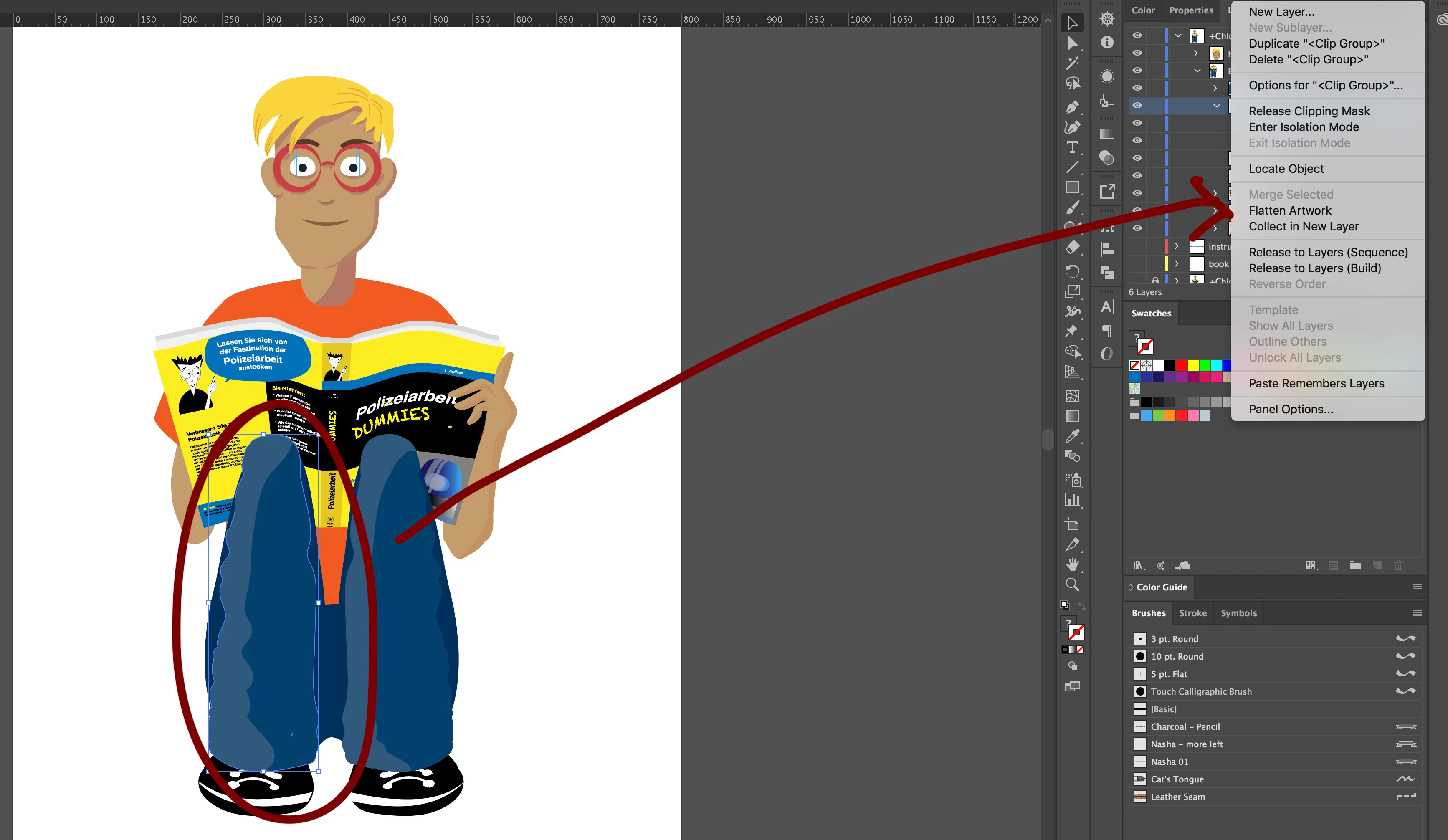
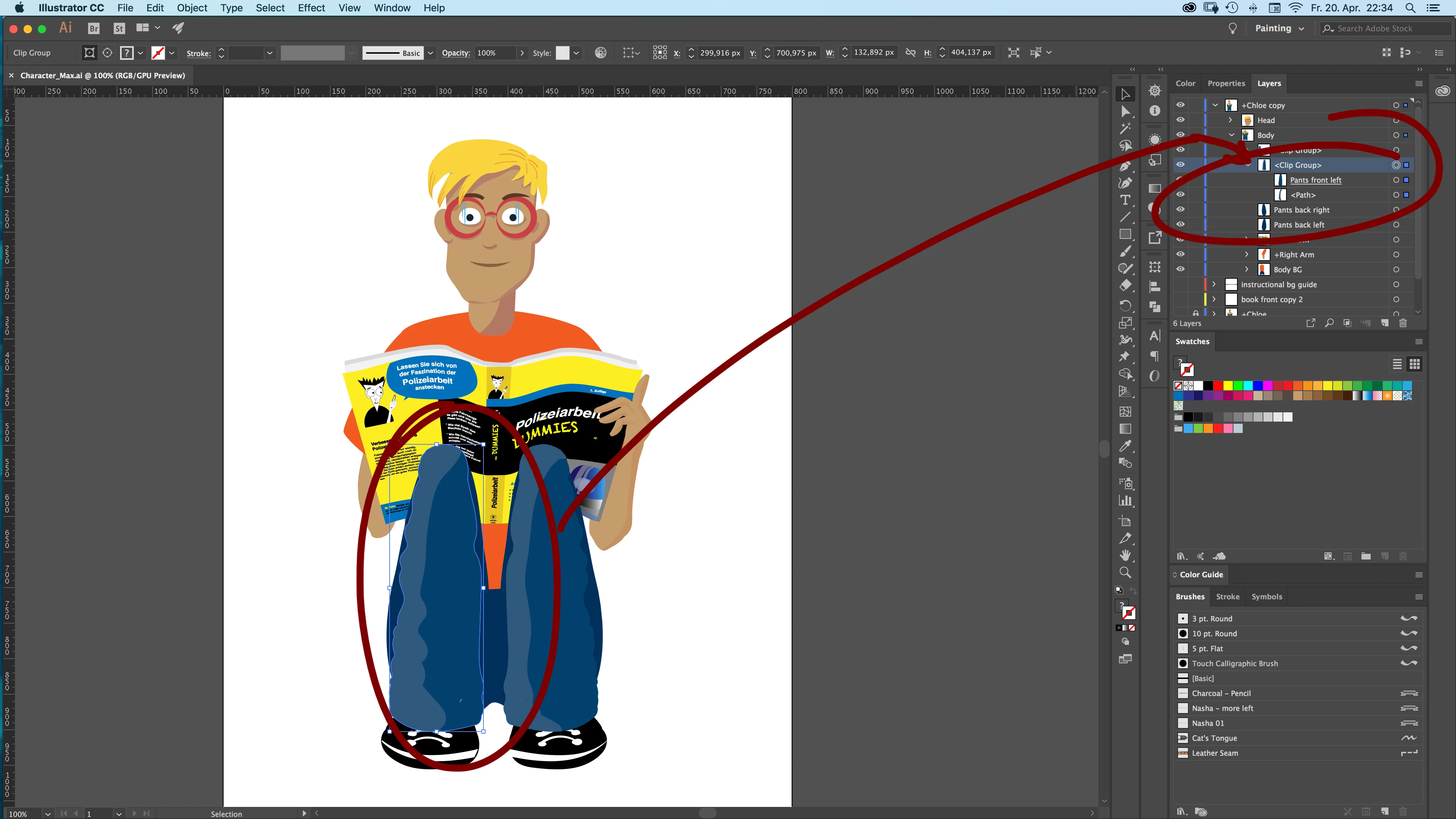
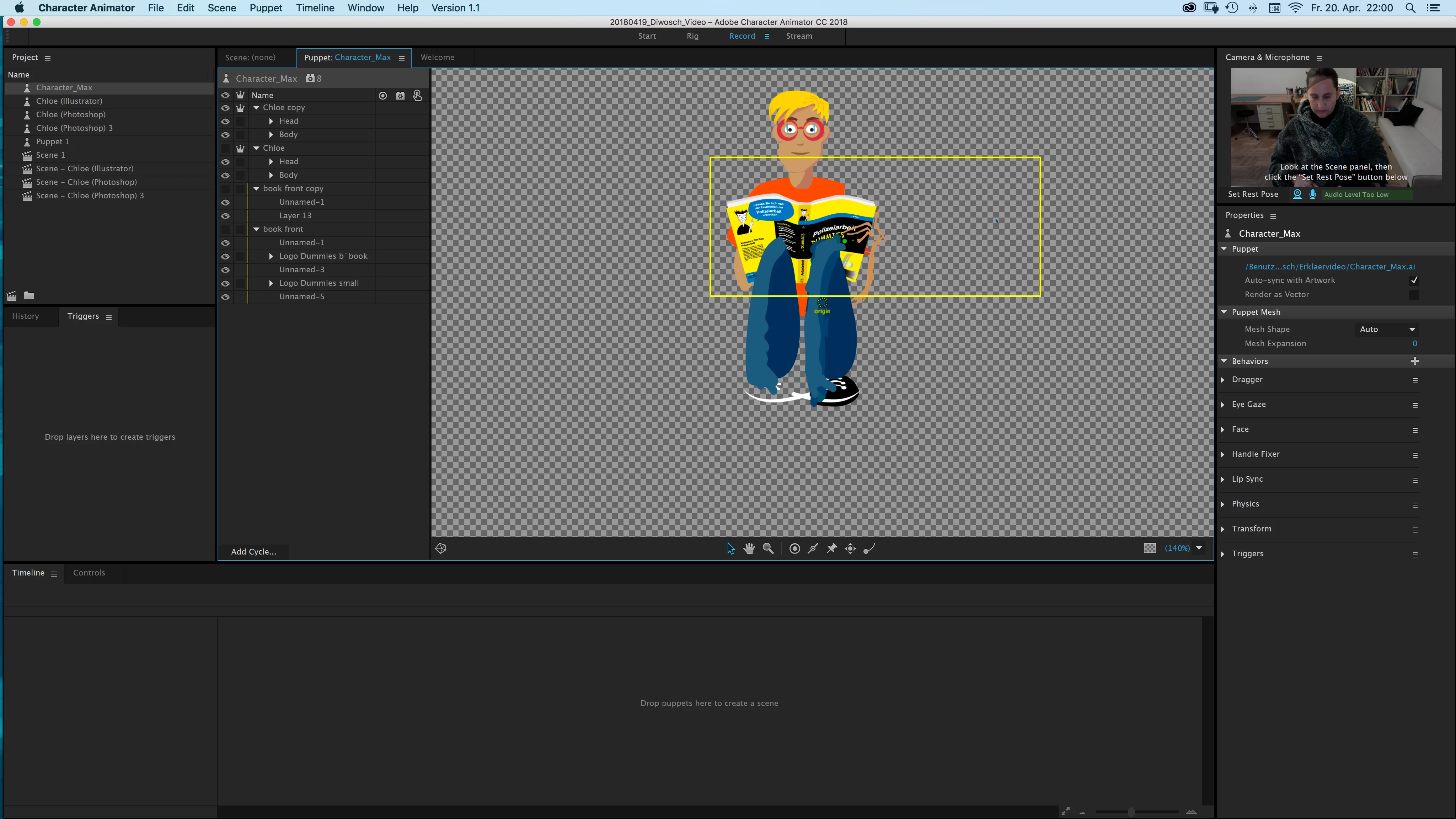
I followed the naming as in the original file BUT I also drew some parts in the "inside mode" - for example the front of the pants. Means, I added the highlights in the inside mode (what automatically creates a clipping mask). Unfortunately Character Animator does not know these layers - even if the main layers in named correctly. What happens now is that some layers are missing and the highlight of the pants appear now in its full size (with all the overfilling) - I tried to merge the layers but this function is not available. What I would need is a similar function as PS "Merge selected layers". I tried "join path", "convert to shape", the unify tool from the pathfinder, "release clipping mask" what has the same effect as in CA. any suggestions? Because otherwise I cannot work with this in CA. And I would like to keep the Vector drawing (means, I do not want to switch to PS)
Thanks in advance.
Best
Nasha
 AdChoices