


Participant
November 27, 2017
Answered

Scene Grayed Out

  • November 27, 2017
  • 11 replies
  • 3427 views

Hi,

This is my first time asking a question here since I couldn't find any topics relating to this problem.

I'm was using Character Animator for the first time and when I selected the default Blank Face puppet, the scene appeared grayed out. That is to say the background is gray and the puppet isn't visible at all. I tried selecting different puppets from the Start screen and still had the same result.
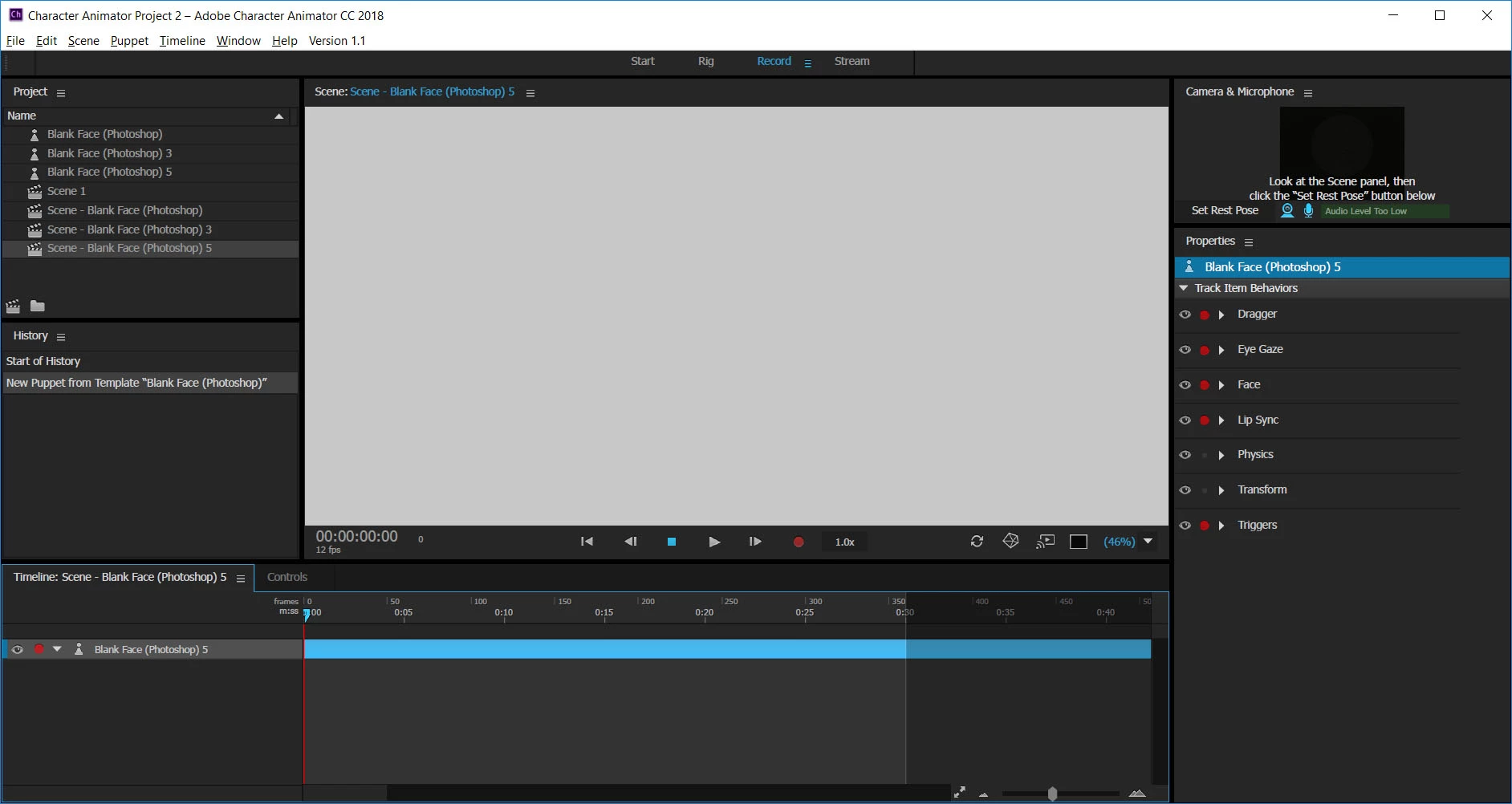
I'm on a PC, using the latest version of Windows 10 Home, i7 1.80GHz processor, 16GB memory, NVidia GeForce MX150 graphics card, 256GB SSD storage. I hope this is enough information. I hope someone can figure out what's wrong, I'd really like to start using Character Animator.

Thanks.
This topic is closed to new replies. Start a new post to keep the conversation going.
Correct answer Jeff Almasol

Curious if you also have an Intel graphics processor in your machine. If so, if you right-click the Character Animator.exe or its shortcut, is there a "Run with graphics processor" submenu? If so, if you change this setting, does it make a difference? (See this other thread for a somewhat similar issue: Re: Preview in Rig won't show up  )

11 replies

Jeff Almasol
Adobe Employee
Jeff AlmasolCorrect answer
Adobe Employee
December 5, 2017

Curious if you also have an Intel graphics processor in your machine. If so, if you right-click the Character Animator.exe or its shortcut, is there a "Run with graphics processor" submenu? If so, if you change this setting, does it make a difference? (See this other thread for a somewhat similar issue: Re: Preview in Rig won't show up  )

Participant
December 5, 2017

I just switched Character Animator, Premiere and After Effects to use the Intel card and they work now. Thank you!

Jeff Almasol
Adobe Employee
Adobe Employee
January 9, 2018

Just a follow-up here. We couldn't repro this issue on our in-house GeForce MX150 card. Character Animator and Premiere Pro launched without any issue.

If you want to try running with the graphics processor set to the GeForce discrete graphics, things that would be helpful to know:

-- model of the computer

-- OS version

-- type of integrated graphics (which you should be able to find in the Intel graphics settings/control panel)

-- 3d settings for preferred graphics processing in the NVIDIA control panel

-- specific NVIDIA driver version (look in the NVIDIA control panel.... e.g., 388.59 or a version number like that)

Another thing to check in Premiere is to open its Console panel (press Ctrl+F12), then type the following in it:

   gpusniffer

to report what supported GPU devices are available.

Thanks.

CoSA_DaveS
Participating Frequently
November 28, 2017

Strange. Looks like a GPU/OpenGL problem. Do AE/PPro/PS work on this machine? Is your GPU driver up to date? Looks like a new one was posted a couple weeks ago: NVIDIA DRIVERS GeForce Game Ready Driver WHQL

Participant
November 28, 2017

Photoshop works but not Premiere or After Effects. I tried updating the driver and restarting but still no change when I started up Character Animator.

CoSA_DaveS
Participating Frequently
November 28, 2017

What are the symptoms in AE & PPro?