


Participant
May 25, 2018
Question

Walk Cycle (3-view)

  • May 25, 2018
  • 4 replies
  • 651 views

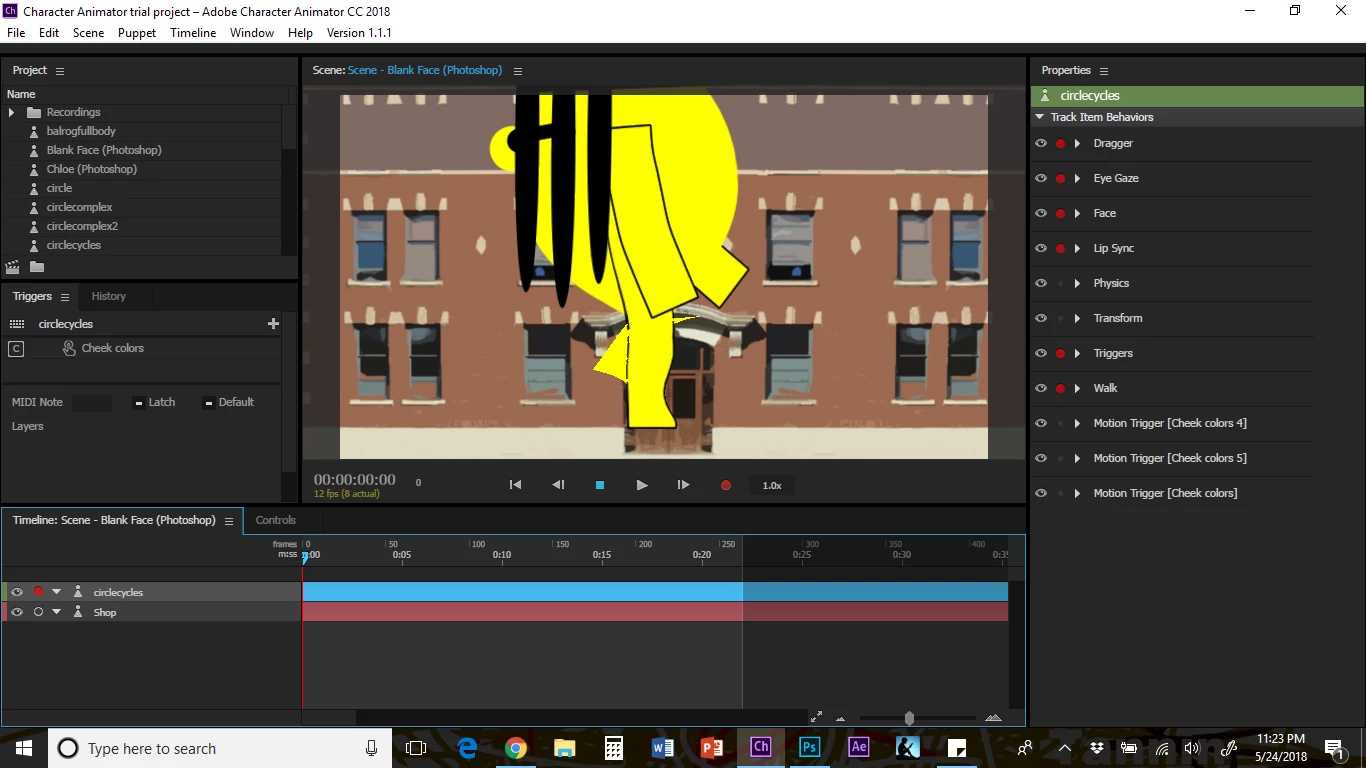
So I've been trying to figure out the walk cycle and followed all the tutorials I can get my hands on, trying to copy the tagging as exactly as possible, including the examples done by Dave Werner on his Okay Samurai YouTube Channel (which I love, by the way!) I've drawn a bunch of puppets that are ready for rigging, but when I tried to do a simple test puppet, I have only successfully been able to do a one-view walk cycle. As soon as I try doing the three-view walk cycle, with the frontal, right, and left profile, the puppet freaks out and either disappears (only appearing in a distorted walking form when I press the right arrow) or not at all (when I don't press anything or the left arrow). At one point, I had it working a little, but the entire puppet was heavily distorted (eye was detached and/or missing and the body looked nothing like a circle)...but it walked both ways!

I followed the Tips and Tricks for the June edition, I believe, with the blue man that you begin with one view and then duplicate it and make the x value to -100 to invert the one view, and I tagged the feet as fixed on the default or frontal view. I'm beginning to get frustrated with the three-view walk cycle, but I really want to figure it out! Any ideas?

Here's my puppet if you need to look at it: https://drive.google.com/file/d/1LOEPXG4TPnSy5mwMaBCBYFGACBn1dz6b/view?usp=sharing
This topic is closed to new replies. Start a new post to keep the conversation going.

4 replies

alank99101739
Legend
May 28, 2018

Some things to try

  • Remove the "fixed" point on the feet.

  • Make the "Default", "Right Profile" and "Left Profile" independent.

  • Add a "Head Turner" behavior to the root of the puppet (click the "+" next to Behaviors in the puppet panel to add the "Head turner" behavior)

  • Click on the "default" layer and tag it with the frontal tag (it has frontal and left on in the download - I removed the "left" tag which I think was causing big time problems.). Click on the left and right layers and make sure the have the left and right tags (which it did in the download)

It seemed to work much better then.

Participant
May 28, 2018

I did all these changes, but it still only allows the character to walk to the right, yet even this isn't working right since I have the body speed at 100% but the character doesn't move across the screen, but runs in place.

alank99101739
Legend
May 28, 2018

Here is the puppet I have circletest-ALAN.puppet - Google Drive

I just set Body Speed to 100% and it moved.

The artwork (PSD) file does not have three views from what I can see - you need to copy/paste and edit the three views in the PSD file - that is the only way I know to get the different views for turning. There may be other clever tricks that I don't know of.  I think it must be picking up "Default" because your artwork file does not have the other views in it.

You current have in PSD:

I think you need something more like:

But I am not a Photoshop expert - I could not edit it for some reason (e.g. change colors of different profiles) - no idea why -  so I will leave that one to you!