
Colin G Smith
Inspiring
October 22, 2018
Answered

What's the best way to edit/combine takes for 3 characters?

  • October 22, 2018
  • 2 replies
  • 3973 views

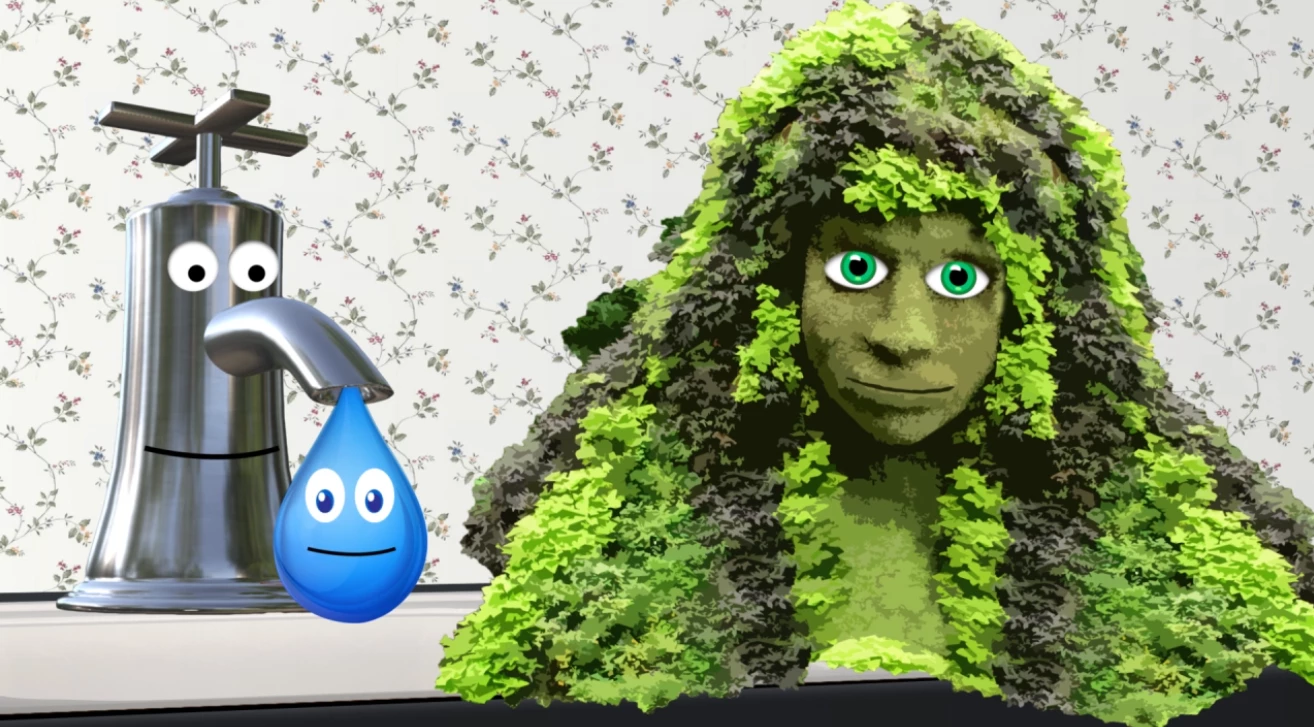
I have these 3 wonderful characters but now I have to edit together each performance.

The hard part is, each actor read their part with no space or timing for the others. Plus, the water drop actress (Li'l Drop) couldn't read so her father had to speak each line before she said it so I have every single line from him I have to take out! Yikes.

Question: What's the best way to tackle this? How do I make a seamless performance with each character looking natural when they're not speaking?

This is a very important public service video that I'm working on that will be shown at Queen's Park in Toronto by a very important MPP! (no pressure)
    This topic has been closed for replies.
    Correct answer DanTull

    RE: Compute Lip Sync

    Yes I selected the same way but I still recorded lip sync to characters that were not selected.

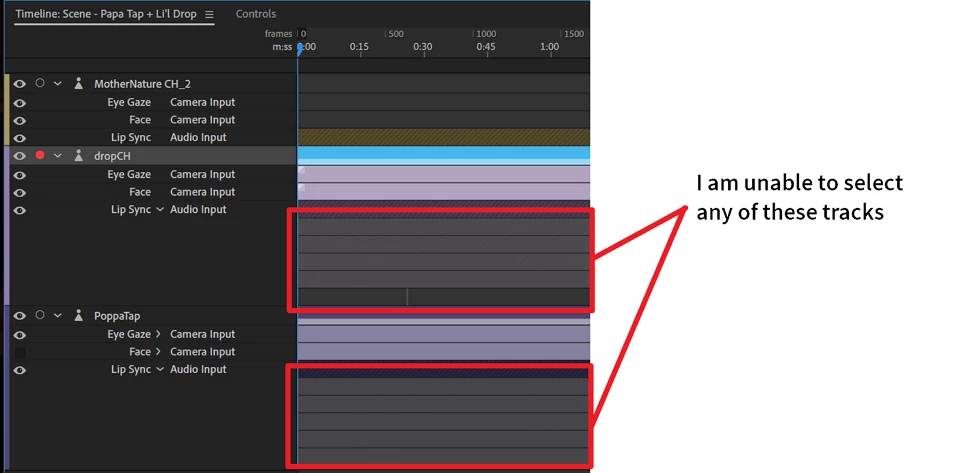
    As far as deleting tracks, I have never been able to select any of these to delete. Plus I have no idea why I have so many, or what their function is!


    There's an option in the Timeline menu to show trigger/viseme take bars. Did that get turned off? It can be useful to save vertical space, but it means there's nothing to click on to select the whole bar. At wide zoom levels, the visemes stop being displayed individually and instead show the angular lines as a filler.

    DT

    2 replies

    Colin G Smith
    Inspiring
    October 23, 2018

    Ok, I'm editing the dialog in Audition on three separate tracks with correct timing, no problem.

    Then I will compute each track for new lipsync.

    Question: Will that compute also extend the duration of each  character track?

    Right now each duration is much shorter, so new lipsync compute is going to extend each character and add "something" when the characters aren't speaking.

    alank99101739
    Legend
    October 23, 2018

    When you start animating, recording an animation automatically extends the duration of a scene. You can also adjust the scene duration manually. E.g. position playhead at end, right click and I think there is now an “set duration to play head position” (or something like that). You can also click on a scene once and it will show the scene properties, of which “Duration” is one of the values - you can click to type in the new duration by hand.

    Bottom line: fixing the duration of a scene is easy. That will be the least of your problems.

    Colin G Smith
    Inspiring
    October 23, 2018

    But what about the characters?

    If the original Li'l Drop was 2 minutes long and I only have 2 minutes of webcam captured for that character, but now the new audio is 3 to 5 minutes long. What does the character do, visually, for the extra duration? Yes the mouth will move, but what about the eye gaze, head movement, etc?

    ScooterD76
    Legend
    October 22, 2018

    First it sounds like you'll need to edit your dialouge for timing and to remove the extras. If you could get each performance on seperate tracks that will make your life a little easier. when its time to record your lipsync and performances, just disable recording for the extra characters, and record each performance one at a time. If all your dialogue is on one track, you can remove the unwanted sections of lipsync for each character as you go.

    hope this helps

    alank99101739
    Legend
    October 23, 2018

    What I normally do is do any noise reduction etc as a complete file, then I work out a numbering scheme for each line. (I usually use a three level numbering scheme of effectively scene, camera angle, line number - e.g. 3-2-1.) Its just a matter of being organized.

    I then use Adobe Audition to copy each line into a separate file where the filename follows the number scheme. I then create “bins” (folders) inside CH and load the audio clips into separate bins (depends how long the animation is). I then rough out the different scenes, dragging in the audio files, get it feeling roughly correct, slide the audio clips around so the timing feels right. Once that is all right, I compute lip sync from each audio file for the characters.

    There was however an Adobe tips and tricks episode a while back that showed using multiple audio channels in the one Audition project. I think the idea as I recall was they moved around all the audio clips inside Adobe Audition first, with one channel per character. They then muted all the channels except the desired character and exported long audio sequences. That seemed sensible if you have longer scenes in CH with multiple lines per scene. (I, possibly incorrectly, do lots more camera angle changes so typically only have one or two lines before starting a new scene in CH, so it did not help me.)

    But which ever way you go, you are going to have to go through and move lots of audio clips around to get it sequenced right and spaced out correctly. After that there are a few options. I would think about things like how many scenes you will have, how many lines per scene, etc. The larger the number, the more organized it will pay to be!