John_Allred
Inspiring
August 28, 2020
Answered

Help with CF Server Instances Failing to Run

  • August 28, 2020
  • 2 replies
  • 2628 views

Hello,

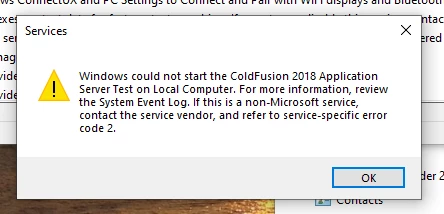
I'm running CF 2018 in Developer mode on my local PC running Win-10 64-bit. Over the past year, I've created several server instances on the Coldfusion Server, and I've had no problem, other than that a couple of them have required periodic restarts. Recently, one of them failed to start at all. As I dug into it, deleted the server instance and attempted to create it anew or create other server instances, I discovered that I can no longer create a server instance that will start and run. FWIW, this is true whether I select the option to create a Windows Service or not.


I've opened the Windows Event Viewer, and I don't see anything that would point me toward a solution. But I have little experience at interpreting server logs.


I'm wondering if it might work to delete CF 2018 from my C: drive and install it on a different drive.
Or, as I hope, is there a simple fix for this?

Thanks!

John


This topic has been closed for replies.
Correct answer Charlie Arehart

And now I have to apologize, too, as I didn't get to respond to your reply over the weekend (and here you had offered such kind regards to Dave and me!)


So I think now I know what's happening. Notice the error refers to jdwp. That's the debugger. It seems you enabled (or didn't notice that the cfusion instance was configured to enable) the "cf debugger". It's in the Admin on the "Debugger Settings" page (not the "Debug output settings" page).


Anyway, the problem is that the newly created instances inherited that setting, and now they TOO want to "start the debugger", which is a port set in that admin. I realize you can't get to the admin in the instances that won't start, and while you COULD go into the CF admin of the cfusion instance to turn it off, and then create the instances again, you do NOT need to do that.


Instead, open the jvm.config file in the bin folder under each instance (so for an instance called instance1, it would be in coldfusion2018/instance1/bin/jvm.config). In that file, find the java.args line. On that line, you should find something like this, likely at the front of the line:

-Xdebug -Xrunjdwp:transport=dt_socket,server=y,suspend=n,address=5005

And if the cfusion/jvm.config and the other instances all use that port 5005, that's the problem. If this is indeed the problem, there are various ways to solve things.


First, you could change the port in that file (for the instances, to like 5006, and the next to 5007, and so on). If you do that with one, and save the file, does CF now start (as a service)? If it does not, repeat Dave's suggestion to start it from the command line. If that solves it, great. You could then go into the Admin, to the debugging page, and "stop" the debugger.


Or you could REMOVE those args, but I would recommend you save a copy of the file first. It's easy to make mistakes when removing things. Or better, you could comment them out by putting them on a new line (just those args) and put a pound sign in front of them, after removing them from that java.args line. Then try starting CF, and follow what I shared in the last paragraph.


Let us know how it goes.

2 replies

Charlie Arehart
Community Expert
Charlie ArehartCommunity ExpertCorrect answer
Community Expert
September 1, 2020

And now I have to apologize, too, as I didn't get to respond to your reply over the weekend (and here you had offered such kind regards to Dave and me!)


So I think now I know what's happening. Notice the error refers to jdwp. That's the debugger. It seems you enabled (or didn't notice that the cfusion instance was configured to enable) the "cf debugger". It's in the Admin on the "Debugger Settings" page (not the "Debug output settings" page).


Anyway, the problem is that the newly created instances inherited that setting, and now they TOO want to "start the debugger", which is a port set in that admin. I realize you can't get to the admin in the instances that won't start, and while you COULD go into the CF admin of the cfusion instance to turn it off, and then create the instances again, you do NOT need to do that.


Instead, open the jvm.config file in the bin folder under each instance (so for an instance called instance1, it would be in coldfusion2018/instance1/bin/jvm.config). In that file, find the java.args line. On that line, you should find something like this, likely at the front of the line:

-Xdebug -Xrunjdwp:transport=dt_socket,server=y,suspend=n,address=5005

And if the cfusion/jvm.config and the other instances all use that port 5005, that's the problem. If this is indeed the problem, there are various ways to solve things.


First, you could change the port in that file (for the instances, to like 5006, and the next to 5007, and so on). If you do that with one, and save the file, does CF now start (as a service)? If it does not, repeat Dave's suggestion to start it from the command line. If that solves it, great. You could then go into the Admin, to the debugging page, and "stop" the debugger.


Or you could REMOVE those args, but I would recommend you save a copy of the file first. It's easy to make mistakes when removing things. Or better, you could comment them out by putting them on a new line (just those args) and put a pound sign in front of them, after removing them from that java.args line. Then try starting CF, and follow what I shared in the last paragraph.


Let us know how it goes.

/Charlie (troubleshooter, carehart. org)
John_Allred
Inspiring
September 2, 2020

Charlie, once again, I can't thank you enough. I checked the port numbers in all seven of my server instances. The two that wouldn't start, indeed, shared a port numbe with a third that WAS running. I changed those port numbers and, voila!

The debugging is a feature, not a problem, and I didn't change that setting, although I did switch it off on the top level, 8500 port.

Charlie Arehart
Community Expert
Community Expert
September 2, 2020

Great to hear that it's resolved, of course. But some will wonder: what in fact WAS the port that you had to change? If you just share the number, I could likely tell what aspect of CF was using that (as could others).


But it seems you're saying it was NOT the debugger ports? In that case, it would seem confusing to readers for you to have marked my last answer as the "correct" one. Hoping your response will clarify my confusion. 🙂

/Charlie (troubleshooter, carehart. org)
Community Expert
August 29, 2020

I'd try running it from the command line, as an application, and see what if any errors you get. You'd use C:\ColdFusion2018\[service name]\bin\cfstart.bat to do that.


Dave Watts, Eidolon LLC

Dave Watts, Eidolon LLC
John_Allred
Inspiring
August 29, 2020

Thanks for the suggestion, Dave. Running that file put the cmd screen up for 10-15 seconds, and then it disappeared. Never saw any text. Certainly no error messages.

~john

Charlie Arehart
Community Expert
Community Expert
August 29, 2020

John, it sounds like you missed a key point Dave shared, "try running it from the command line". The pop up you refer to is when you just run the bat file from the file explorer.


With this approach you'll see what is being written to the command line, which should give a far more clear clue as to why the instance is not starting or staying up. If you don't readily connect the dots, share here what you see.


There should bni need to reinstall CF, no. 

/Charlie (troubleshooter, carehart. org)